

Filmtools
Filmmakers go-to destination for pre-production, production & post production equipment!
Shop Now
The RED Importer plug-in provides full native support of RED raw files including the ability to work with RED media at resolutions from 256 up to 4k. RED files can be imported directly into Premiere Pro and After Effects and worked with in a variety of frame rates, aspect ratios and resolutions. Dynamic Link can be used to serve frames directly from Premiere Pro to After Effects and sequences can then be exported using the Render Queue in After Effects.
Resolution can be assigned for RED footage as desired by accessing a global RED Source Settings dialog in Premiere Pro. For example, a low-resolution setting such as 512 or 1k can be assigned to RED media with higher native resolution. Lower resolutions provide increased playback performance during editing. Later, when editing is completed, a higher resolution sequence can be created and clips can be reset to higher native resolutions, such as 4k, for high quality export, grading and effects workflows .
Minimum Windows and Mac Desktop System Requirements
- 3.0 GHz Quad core system with 8GB RAM
- Hard drive with 40MB/sec sustained throughput is required; RAID striped array recommended
- Windows Vista 64 Service Pack 1 or Mac OS 10.5
- Premiere Pro 4.0.1 update
- After Effects 9.0.1 update
- RED Importer plug-in available at www.red.com/support
- High end notebook computers should support real time playback in Premiere Pro using 512 sequence settings and 4GB RAM and a fast 7200 rpm hard drive with a separate partition or video. Laptop users with a FW800 port can use drives like the G-Raid Mini (worked great for me)
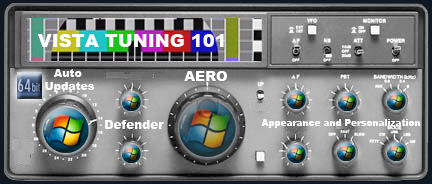
** Vista64 users should “tune” Vista for Video Editing.The main advantage for Windows users is access to more memory in Premiere Pro & After Effects.
Here are a few tips I use:
Things to turn off:
- Control Panels:
- User Controls
- Security Center>Auto Updates
- Windows Updates (check them manually)
- Windows Defender
- Appearance and Personalization>Change Theme>Windows Classic
When your done “tuning”, your Vista should look more like WIndows NT. You’ll see a much snappier interface. Also remember to close all open windows when not using them. This includes all open folders and drives on the desktop.Vista uses RAM to keep these windows open.
Please review the Known Issues in the Read Me file bundled with the RED Importer plug-in
Premiere Pro CS4
Editing in Premiere Pro CS 4.01
For these workflows, you’ll need Premiere Pro 4.0.1, After Effects 9.0.1 and the RED Importer plug-in
To create a new RED Sequence, open Premiere Pro, specify a project name and select Sequence settings that match your desired working resolution. 1k, 2k, 3k and 4k presets at various frame rates and aspect ratios are provided for working with all common RED file types.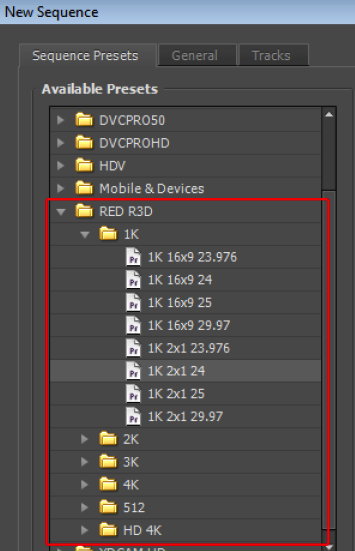
RED Presets are available inside Premiere Pro after the RED importer plug-in has been installed.
It is generally recommended to edit RED media in 1K sequences as this typically provides an optimal editing experience in Premiere Pro.
Native RED media can be imported directly into Premiere Pro without the need for additional logging or transcoding. To import RED media into Premiere Pro, choose File > Import or drag media directly into the Project Window.
Modifying global RED settings
To access global settings for RED media, select a RED clip in the Premiere Project panel, right-click to bring up the contextual menu and select: Source Settings. (The Source Settings menu item is also available in the Clipmenu)
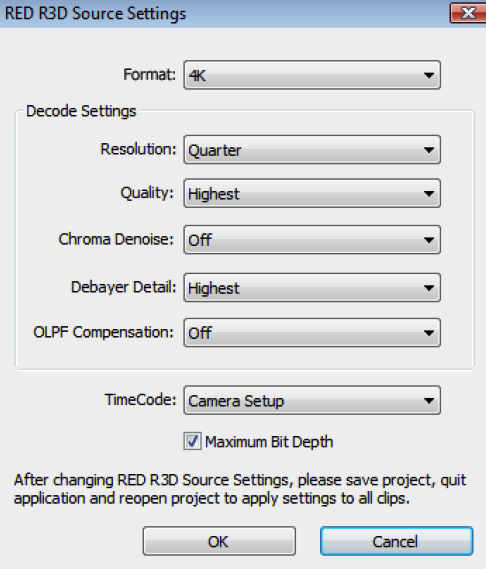
The RED Source Settings dialog applies a global setting to RED media for playback. This allows users to switch to a “working resolution” for optimal performance during editing. At any time, the settings can be restored to the RED media’s native (higher) resolution for final export.
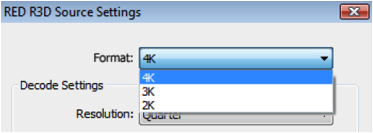
For example, to work with native 4K footage at 1/4 resolution, or 1K, select 4K in the Format popup menu at the top of the Red source settings dialog, and select 1/4 for the Resolution setting. (For 2K source footage, select 2K in the Format popup menu and set the Resolution to Half for 1K resoloution)
For RED sequences with resolutions greater than 1920 x 1080, all unrendered segments in the sequence will remain red and cannot be rendered to a preview file. However, scrubbing and playback is supported, and Dynamic Link will correctly export these frames to After Effects. Unrendered yellow sequence segments can be rendered using the Render Entire Work Area command in the Sequence menu.
Format
Select 4K for the Format setting.
Resolution
Next, select 1/4 for the Resolution setting and hit OK.
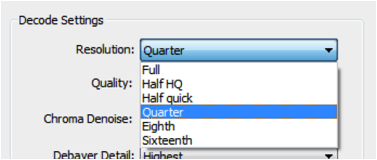
Full A full debayer to extract a 1:1 resolution (slowest).
Half HQ A high quality 1/2 resolution debayer (faster than a full debayer).
Half Quick A fast debayer for 1/2 resolution (faster than Half HQ but not as smooth).
Quarter 1/4 resolution output.
Eighth 1/8th resolution output.
Sixteenth 1/16th resolution output.
Next, save the project and quit Premiere. When Premiere is reopened, changes to RED source settings will be applied globally to all 4K clips in the project. Premiere Pro will now playback, import and export all RED 4K footage at 1/4, or 1K resolution.
Individual global settings can be specified for 2K, 3K and 4K media. It is not possible to apply different settings to individual clips.
The settings for each of the R3D Formats (4K, 3K, 2K) are stored separately and remembered. For example, once you set up parameters for 4K, switching to 2K allows you to set up different parameters for 2K.
Quality
Extracts varying levels of quality to improve playback speed.
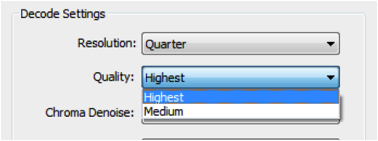
Highest always use this setting for final output. Default is highest.
Medium lower quality, used for better playback performance.
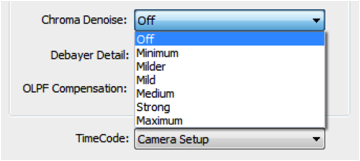
Chroma Denoise
Denoise on red/blue channels. Default is Off.
Debayer Detail
Controls the debayer’s detail quality. Default is Highest.
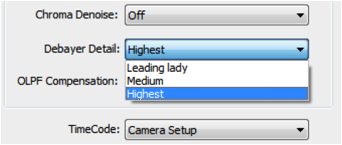
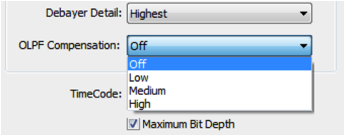
OLPF Compensation
Controls the optical low-pass filter (OLPF) that refines edge detail. Used to eliminate color Moire fringes. Default is Off.
Timecode
Select the timecode track to use from the R3D file.
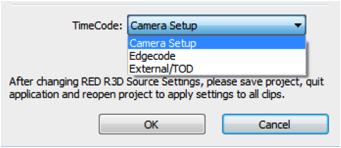
Camera Setup uses the the TC track that was selected as primary in the camera.
Edge Code selects the continuous media based timecode track.
External/TOD selects the external jam sync’d TC (or internal clock TC when not jammed).
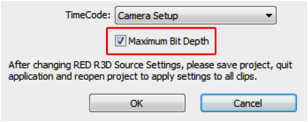
Maximum Bit Depth
Selects the bit depth.
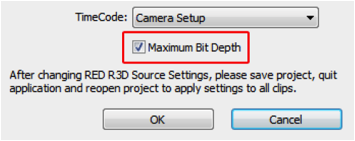
On 32-bit float
Off 8-bit
Optimizing performance
To optimize performance on your configuration, you may need to experiment with various combinations of settings for Maximum Bit Depth, Resolution and Quality in the Source Settings dialog, as well as adjusting Premiere’s playback quality settings.
Here are some adjustments you can make to optimize performance:
- Close all other applications when editing.
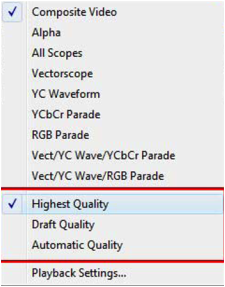
- Set Premiere’s Playback Quality setting to Draft if Automatic or Highest cannot play back in real time.
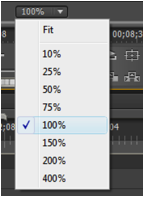
- Premiere’s default setting for the monitor’s zoom level is “Fit”. Setting the zoom level to 100% may also improve playback.
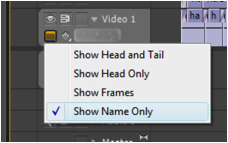
- Turn off thumbnails in the timeline.
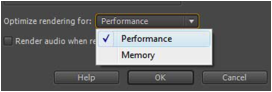
- Setting Premiere’s rendering preference to “Performance” will generally improve playback performance on a multi-core machine. (Preferences > General > Optimize rendering for Performance).
Note that this requires additional memory to take advantage of parallel processing. Conversely, if you are attempting to render out at 4K resolution, you may want to consider setting this back to “Memory” so that the application has the head room to deal with large frame sizes.- When Maximum Bit Depth is on in the Source Setting dialog, processing is at 32-bit float, and when off, processing is 8-bit.
(Turn this off to improve playback performance during editing in Premiere. When exporting to After Effects using Adobe Dynamic Link, this setting has no effect. After Effects always uses maximum bit depth.)- When exporting using After Effects, quit all other applications including Premiere Pro and wait for these processes to close before continuing:
- ImporterProcessServer
- ImporterRedServer
- Processcoordinationserver
This may take a minute or more after you quit the application(s). You can view the open processes in the Task Manager (Win) or Activity Monitor (Mac).
High resolution output from Premiere Pro
At this time, we recommend that Premiere sequences be exported through After Effects using its Render Queue. This method requires the least amount of memory and provides the highest stability for render intensive exports. Additionally, After Effects is required for all high bit depth exports such as 4k, 2k, Cineon, DPX, Targa and Tiff. There are 2 methods for exporting from Premiere via After Effects: importing a Premiere sequence directly into After Effects or importing a Premiere sequence using Adobe Dynamic Link.
Other RED export options from Premiere Pro, such as Export to Adobe Media Encoder and Send to Encore, have not been thoroughly tested. Results will vary depending on the complexity of your Project.
Exporting Premiere sequences using Adobe Dynamic Link to After Effects
Adobe Dynamic Link is only available in Creative Suite Production Premium.
After editing is completed in Premiere Pro using a working resolution sequence, RED media must be reset to higher resolutions for high quality export. This is typically performed as one of the final steps prior to the export process and provides full access to the native resolution and deep color of the RED media. In order to export at full resolution a new sequence must be created that matches the desired output resolution of the project.
For example, if your working resolution sequence in Premiere was created at 1K and the native resolution of the RED media is 4K, a common workflow would be to create a new 4K sequence inside of Premiere to be used specifically for the final export. The next step is to copy and paste the 1K clips into the newly created Timeline.Note that at this point, the clips do not fill the entire program monitor (they appear as smaller 1K clips). This is expected behavior as all 4K RED media is still set to decode at 1/4 resolution. Next, you’ll change the global RED source settings to 4K and the clips will appear at full resolution to fit the 4K output sequence.
For high resolution export, the global decode settings for the RED media need to be set to a higher resolution. In this example, let’s assume we want to export at 4K. After changing the RED decode settings to 4K, press OK. Next, save your Project in Premiere and quit the application. When Premiere Pro is reopened, changes will be reflected in your timeline and all 4K media will appear at full resolution in the 4K sequence. The project is now ready for export.
Unrendered red segments in RED sequences with resolutions greater than 1920 x 1080, will remain red and cannot be rendered to a preview file. Unrendered yellow segments in 1920 x 1080 and lower resolutions can be rendered using the Render Entire Work Area command in the Sequence menu. Rendering of either red or yellow segments isn’t required for export via Dynamic Link, which will correctly export these frames to After Effects.
The next step is to import a Premiere Pro Sequence into After Effects using Dynamic Link. After the sequence is imported, it can then be exported using After Effect’s Render Queue. This workflow preserves all edits, transitions and effects from Premiere Pro.
Step by step instructions:
- Inside Premiere Pro, create a new sequence that matches your final output resolution (example: 2K or 4K)
- Copy/paste your edited sequence from the working resolution sequence into the final output resolution sequence
- Reopen the RED Source Settings dialog and switch the settings to full decode resolution (example: 2K or 4K)
- Quit and relaunch Premiere in order for the settings change to take effect
- To export the sequence, quit Premiere Pro and wait for all Adobe processes to close before continuing.
- Launch After Effects
- Choose: File > Adobe Dynamic Link > Import Premiere Pro Sequence
- Navigate to the Premiere Pro project and select the RED final output sequence you wish to export
- After Effects will take a few moments to conform the imported sequence
- Place imported sequence into a Composition and make sure it remains selected
- Choose: Composition > Add Composition to Render Queue
- Select your desired export settings in the Render Queue
- Click on the Render button to complete your export
All transitions and effects applied in Premiere are sent via Dynamic Link. However, this method uses more memory than importing the sequence directly into After Effects. Depending on the complexity and size of your sequence, you may need to use the alternative method below, importing the sequence directly into After Effects.
Importing Premiere Pro sequences into After Effects for export
Use this option to import a Premiere Pro sequence directly into After Effects for export. Unlike Dynamic Link, all Premiere transitions and effects are not supported when importing directly into After Effects. For this reason, this method is most useful for cuts-only edits without transitions or effects applied in Premiere.
One advantage of this method is that creating a final output resolution sequence in Premiere is not required. You can import the working resolution sequence from Premiere and adjust the Composition settings in After Effects to achieve the desired final output resolution.
Direct import of Premiere Pro sequences or RED clips into After Effects requires setting up Interpret Footage’s Color Management for consistent color appearance between After Effects and Premiere Pro. See the Color Management instructions in the After Effects section below.
Step by step instructions:
- When finished editing in Premiere, quit and wait for all Adobe processes to close before continuing (see note in the Optimizing Performance section).
- Launch After Effects
- Choose: File > Import File
- Navigate to the Premiere Pro project and select the RED final output sequence you wish to export
- After Effects will take a few moments to conform the imported sequence
- Place imported sequence into a Composition and make sure it remains selected
- Choose: Composition > Add Composition to Render Queue
- Select your desired export settings in the Render Queue
- Click on the Render button to complete your export
After Effects CS4
RED R3D files may be imported directly into After Effects. Using these files in After Effects is very similar to using other types of footage. By working in 32 bits (float) color depth, extended range color information is preserved for accurate compositing and color correction. There are also several workflows for using Premiere Pro and After Effects together for integrating editing with effects. The combination also provides expanded output options from Premiere Pro.
For access to the RED Settings dialog from within After Effects, installation of an optional AE plugin is required.This plugin must be manually copied into the correct application folder. See the pdf installation instructions in the RED plugin installer folder labeled “After Effects only”. This plugin is recommended for AE projects that use R3D clips, but is not required for exporting a Dynamic Linked Premiere Pro sequence from After Effects.
To access the global RED Source Settings dialog, choose Edit > RED Settings… The Resolution and Maximum Bit Depth controls are disabled when this dialog is opened in After Effects. This is because RED resolution is controlled using the resolution popup menu in the Composition Viewer, and the bit depth in After Effects is always 32-bit float.
To temporarily work at a lower resolution, use the resolution popup menu in the Composition Viewer.
Configuring After Effects for R3D files
For consistent color appearance of R3D files between After Effects and Premiere Pro, you must change the way After Effects interprets R3D files. If your previous workflows relied on Color Management in AE (i.e.: your Project Workingspace is set to something other than None), the required change is to assign the HDTV (Rec. 709) color profile in the Color Management tab of the Interpret Footage dialog.
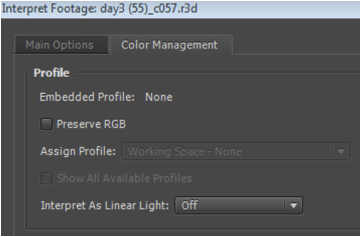
You can only select Assign Profile if you have color management enabled by setting the Project Workingspace.
However, assigning color profiles on a clip-by-clip basis can be time consuming. After Effects can make this change automatically on a global basis with a small revision to AE’s “interpretation rules.txt” file. This file is located at: Vista64: C:Program Files (x86)AdobeAdobe After Effects CS4Support Filesinterpretation rules.txt
Vista32/XP32: C:Program FilesAdobeAdobe After Effects CS4Support Filesinterpretation rules.txt
Mac: Applications/Adobe After Effects CS4/interpretation rules.txt
Add the following 3 lines of text directly above the line:
“# this soft rule should be the last in the list of soft rules”:
# rule to make red raw files available as Rec709
# with Gamma encoded 32bit float data
*, *, *, “R3D “, * ~ *, *, *, *, “r7hf”, 0
Once this change has been made, After Effects will automatically interpret the colors provided by the R3D plugin correctly.
Working with Premiere Pro via project import
Premiere Pro projects containing R3D files can be imported into After Effects. This creates a similar project in After Effects and preserves timelines edits and some effects. For example, color correction added to individual clips in Premiere Pro can be refined in After Effects.
Working with Premiere Pro via Dynamic Link
Dynamic Link allows content from one application to be shared with another without exporting intermediate files. Edits and other changes are automatically updated across applications.
You can use a Premiere Pro sequence as footage in After Effects. In After Effects, choose the File > Dynamic Link menu command. In After Effects, you’ll get a single linked clip that represents the duration of your Premiere sequence, but you won’t see all your individual cuts and clips (you still can access these in Premiere and continue editing there, and they’ll be updated in After Effects). Premiere Pro sends a complete frame with all effects, transitions, etc…nothing is lost.
Another advantage to using a Dynamic Link from Premiere Pro to After Effects is that you can then use After Effect’s render queue to export to a wide variety of image sequences and formats: 4k, 2k, extended color range DPX, 16-bit Tiff, TGA, etc.. Initial tests have shown this option to be faster and more robust than using Adobe Media Encoder. This workflow is pretty straightforward—complete your edit in Premiere, then as a last step, import the sequence into After Effects, add to render queue.