A large number of us do our encode/transcode work in compressor on the same single machine as we did our FCP editing on, or are about to author our DVD on. The point being that many of us don't have the luxury of raw extra computing power just sitting in a stack next to our desk waiting to become a Qmaster Cluster for distributed encoding. However, it turns out, there's a great pro-tip for Compressor users that allows you to basically do distributed encoding to yourself.
Earlier this year at the Mac Developer Conference, Apple introduced the next version of OSX coming down the pipeline next year (10.6 aka: Snow Leopard). One of the primary goals outlined for the new OS, was to greatly improve the utilization of all these “multi-core” CPUs we have running in our Macs these days. The reason being that while todays OS and Applications are in-fact Multi-threaded and do try to take advantage of all that horse-power, it's not optimized to the degree we'd all like it to be, and thus there are plenty of CPU cycles going unused.
The default installation of FCP/Compressor sets up Qmaster on your machine with only one instance of the process “CompressorTranscoderX”, the engine that drives encoding/transcoding from compressor. While Compressor is a multithreaded application, it trys to play well with others and thus does the grunt work as a background process where it's actaully rather passive with the amount of CPU it chooses to eat up and thus is only modestly effective at spreading those threads across your multi-CPUs/Cores. So the fundamental tip here is to actually create additional instances of “CompressorTranscoderX” process, enough instances to match the number of cores your machine has and then let Qmaster divvy up the task across all the processes. The result is that you are forcing better usage of your CPUs and in turn you'll see a very impressive bump in speed. Depending on how many CPUs/cores you have inside your box, your mileage will vary, but in my tests, I was able to shave off a whopping 30% to 60% of the encode time.
Clustering amongst yourself:
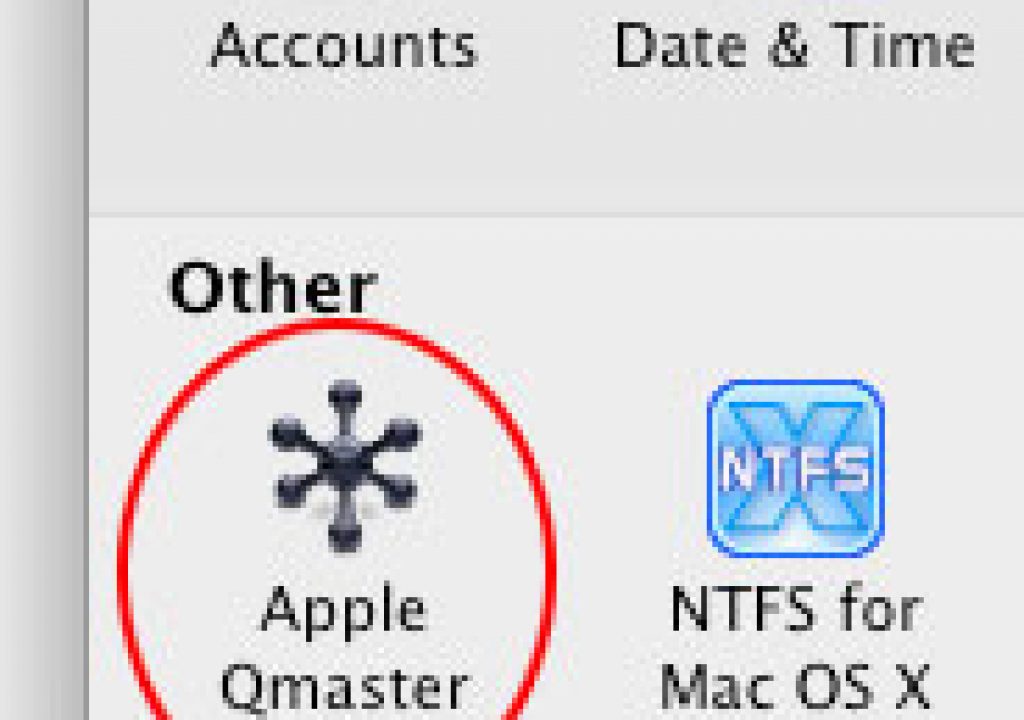
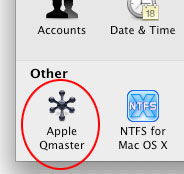
• Open System Preferences, and in the bottom row you'll find a preference panel for “Apple Qmaster”.
The Qmaster Preference Panel
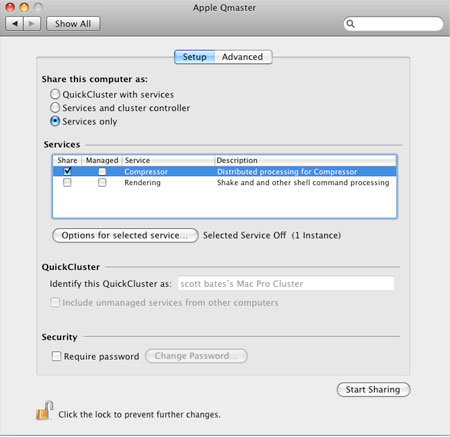
• Under the “Setup” Tab, choose 'Services only' for the Share this computer as: setting.• Select the Compressor service, 'Share' should be checked, and since we are only clustering with ourselves, there's no need to check 'Managed'.
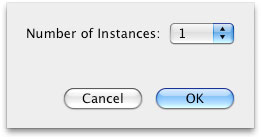
• Then the most important step, click the “Options for selected server”. This presents a pulldown selector for the 'Number of Instances'.
• From the pulldown, select the highest number available, it should match the total number of cores your machine has.
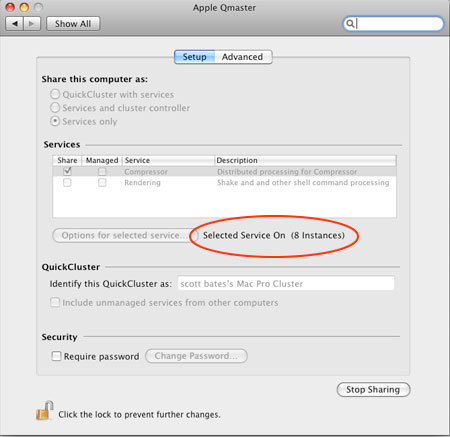
• Finally, click the “Start Sharing” at the bottom of the preference panel.The panel will grey-out as the services start up on your machine. This may take a minute the first time you do this. Once the services get up and running the final panel should look like this:
Taking advantage of yourself
The next time you are in Compressor, and hit the “Submit…” button to kick off an encode, there's a little check box in the submission panel you need to tick to take advantage of your new processing power.
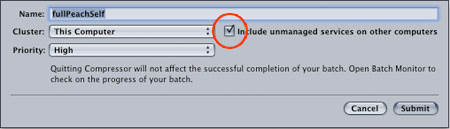
In the submission panel, the 'Cluster' pulldown should still be set to 'This Computer' as we didn't setup Qmaster with a multi-computer cluster. We're still just encoding on “this computer” only. To the right of the pulldown is the magic checkbox. Be sure to check “Include unmanaged services on other computers”. That's it. Simple, eh?!
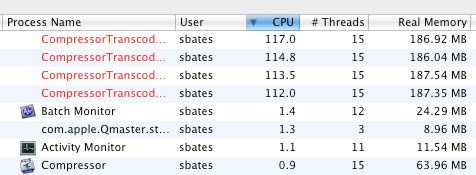
You can double check that all is running as planned by pulling up the Activity Monitor application in your Utilities folder. Sort by CPU and you should now see multiple “CompressorTranscoderX” processes at the top of the list during an encode. If you checked here before setting up your virtual cluster, there would have been just one of these processes listed.
Putting it to the test
To see how much improvement I could get by setting up a virtual cluster, I took two different machines and encoded a 10 minute Uncompressed 1080p24 clip outputting it with the default AppleTV setting (1280×720, h264). The first machine in my test is a first gen Mac Book Pro, so it has a core duo (2 cores) inside. The second machine is shiny Mac Pro with dual quad-core xeons (8 total cores).
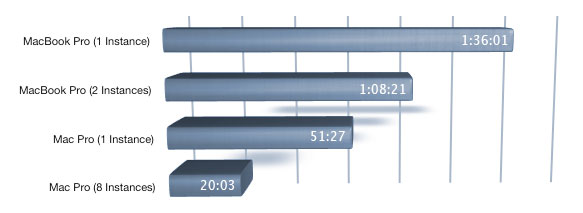
So the MacBook Pro finished 28 minutes faster or roughly 30% faster than it would have otherwise. The Mac Pro cut it's time in less than half. It shaved 32 minutes off it's already comparably faster time, improving a whopping 62%. An interesting note though on the 8 core Mac Pro, for this test, only 4 instances of compressor engaged.
Try this at home
The setup I described here assumes you are on a single machine and not necessarily connected to a network with other machines that might also be configured similarly. If you did try this in an office environment you may find yourself inadvertantly stealing your neighbor-cubes CPU cycles, so for those scenarios, try setting yourself up as “Quick Cluster” in the Qmaster preference panel and then in compresser choose your Quick Cluster from the pull down menu rather than “This Computer” and do not check the box for unmanaged services on other machines. This way you force your machine to keep to itself.
You can reach Scott at: [email protected]


Filmtools
Filmmakers go-to destination for pre-production, production & post production equipment!
Shop Now