

Filmtools
Filmmakers go-to destination for pre-production, production & post production equipment!
Shop NowA clever setup lets you monitor and control your Canon remotely.

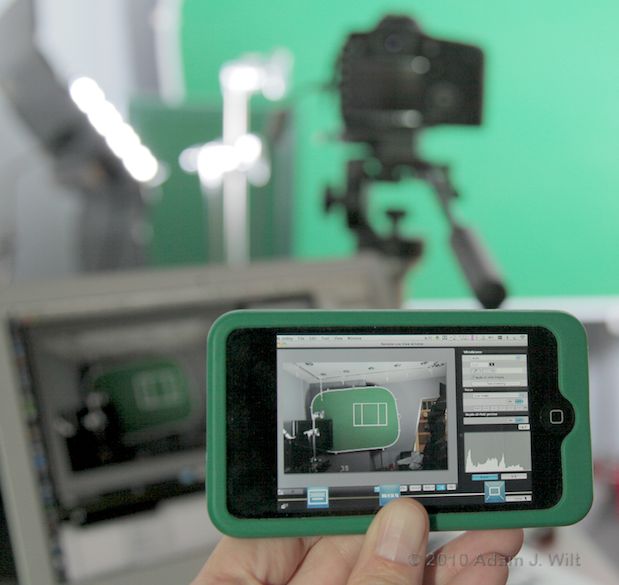
Berat User, a DP working in Chicago with Canon HDSLRs, came up with a clever way to monitor the camera’s image remotely while walking around the set.
He posted the following message on CML, and I reproduce it here with CML’s permission:
Occasionally you need to see the frame and make lighting decisions remotely.
If anyone needs remote monitoring and recording with iphone here is how to do it:
You need:
1. a mac with wireless capability (I have not tried it with a PC)
2. EOS utility
3. iphone
4. VNC iphone app like iteleport or any VNC app that allows screen sharing.I use iteleport since the setup is relatively fast and trouble free.
Setup for remote monitoring:
1.Create a network with your mac. That is computer to computer wireless network.
2.Make sure your VNC app on iphone is setup correctly. If it is working you should be able to see your mac (I have a macbook pro 13) screen when you connect from your iphone over the same wireless network you have just created.
3.Plug in DSLR (I use 7D and 5D) via USB to computer.
4. Start EOS utility and open remote live view.
5. The live view will be displayed on your iphone. This way you can also trigger recording from iphone.There is a 1-3 sec delay in display, and it is not 30fps but if you are going around the set and setting lights at least you can see what the camera is seeing.
Enjoy.
I had to try this out: I installed the EOS remote-control utility from the CD-ROM that came with my 7D, cabled the 7D to my MacBook Air, and installed the free Mocha VNC Client on my iPod Touch for testing purposes. I used our house network instead of setting up a peer-to-peer network in step 1 of Mr. User’s tip, and I also made sure that the MacBook Air’s Screen Sharing was enabled in System Preferences (with the “All Users” option, as required by non-Apple VNC clients), and hey presto! I had a wireless monitor for my Canon!
Just for grins, I tried the same thing with an iPad:
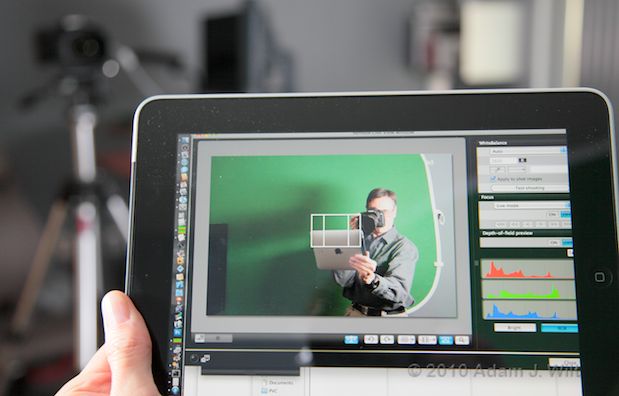
Hot dang! The big screen!
Now, not everyone has drunk deep draughts of Apple-flavored Kool-Aid, so I should add that the Canon EOS Utility runs on both Mac and Windows, and any WiFi-enabled VNC client (on Android, Windows Mobile, PalmOS, a Netbook, etc.) should work just as well.
It might be churlish for me to suggest that one could avoid all this techno-geekery altogether by simply cabling the camera to a large HDMI monitor and aiming the monitor at the set. While one could certainly do so, one would sacrifice the ability to see the camera’s picture even when there’s no line of sight back to the camera. One would have to turn one’s head and peer at a distant display, perhaps while inconveniently and precariously perched on a ladder. One would give up the remote-control capability to adjust aperture, gain, and the like.
And one would definitely give up the cool factor.
16 CFR Part 255 Disclosure
I own all the equipment I used in this post; I paid market rates for it, with no special deals. I have no material connection to Canon, Apple, Mochasoft, or any other vendor mentioned. I have received no compensation of any sort to review or recommend any of the software, hardware, or procedures discussed.
Be extremely careful when precariously perched on a ladder. Use an iPhone, iPod Touch, or iPad only if it’s safe to do so; if in doubt, descend to the floor and be techno-geeky cool when standing safely on the ground.