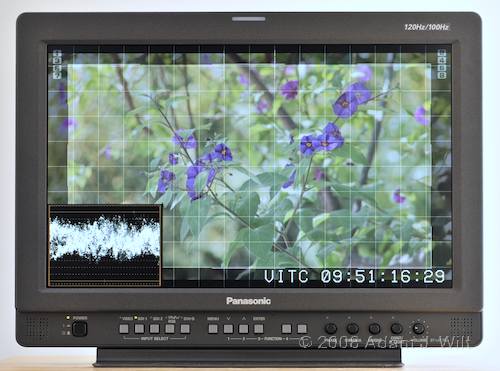
The highly capable 1760 is a worthy upgrade from the 1700W.

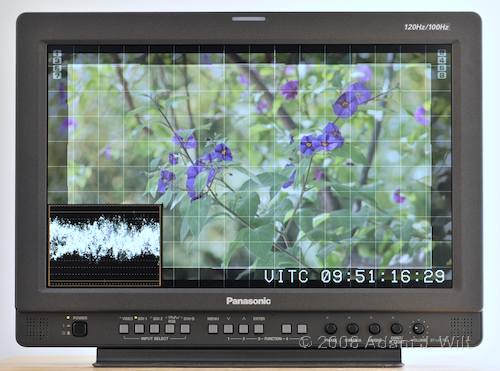
Panasonic BT-LH1760, showing cross hatch, WFM, VITC, audio meters at the top, and 90% safe area marker with half-shaded background.
The $4500 Panasonic BT-LH1760 is a 17 inch, 1280×768 video monitor with multiple analog and digital inputs and a 100/120 Hz refresh rate for crisp motion rendering. It displays NTSC, PAL, 720p, and 1080i/p signals in both analog and digital, and offers a high-resolution waveform monitor for all video inputs, as well as a vectorscope, timecode, and audio level monitors for SDI inputs. It also has a wide selection of aspect ratio and safe-area markers available.
Panasonic’s earlier BT-LH1700W monitor, which remains in the lineup at $3400, has a reputation for robustness, reliability, and a good picture (though some say it’s a bit on the greenish side). The BT-LH1760 builds on the 1700’s strengths, adding a faster LCD with better motion rendering, color, and off-axis viewing; pixel-for-pixel unscaled viewing; embedded SDI audio decoding and display; twice the detail in its WFM; SDI vectorscope and timecode readout; and five programmable function buttons. The 1760 loses the 1700W’s Y/C (S-Video) input but gains DVI-D in its place, making computer connections easier.
Design
The BT-LH1760 is a compact, flat panel in a sturdy metal case. It’s about 17 inches wide, a bit under 13″ tall, and just over 3 inches deep. It weighs about 13.5 pounds. If you include the metal stand it ships with, the depth increases to 8 inches, and the weight increases to 15.5 pounds.
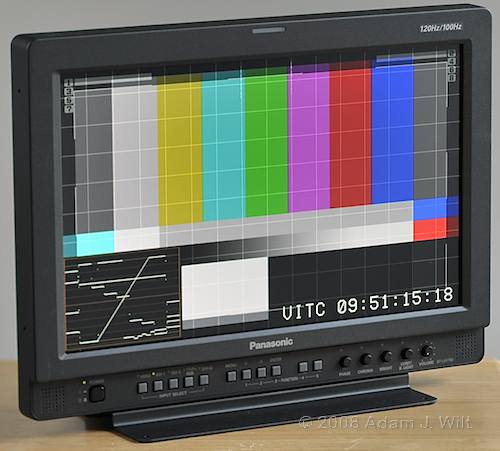
1760, showing cross-hatching, audio metering, 93% safe area, WFM, and VITC.
The case is finished in a slightly rough paint with a subtle metalflake sparkle. The textured surface provides good non-slip traction when picking up the monitor while the dark gray color doesn’t distract from the picture. The texture also reduces problems with reflections.
The panel itself has a slightly semi-matte finish: not as flat and light-diffusing as a pure matte, so blacks stay dark and rich; yet not as reflective as a glossy screen, so reflections aren’t distracting. I find it a very usable compromise that works well in a variety of indoor and outdoor situations. Panasonic offers both an acrylic protective cover and a glare hood as optional accessories.
A small white window in the top of the frame covers red and green tally-light LEDs, which can be illuminated via GPI closures, just as on the 1700. Turning both tallies on lights up the window in orange.
Controls reside below the panel, including the push-on, push-off power switch; input selectors for composite, SDI1, SDI 2, component, and DVI; menu and function buttons, and rotary controls for phase, chroma, brightness, contrast/backlight, and volume.
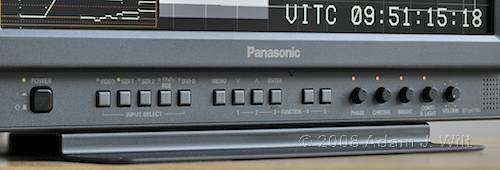
The 1760’s front panel controls.
Four buttons—menu, up, down, and enter—handle menu navigation, while two buttons are dedicated to user-programmable functions, just like the 1700. However, when menus aren’t displayed, the three rightmost menu buttons are also function buttons, so you can program five different operations for recall directly from the front panel—a great improvement over the 1700.
The rotary picture controls need to be pressed in to engage them, so inadvertent twiddles don’t screw up your calibration. A yellow LED lights up for each control set to a non-standard position.
Small speakers are housed on either side of the controls; they’re confidence-monitoring quality, not hi-fi, but they work fine for their intended purpose. If you’re pickier about sound, there’s a stereo minijack on the back for headphones.
The 1760’s backside offers VESA mount attachment points and an array of connectors.
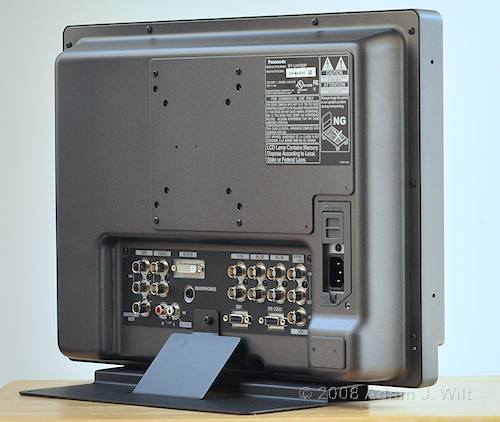
The backside of a 1760.
Unlike the 1700, there is no fan vent on the 1760 (and no fan); indeed, there seem to be no cooling vents of any sort—not that they’re needed; the monitor runs cool to the touch. Also missing is the cover plate for an SDI embedded audio option: the 1760 comes with embedded audio decoding as standard equipment. The right side of the rear panel has an IEC power input (auto-switching), while a sliding cover above it exposes a 4-pin power connector for battery operation (the cover allows either AC or DC to be connected, but not both simultaneously). The 1760 ships with a heavy-duty grounded power cable with a right-angle plug at the monitor end, so the cable lies flat against the back panel.
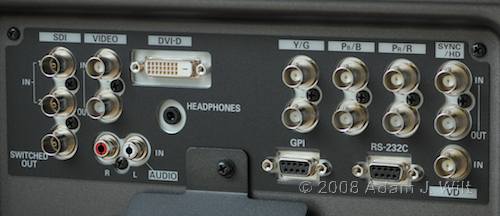
The 1760’s rear panel connectors.
The monitor has two SDI / HD-SDI inputs, with a switched SDI output that passes through whichever SDI signal is selected. There are also loop-through connectors for composite and component video; the latter may be RGB or YPrPb (YUV). The 1760 can use sync-on-green (or sync-on-Y) for its component input, or separate sync, or even separated H and V drive signals, making it compatible with just about every bit of component analog gear in the world.
There’s a DVI-D connector for either computer or video connections, a headphone jack for critical audio monitoring, and two-channel analog audio inputs using RCA jacks. Two DB9 connectors provide remote control: one is a set of GPI inputs, while the other is RS-232 serial control.
Compared to the 1700, the 1760 adds the DVI-D and headphone jacks, but it offers no Y/C connection. I mourn the loss; I far prefer Y/C monitoring to composite monitoring with all of composite’s cross-color and cross-luma artifacts. Still, life moves on; fewer cameras these days ship with Y/C outputs standard, or with the necessary cabling (I won’t mention Sony by name, but you can assume whatever you want, grin), and the added versatility of the DVI-D connection and the headphone jack is a big win.
The monitor ships with a fixed metal stand, which holds the 1760 bolt upright, perpendicular to the surface it’s placed on.
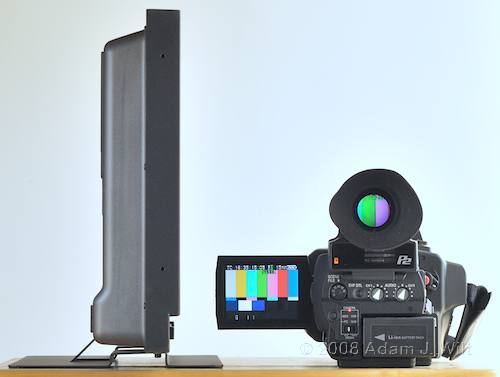
1760 side view, with HVX200 for scale.
The stand has no adjustability whatsoever, and many people remove it in favor of more flexible arrangements. I really like the Porta-Brace MO-LH1700 soft case, while some folks recommend the VFGadgets LCD Light Stand Mount. Having said that, I’ve never seen fit to remove the identical stand from my 1700; it works well for what it is, and it’s strong and stable.
Still, my 1700 is the only one I’ve seen in the field with its stand still attached, and I do miss the ability to tilt the monitor (to be fair, Panasonic offers the $250 BT-STAND desktop stand; it may offer adjustability, but I can’t find any more info or images of it; it’s not even listed in Panasonic’s LCD monitors line-up catalog, and I’ve never seen one in the field that I know of).
The monitor may also be rack-mounted.
Controls, Menus, Onscreen Indications
Pushbuttons select any of the five inputs, and each one has a green tally LED to indicate selection. By default, the current input setting is displayed onscreen for 3 seconds, but you can set it to be on all the time, or off all the time, too.
Four menu keys drive the menu system in the usual manner: Enter to select, Up and Down to navigate, Menu to back up a level. Rather than describe the menus in detail, I’ll simply hit the highlights; you can download the full operating manual directly via FTP.
- Display standard-def images as 4:3 or 16:9.
- Turn on markers for 4:3, 14:9, Cinemascope, or other aspect ratios, as well as a cross-hatch grid (shown in most of the photos), a center marker, and several different safe areas. Areas outside the safe areas or aspect-ratio markers can be shown at full or half intensity.
- Choose D56, D65, D93, or user-selected white points.
- Vary R,G, and B gains and biases.
- Choose between SMPTE-C, EBU, and ITU-709 color spaces.
- Choose where to position the menus, and choose which corner to display the WFM and vectorscope in.
- Program which functions are triggered by the five programmable function keys and the eight GPI inputs.
- Set the pixel-for-pixel area displayed from a 1080-line image: the center of the picture, or any of the four corners.
- Choose normal gamma, a gamma for viewing Varicam Film Rec. images, or a “studio/pst” setting to emphasize colors (“a mode that approximates CRT display capability suitable for studio or postproduction application”; I didn’t see this being noticeably different from the normal gamma setting).
- Vary H and V sharpness (image-enhancement) levels and edge thicknesses.
- Choose between inter-field and inter-frame modes of interlaced-to-progressive conversion. In inter-field mode, a paused interlaced image will show both fields onscreen, with interlaced combing visible; in inter-frame mode, the fields are interpolated to remove the combing artifacts, but a freeze-frame will flicker at the field rate. Both look equally sharp to my eye on moving video, though Panasonic recommends inter-frame mode for fast-moving subjects; I find inter-frame mode is slightly softer vertically.
- Choose which two embedded audio channels to monitor.
- Display audio bar graphs for 2, 4, or 8 embedded audio channels.
- Display an onscreen WFM (waveform monitor, all inputs) or vectorscope (SDI inputs only).
- Select vectorscope scale and magnification level (SDI inputs only).
- Select side-by-side display mode: full-height center cuts, or full-width images, shrunk to fit. The 1760, like the 1700, can freeze an input, then show another live input of the same scanning format side-by-side with it.
- Show / hide closed captioning (NTSC composite inputs only).
- Show LTC or VITC, TC or user bits (embedded SDI inputs only).
There’s a lot going on here; fortunately, you don’t need to dive into the menus every time you want to use a feature. Most of the things you’d change on a daily basis can be assigned to one of the five function keys or eight GPI triggers.
The function keys are a step above those on the 1700 in two ways: first, there are five of them instead of two; second, when pressed, each function key briefly displays what it and its brethren are set up to do:
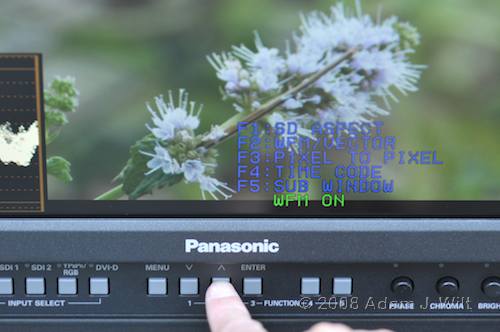
Pushing a softkey shows what functions are assigned as well as performing a function.
With the 1700, I normally have the two function buttons set up to switch SD scanning between 4:3 and 16:9, and to display the WFM, but this leaves other useful things—blue-only, H/V delay (pulse-cross), and marker on/off—accessible only through the menus. The 1760 lets me set all of these on functions keys at the same time; ironically, though, the 1760 now has more things I want on a single keypress, like pixel-for-pixel mode, timecode and audio overlays, and the cross-hatch grid! Still, five direct-access functions is a lot better than two.
Next: Performance and Conclusions…
Performance
The 1760 is a 720p-native display: 1280x720p signals fill the width of the screen, pixel-for-pixel, with just a tiny black band above and below the image (the panel is 1280×768). Standard-def images are scaled up to fit, while 1080-line images are scaled down. Interlaced images are converted to progressive using either field- or frame-based methods as described above. I have yet to find anything to complain about with either the scaling or the I-P conversion; the 1760 (like the 1700) does a great job displaying both panel-native and non-mative material.
The 1760 is capable of displaying just about every format out there, depending on the input connector used:
- NTSC and PAL;
- 480i and p;
- 576i and p;
- 720/50P, 59.94P, and 60P;
- 1035/59.94I and 60I;
- 1080/23.98P, 24P, 23.98PsF, 24PsF, 25P, 29.97P, 30P, 50I, 59.94I, 60I, 59.94P, and 60P!
On the RGB and DVI ports, it’ll also handle 640×400, 640×480, 800×600, 1024×768, 1280×768, and 1280×1024, at a variety of frame rates. [1]
The big news about the 1760 is its double-rate scanning: 100 Hz for 50 Hz inputs, and 120 Hz for 60 Hz inputs. When double-rate scanning is enabled (it can be turned on or off in the menus), the display is refreshed at twice the normal refresh rate, with dark frames or fields inserted in the extra scans. This scanning does two things: it improves motion resolution by cutting the “dwell time” of an image in half, and it reduces the overall light level, since the screen is dark half the time.
According to Panasonic’s Product Line Business Manager Steve Golub, the dark frame isn’t entirely black; it has “a certain level of luminance determined from the previous frame, thus it is not just simply half of the luminance at 120Hz mode compare to 60Hz. … This is done so that the overall luminance level is
maintained.” While one might worry that a variable-level dark frame could cause fluctuations in contrast or black levels, in practice I saw no such issues: the 1760 appeared to hold blacks and contrast very consistently with inputs of widely varying average picture levels.
I set up the 1760 side-by-side with my 1700 to see how much of a difference there is between the two. I set both up for D65 white points, with chroma, contrast, and brightness at defaults, and I left the 1760 in double-rate scanning mode (the default). Both monitors were fed the same images via SDI. I photographed them using a Nikon D300 set to a fixed white balance of 6625K (the closest setting to D65), and did not fiddle with the color, nor dodge and burn the photos, before posting the pix below.
[Note: we’ve all seen the ads for TVs, always saying “simulated TV picture”. That’s not the case here: every one of these images shows the LCD screen unretouched. I may have tweaked overall exposure, and changed overall color balance in the beauty shots, but the pix show exactly what the Panasonic monitors displayed. In terms of overall exposure, evenness of illumination, and black levels, what you see is what I got.]
The 1760 is within 1/3 of a stop of the same brightness as the 1700, not bad when you consider that the 1760’s screen is dark (if not entirely black) 50% of the time. Presumably, if I turned off double-rate scanning, it would be almost twice as bright (I didn’t think to try this until after I’d returned the 1760). Panasonic claims the 1760 “consumes 50% less power in AC operation than prior models”, which correlates somewhat with my almost-as-bright-but-dark-half-the-time observation, but in fact the 1760 drew 46-48 watts (the former with an analog NTSC feed, the latter with a 1080i SDI feed with embedded audio) while my 1700 draws 48 watts all the time (as measured by a Kill-A-Watt meter).
Viewed on-axis, the two monitors match very closely in brightness, but the 1760 holds blacks a little bit better, and is not quite as green as the 1700.
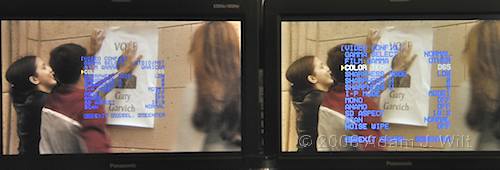
Menus and color: 1760 (left) and 1700 (right)
As the most common complaint I hear about the 1700 is its slight green bias, the 1760’s color should please most folks.
Also note the menus: the 1760’s menu text is half the size of the 1700’s. Put another way, the overlay dot pitch on the 1760 is twice that of the 1700—and this translates to the waveform monitor, too. The 1760’s WFM appears to be twice the resolution of the 1700’s, both horizontally and vertically: while the 1700’s WFM is a fairly coarse “confidence monitor”, the 1760’s is fine enough to see subtleties and nuances; it’s good enough to light by. Mind you, it can’t overlay signal from two cameras at once, it can’t show chroma, and it doesn’t offer a parade display, so it’s not a replacement for the WFM in your engineering rack, but it’s a welcome improvement on the WFM in the 1700.
In off-axis viewing, the 1760 seems to have a slightly narrower “cone of imperceptible degradation”, but overall it holds both color and tone over a much wider viewing angle than the 1700.
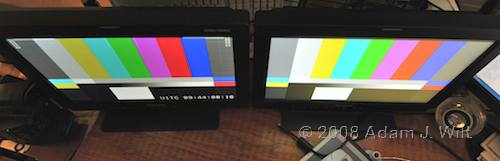
A view from above: 1760 (left) and 1700 (right).
The 1700 rapidly degrades as one moves above or below the ideal viewing axis; its black lose density and there’s a decided greenish shift in color.
The 1760, by contrast, holds black levels and colors very accurately; it simply loses some brightness.
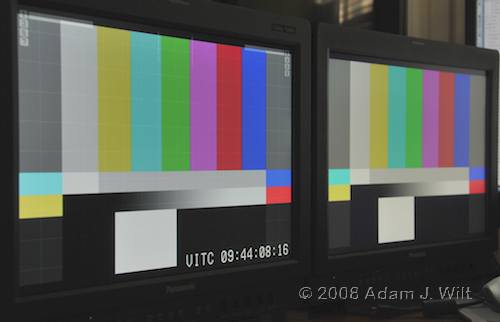
Side view: 1760 (left) and 1700 (right).
From the side, the differences are less pronounced. The 1700 goes greenish. The 1760, if anything, goes slightly cold, with a faint blue tint, but it’s minimal. Again, the 1760 holds its black levels very well, with perhaps some loss of shadow detail, but the change overall in shadow detail is much less than the 1700 shows.
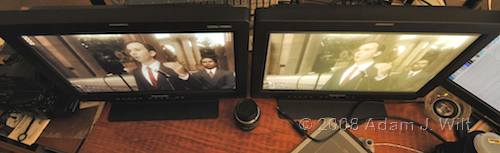
Another view from above: 1760 (left) and 1700 (right).
The top view with a real image instead of bars again shows the difference between ’em: which one would you prefer to make a critical color or exposure judgement on?
To look into what the double-rate scanning actually did to the image, I built a simple graphic of a vertical white stripe:
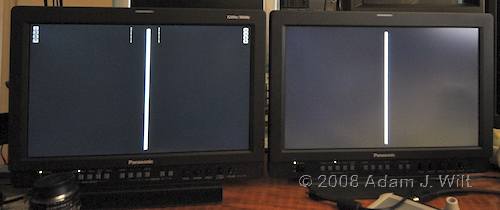
Swish-pan test image: 1760 (left) and 1700 (right)
I set my DSLR’s shutter to 1/5 sec, and shot swish-pans past the screens until I got the following image:
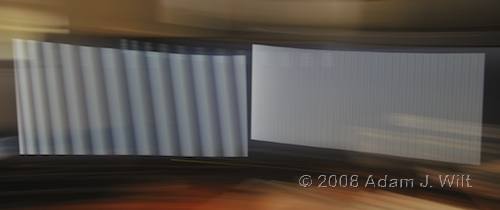
1/5 second swish-pan: 1760 (left) and 1700 (right)
Sure enough, there are 12 vertical refreshes of the image on the 1760, with dark fields inserted in between. This corresponds to 60 fields per second, plus 60 dark fields: 120 Hz updating. The tilt of the bars shows that the image is refreshed sequentially from the top down, just as on a CRT.
The 1700, by contrast, shows a mostly-undifferentiated smear of light, as its 100% duty-cycle display blurs one field or frame into the next. (The faint vertical striping in the 1700’s swish-pan may be a result of backlight pulsation; it appears to be flickering at around 200Hz. If you’ve got a better explanation, leave a comment!)
Looking at real-world, moving images, the 1760’s dark-frame insertion results in visibly less smear on fast-moving objects. It’s not quite as sharp as a CRT (where the duty cycle is on the order of 1%: the bright glow left on a television CRT by the scanning electron beam only lasts a few microseconds after the beam passes, though some small glow may remain for tens of milliseconds), but it’s noticeably “crisper” in motion rendering than the 1700 or similar, 100% duty-cycle LCDs.
(Of course, the reduced duty cycle also means that if you’re shooting a 1760 at a frame rate other than the display’s rate, such as a 24p shoot of a 60i image, you’ll need to pay attention to shutter angles / Synchro Scan / Clear Scan settings to avoid flicker and roll bars, just like when shooting a CRT!)
Overall, the picture is very pleasing. The high brightness of the image, and the 1760’s vastly improved accuracy in off-axis viewing, makes it suitable for use in the rough-and-tumble environment of field production. It’s even bright enough to use outdoors in open shade without a hood.
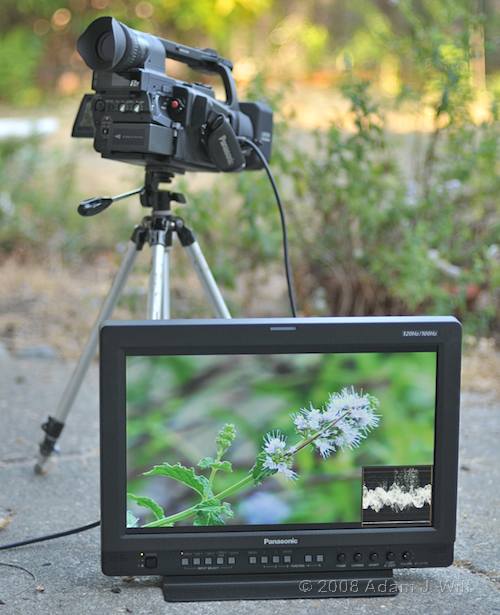
The Panasonic BT-LH1760 is bright enough to use outdoors.
Conclusion
The 1760 is a 17 inch 720p monitor; it’s small enough to be easily portable, yet large enough to view HD without getting eyestrain. It’s not 1080-native, but it has pixel-for-pixel monitoring when that level of detail is required. It’ll handle almost any video standard you throw at it, whether analog or digital, and it’ll accept computer connections, too. AC and DC powering makes it equally at home in the studio or in the field.
If it has the same durability as the 1700W, I’d expect the 1760 to rapidly infiltrate the rental community, as it’s a significant improvement over the popular 1700W in almost every respect. Only those of us who use Y/C connections for standard-def monitoring have anything to complain about (well, that, and the higher price, grin). But the 1760’s superior motion rendering, color, and off-axis viewing performance, along with the addition of DVI-D and headphone jacks, should serve to win over even whiners like me.
Pros
- Bright picture; very good color and tone.
- Minimal color and tonal errors when viewed off-axis; black levels well preserved.
- Excellent scaling and interlaced/progressive conversion.
- Pixel-for-pixel monitoring for critical 1080-line focusing.
- Double-rate scanning with dark-frame insertion for better-than-normal motion rendering.
- Detailed waveform monitor.
- Vectorscope, timecode, and audio level displays (SDI only).
- Full complement of composite, component, and digital inputs.
- Embedded SDI audio monitoring.
- Good user controls with plenty of customizability.
- More overlays, grids, safe action areas, etc. than you can shake a stick at.
- 100-240V AC and 11-17V DC powering.
- If it’s as robust as the 1700W, it’ll take a lot of abuse.
Cons
- No Y/C input.
- Silly fixed-position metal stand.
- Vectorscope, timecode, and audio level displays only work with SDI inputs.
Cautions
- Screen is neither truly glossy nor truly matte; if you need one or the other, you may want to keep looking.
- Non-glossy screen may cause washing out of blacks in certain lighting conditions.
- Even five function keys aren’t enough!
- Split-screen mode can’t show two live pictures, only one live plus a freeze-frame.
- Pricey for a 17 inch, 720p native monitor, but worth it if you need what it does.
When it came time to send the 1760 back to Panasonic, it occurred to me that the 1700W would fit in the box just as easily as the 1760, and if I were very, very lucky, no one would notice… but good sense took over and I returned the 1760 after all.
In summary, the BT-LH1760W is well worth putting on your short list if you’re looking for a bright, rugged LCD monitor with crisp images, a wide viewing angle, multiformat compatibility, and added features like audio monitoring, WFM/vectorscope, and overlay markers.
More Info
Specifications and operating manual here: http://catalog2.panasonic.com/webapp/wcs/stores/servlet/ModelDetail?displayTab=O&storeId=11201&catalogId=13051&itemId=243666&catGroupId=14625&surfModel=BT-LH1760
Wayne Cole’s review for Government Video.
[1] There’s no native support for British 405-line and French 819-line monochrome formats (both obsolete and off the air for decades), nor for Eureka 1250/50I (a defunct European analog HDTV standard), but if you can live without these, the 1760 should handle anything you throw at it. [2]
[2] Ok, it won’t help much with John Logie Baird’s 30-line and 240-line mechanical television formats, 441/50i and 441/60i, Baird triple-interlace and CBS frame-sequential color systems, and the like. Sorry. I meant any modern standard, say, one used within the past 20 years. OK?


Filmtools
Filmmakers go-to destination for pre-production, production & post production equipment!
Shop Now