

Filmtools
Filmmakers go-to destination for pre-production, production & post production equipment!
Shop NowUndoing the PAR and color management enhancements in After Effects CS4.


After Effects CS4 has introduced two subtle but important changes in the way it deals with many common video formats:
1) There are new PARs (Pixel Aspect Ratios) for NTSC and PAL standard definition 4:3 and 16:9 content. (Actually, they’re not new; they’re the correct, original ones that no virtually one actually used – until now.)
2) Color management now makes a distinction between scene-referred (how you shot it on the set) and output-referred (how it will be displayed at home or in the theater) profiles, and will adjust the former to look like the latter on your normal computer display.
In the long run, you really want to embrace these two changes. And we’re in the process of working up a pair of articles for PVC on these subjects (they will appear in the CMG Keyframes channel, hopefully in the next couple of weeks). But in the near term, these two changes are causing some users headaches, especially as they update projects from earlier versions of After Effects to CS4: however subtly, colors are switching and shapes are squishing. This is causing users to cry out “please – make it go away!”
Okay – here’s how:
Color Management
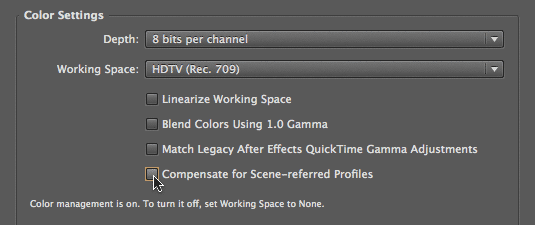
We’ll start with the easy one: Disabling the changes surrounding scene- versus displayed-referred profiles. If you have color management enabled (in other words, your Project Working Space is set to anything other than None), open File > Project Settings and disable Compensate for Scene-referred Profiles.
When you’re ready to start learning about the important feature you just disabled, Adobe has a white paper on the subject. Just be prepared to read it a few times before it sinks in. (We’re working on a plain-language version of it.)
Pixel Aspect Ratios
Prior to Creative Suite 4, After Effects (and essentially every other piece of desktop video software out there) had been using the wrong PAR values for SD footage. After Effects CS4 uses the correct values, and updates old projects opened in CS4 to the new values. However, these new pixel aspect ratios seem unintuitive to some users, and also don’t line up with other programs that still use the old, incorrect values. As a result, many early adopters have asked for a way to go back to using the old values.
If you’ve ever wished for a change in the way After Effects behaves (such as anti-aliasing pixel aspect ratio corrected comp displays), there’s a chance an option to do so is hidden away in its “text preferences” file. These options are undocumented, often untested, and therefore inherently risky – but there they are, just asking for you to laugh at danger and try them out. Just don’t come crying to Adobe or us if they don’t work…
Anyway: There’s a text preference to continue to use the old PAR values for old projects. Here’s how to activate it:
- Quit After Effects.
- Locate the text preferences. On the Mac, the path is (your user name) > Library > Preferences > Adobe > After Effects > 9.0 > Adobe After Effects 9.0 Prefs; the path is similar under Windows. Duplicate this file in case you screw it up.
- Open the original file in a text editor. Search for the phrase “Disable Automatic Upgrade of PAR” (see below).
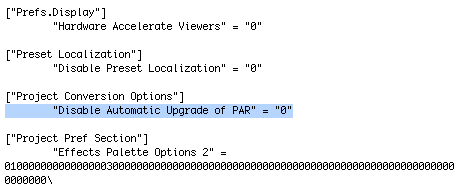
- Change the value after this phrase from “0” to “1”.
- Save the file, and restart After Effects.
 Now, when you open an old project (one that has not been saved yet by After Effects CS4), it will continue to use the pre-CS4 values.
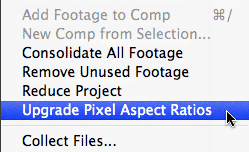
To convert your old project to the new values, take advantage of the new menu item your text pref edit also uncovered: File > Upgrade Pixel Aspect Ratios. Select it, and After Effects will comb through your comps and footage items, updating them to use the new values, and tell you afterward how many items were upgraded, as shown below.
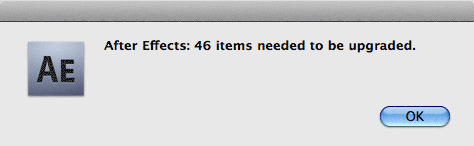
This action can be undone. Just note that any new comps you create, or footage you import, will get the new ratios regardless.
Again, we’re working on an article explaining the details behind this change, and what tweaks will be required in your workflow to accommodate them. In the meantime, click here to jump straight to the subject in Chris Pirazzi’s classic online article Programmer’s Guide to Video Systems.
And remember: Technology isn’t inherently good or evil; it’s how you use it.
Scene- vs. Display-Referred Color Management
The promised article on this subject is now online. The pixel aspect ratio piece should be up before the end of the year; hopefully sooner.
The content contained in our books, videos, blogs, and articles for other sites are all copyright Crish Design, except where otherwise attributed.