A quick tour of the new features that will be of interest to motion graphics artists.

Adobe has announced their Creative Suite 4, in which they have aligned the schedules of virtually all of their products to be updated at the same time. One of these programs is, of course, After Effects, which we have based our business around since its release in 1992. As a result, we obviously go over each new release with a fine-tooth comb, looking for which new features will make our lives easier, will give us new looks, and which may open up new avenues of business for us. That last point has become particularly interesting in light of Adobe’s acquisition of Macromedia, plus their focus on integrating functionality across the various programs in the Creative Suite.
In this article, we will give a brief overview of many of those new features. In addition to articles up here on ProVideoCoalition, there are several other places where you can glean additional information:
- Later Tuesday afternoon (the 23rd), Adobe will be placing the”live help” file for After Effects CS4 online. When it is up, you can access the entire Help file by clicking here, and search for features of specific interest. Click here to jump straight to the New Features page; click here to jump straight to the page that describes changes in the User Interface between CS3 and CS4.
- We’ve created an hour of video training on using the new features in AE CS4 for lynda.com’s Online Training Library. The course is called After Effects CS4: New Creative Techniques; when it goes live, it can be found here. Two of the movies are scheduled to go online at the same time as the CS4 announcement; the remaining ten will go live once CS4 ships. lynda.com will also be posting New Feature previews for Illustrator CS4, Flash CS4, and Photoshop CS4, plus full courses for the new features in Fireworks CS4, Soundbooth CS4, and Dreamweaver CS4 (these last three are available as public betas from the Adobe Labs web site.) If you don’t already have a yynda.com subscription, you can get a free all-access 7-day trial on us by clicking here.
- We’ve also written an article about the new features in AE CS4 for Focal Press, which appears at www.CMG4CS4.com. That article also outlines our plans for our books in relation to CS4.
On to our hit list of interesting new features in AE CS4:
User Interface
Let’s get the most obvious feature out of the way first. After a major overhaul in CS3, the UI has gotten some additional tweaks in CS4. It’s darker, it’s tighter (fewer rounded corners), some of the objects are smaller (be still, shaking mouse hand), some UI names are shorter (while other names are longer – for example, character limits on comp and layer names as well as many other items have now been lifted), selected layer bars have texture again, the Render Queue is a lot more space-efficient, and so forth. There are other nice tweaks as well, such as Layer and Comp markers finally having parity in regards to features, and markers can now have a duration (illustrated as a thin bar extending away from the marker, underneath its text). There are also a few gotchas, such as the shortcut to open Interpret Footage having changed (at least we got a new button for it along the bottom of the Project panel), and some tweaks in the way you open nested comps.
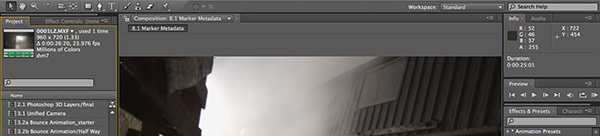
But those are just surface details. There are a couple of new elements in the UI which will make a big difference in your daily life inside After Effects: the new QuickSearch fields, and the new Composition Navigator plus Mini-Flowchart.
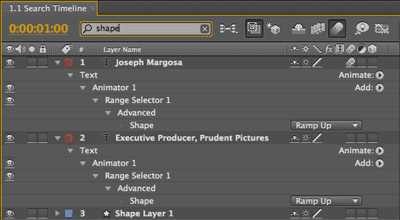
QuickSearch
The Project and Timeline panels now have dedicated search dialogs. These make it easy to isolate specific elements based on their name, file type, duration, parameter name, comment, and so forth. This will be a big boon in particular for large and/or disorganized projects.
In addition to the QuickSearch dialogs in the Project and Timeline panels, there is also a dedicated search dialog for the Help file, and (in the Splash screen) for the Tips of the Day. By the way, you really will want an Internet connection active while using After Effects; the online help files (discussed in the intro) are far more extensive than those that are installed on your drive, plus have links to information outside of Adobe’s web site. If you have web access, After Effects will use the online version. A big tip of the hat to Todd Kopriva for spearheading an effort to make Help much more…well, helpful!
Composition Navigator and Mini-Flowchart
As mentioned above, navigating complex projects can quickly become confusing. After Effects CS4 has two tools to help make this easier.
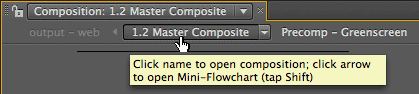 The first is the Composition Navigator. Along the top of the Composition panel, you will now see a chain of composition names, including the one you currently have selected, one that flows into the current comp (the most recently-used or otherwise most “important” comp, if you have more than one nested in the current comp), and the next comp in the chain that the current one feeds. Click on their names to quickly switch between them.
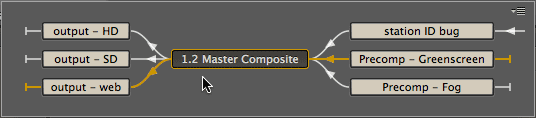
But what if you have a more complex project hierarchy than “A flows into B flows into C”? That’s where the pop-up Mini-Flowchart comes in. Click on the arrow to the right of a comp’s name in the Comp Navigator, or merely tap Shift with the Comp panel forward, and you will get a more detailed diagram that shows the entire chain, including cases where one comp flows into several and vice versa. We see this being particularly handy late at night, on deadline, when the client has asked for a “minor” change in a complicated project – you can quickly see just who is connected to whom.
next page: new effects & bundled software
New Effects
There are three new effects bundled with After Effects CS4:
- The Cartoon effect (shown below), which takes live footage, detects edges in it, outlines those edges, and posterizes plus smoothes the colors in between those edges. In short, a cartoon shader. It’s not overloaded with parameters (for better and worse), and is very quick and easy to use.
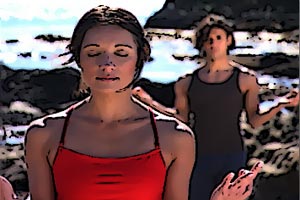
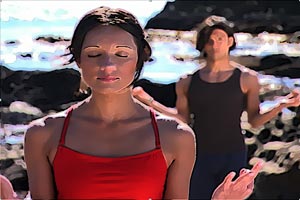
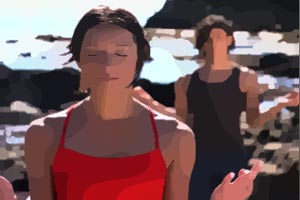
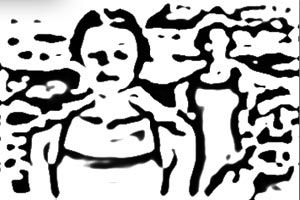
As noted back on the first page, we’ve made a video for lynda.com on using the Cartoon effect; you can view it here.
- Bilateral Blur, which is an intelligent blur that smoothes out the colored areas while keeping the edges sharp. It is a simple, accelerated alternative to the Smart Blur effect we got a couple of releases ago. A sample of its results are shown below, with Before being on the left, and After on the right:


- Turbulent Noise, which is very similar to the existing Fractal Noise effect. Its advantages are that it’s accelerated, and has a more accurate, “organic” fractal behavior. The main disadvantage is that it does not loop.
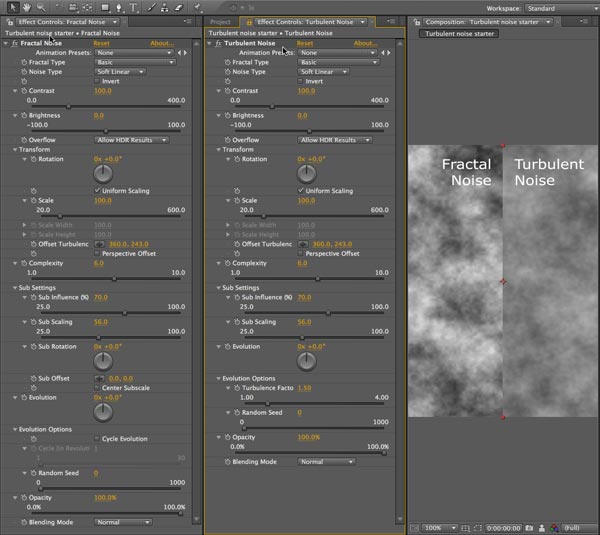
As hinted above, all three of these effects are GPU-accelerated. It makes working with Cartoon particularly pleasant compared to the speed of some similar effects, and means Turbulent Noise renders fast.
If you are the type of person who is comfortable coding and scripting, another significant addition in the realm of effects is the new Pixel Bender engine which will be common across several Adobe products. It allows you to write your own effects, and for others to write effects fairly easily that they can then share with you. The toolkit for it already exists on the Adobe Lab sites – click here.
Imagineer Systems mocha for After Effects CS4
In addition to the much-loved Keylight and Color Finesse plug-ins, After Effects CS4 will also come bundled with the stand-alone 2.5D planar tracking and stabilization program mocha (which is essentially a special version of the much-loved mochaAE). Rather than tracking individual points in an image, with mocha you define the general outline of a plane of an object. Mocha tracks the shape of this plane to determine its location, size, and orientation. The resulting tracking data is then exported as Corner Pin data, which can be pasted into After Effects.
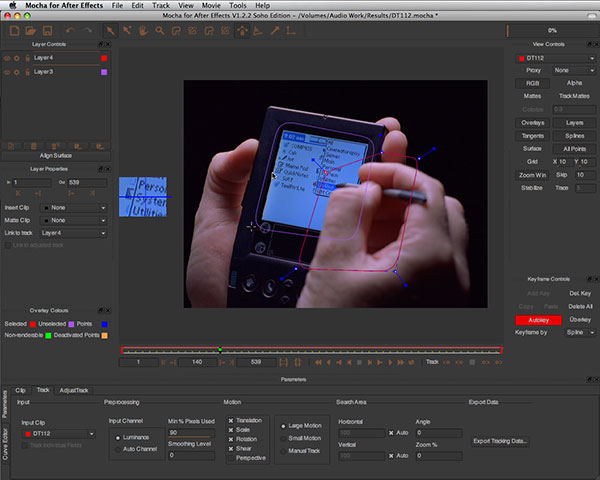
mocha has lots of other bells and whistles, such as the ability to create hold-out masks to ignore objects which might throw off the track, as well as to define a specific area to paste into which may not be the same as the area you are tracking (those who have had to offset corner pin tracks in After Effects know what we’re talking about). The downside is that Mocha’s user interface and way of working is quite un-After Effects-like; be prepared to spend some time mastering it. Fortunately, Imagineer already has video training online (tip: Aharon Rabinowitz’s video is perhaps the best introduction).
next page: new integration with Photoshop Extended, Flash Professional, and Adobe Device Central
One of the big pushes behind Adobe Creative Suite 4 is integration. In addition to the further-improved integration between After Effects and Premiere Pro (for example, you can now import an entire Premiere Pro project – not just an individual sequence), there are some really nice synergies between After Effects CS4 and other Adobe applications as well:
Photoshop 3D Layers
We mentioned Adobe Labs earlier; it’s a good place to scour for hints of upcoming technologies. Several months ago, they made available a plug-in for Photoshop CS3 Extended which allowed to search for, download, and rasterize 3D models from Google Warehouse (click here for more information). Well, that technology has expanded considerably. It is now a full-blown feature in Photoshop CS4 Extended, allowing you to not only load 3D models in several formats and perform some rudimentary material manipulation and texture mapping, but also to export the result as a layered PSD file which can then be imported in After Effects CS4. Layers with 3D models can then interact with 3D cameras in After Effects. It’s not the same as having a full-blown 3D application such as Cinema 4D (or even the Zaxwerks Invigorator Pro plug-in for After Effects), but it does provide an intriguing alternative workflow.
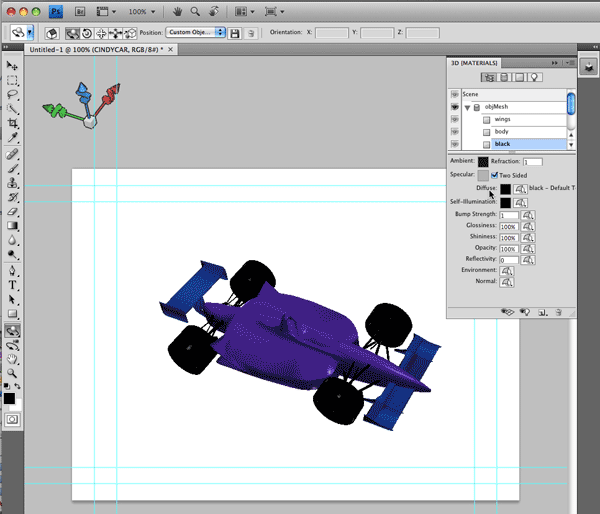
By the way, Mark Christiansen just posted a video demo of using the Photoshop 3D to After Effects workflow; you can view it here. We’ve also made a video for Lynda.com on this feature; you can see it here.
Export Comp from After Effects to Flash
More and more, After Effects and Flash are being used as a duo to create sophisticated (i.e. broadcast-quality) content for the web. However, previously there wasn’t a lot of integration between them: You could export animated text and some other objects from AE to a SWF file which could then be imported into Flash, but that was about it.
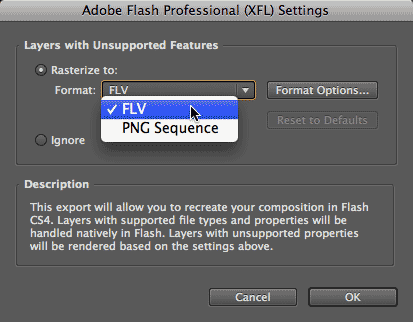 In AE CS4, you can now export a composition as an XFL format file, which can then be opened in Flash CS4 Professional (yes, just as with Photoshop, there are two versions of Flash now) as a project. Each layer will be imported as its own separate layer and media file into Flash. If the layer in After Effects was already a PNG, JPEG, or FLV (AE CS4 can import FLV files now, by the way), and you only applied simple transforms to that layer inside AE, the layer will not be recompressed, and the transformations will be preserved in Flash (although you will get one keyframe per frame of animation – ugh). Any other layer will be rendered as a PNG sequence or FLV file; just make sure you enable the alpha channel option in the compressor dialog when you export!
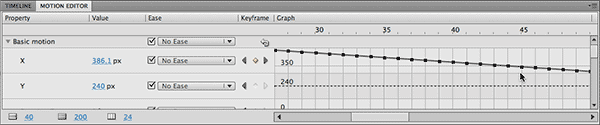
Curiously, we did not get the ability to export vector files such as Text or Shape layers intact; they get rasterized too. On the upside, Flash has a greatly-improved Motion Editor (shown below), which will make After Effects artists feel more at home.
Mobile Media Support
After Effects CS3 ships with an often-overlooked utility called Adobe Device Central, which provides basic template information for a wide range of cell phones and other mobile devices, and allows you to preview your media more or less in context on virtual versions of these devices.
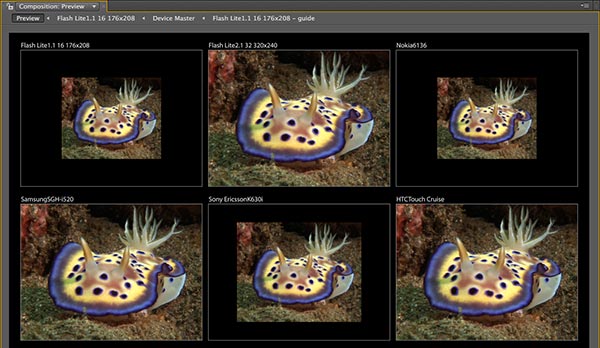
In CS4, Device Central has become a lot more useful. After selecting a group of devices that you would like to author for – many of which have different screen sizes and the such – you can export them as an After Effects CS4 project. Device Central will build a project that contains a Master comp (make sure you enable this option) which feeds device-specific comps for each device you chose. Then, a special Preview comp will show the results of these various devices side-by-side, making it easier to compare the effects of different screen sizes and crop areas. It’s very cool. The only obvious feature missing is to also include Render Settings and Output Module templates for these devices; hopefully we’ll see that down the road.
next page: Separate XYZ, and a round-up of additional new features & tweaks
Separate XYZ Position
We’ve saved for last what many users might consider the best new feature in After Effects CS4: the ability to separate X, Y, and Z Position values into their own independent parameters with their own keyframes and Graph Editor curves. Although an awful lot can be said for the ease-of-use behind AE’s standard bundling of the X, Y, and Z position values into one keyframe with the ability to directly edit the motion (spatial) path, some complex movements – like camera track+dolly moves, or bouncing ball animations – are much easier when you get separate access to these parameters, and give each their own velocity treatments.
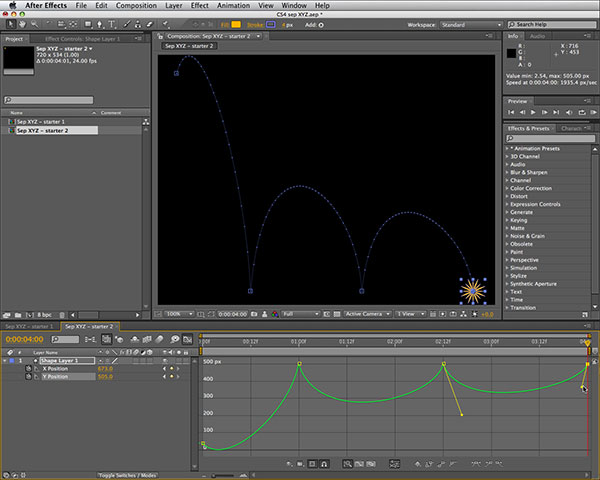
For example, in the case of the bouncing ball (pictured above), you can make the ball travel at a constant speed in X (or Z, or a X+Z), while it bounces up and down in the Y dimension. The mind-shift required here is that you are no longer editing the motion path in the Comp panel; you are editing it indirectly in the Graph Editor – but many will consider that a worthwhile tradeoff. (And if you don’t, you can always use the default system of joined X, Y, and Z.) Not all parameters with X, Y, and Z values have the ability to be separated in CS4; that’s definitely a wish list item for the next release.
And There’s More…
This is hardly an exhaustive list of the new features in After Effects CS4; we’ve only hit the major highlights above. But there are dozens of other new features in AE CS4, including:
- a new Unified Camera tool that allows you to quickly switch between Orbit, Track XY, and Track Z movements with a three-button mouse
- the 3D light icons now differentiate between light types
- Shape layers have a new Wiggle Transform operator that makes randomized movement much easier to set up – especially for repeated objects
- Shape layers also get more internal blend modes
- you can save and load AE CS4 projects as text-based XML files (scripters, rejoice)
- deep support for XMP metadata across multiple Creative Suite 4 products, including After Effects
- OpenGL now supports Adaptive Resolution to further increase interactivity when editing parameters
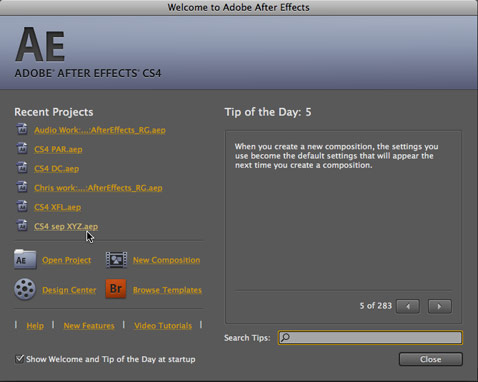
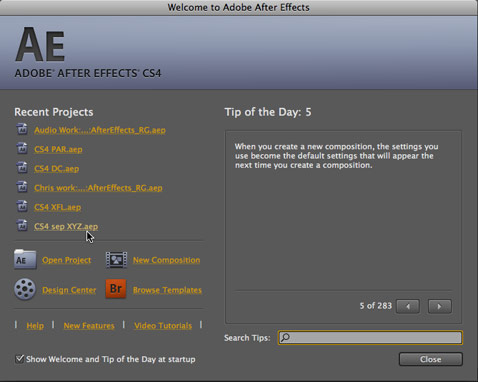
- the revamped Welcome screen allows you to directly access recent projects, open a new project, launch Bridge, and perform other common actions
- improved multiprocessing management (although remember, AE CS4 will no longer run on pre-Intel Macs)
- translation of time remapping from Premiere Pro into After Effects
- P2 and XDCAM support, plus support for working with layered HDR ProEXR files
- a shortcut key (FF) to find missing effects
- center-cut 4:3 safe areas displayed in widescreen comps along with the normal 16:9 safe areas
- new Center In View command
- Composition panel zoom and resolution are now automatically linked (for better or worse)
- new Layer > Transform > Flip Horizontal/Flip Vertical functions (which automatically alters the Scale values)
- when you split or duplicate a parent layer, its children now get duplicated as well
- option to decide if a Text layer can be converted into a Shape layer, or a masked solid (it was one way in AE7, then the other way in CS3; now we get a choice)
- …and loads more…
As mentioned back at the start, as time goes by we’ll be looking at some of these features in more detail. In the meantime, we hope this gives you a good idea of what’s coming, so you can decide how soon you want to upgrade.
Special thanks to Adobe, who provided some of the source materials pictured in this article. Thanks to Artbeats for providing additional footage.
Adobe, Adobe Device Central, After Effects, Creative Suite, Flash, and Premiere Pro are either registered trademarks or trademarks of Adobe Systems Incorporated in the United States and/or other countries. All other trademarks are retained by their respective rights holders.
The content contained in our books, videos, blogs, and articles for other sites are all copyright Crish Design, except where otherwise attributed.

Filmtools
Filmmakers go-to destination for pre-production, production & post production equipment!
Shop Now