

Filmtools
Filmmakers go-to destination for pre-production, production & post production equipment!
Shop Now

We’re going through our book Creating Motion Graphics with After Effects 5th Edition (CMG5) and pulling out a few “hidden gems” from each chapter. These will include essential advice for new users, plus timesaving tips that experienced users may not be aware of.
This is the second of three chapters in CMG5 focus on the tools available in After Effects CS5 for motion tracking and stabilization, including the bundled 3rd party tools mocha and mocha shape. As the built-in tracker and stabilizer share many of the same tools, in the previous chapter on Motion Stabilization we covered the concepts and user interface elements that were common to both of them. In this chapter, we discuss the additional features required to make one layer follow a feature in another layer.
 TrackerViz
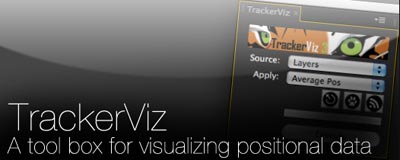
There are numerous scripts available to enhance the power of the After?Effects tracker. One of the best is TrackerViz, which “provides a tool box for visualizing positional data. Initially it was designed for manipulating tracking data, like averaging multiple trackers to get a better one, or visualizing trackers as little solids for better control. Now the script offers many more features. (…) You can work with path, and can create a new tracker from path vertices, and reversely (sic) you can create a new path based on an analyzed track” (in other words, you can make a mask path follow the results of a track).
 Adjusting the Tracking Regions Without Moving the Attach Point
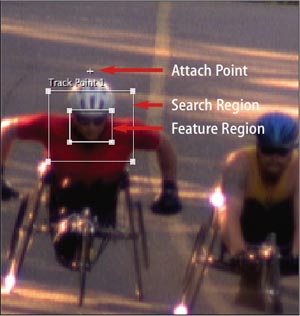
With stabilization, the inverse of the tracking data is applied to the Anchor Point of the layer you tracked to make it appear stable. With tracking, the tracking data is usually applied to a second layer, hopefully making that layer move as if it were pinned to a feature in the layer you tracked. Key to this is the Attach Point – the crosshair that defaults to the center of the Tracking Regions – as this indicates where the Anchor Point of that second layer will be located.
In some instances, you might need to pin the second layer onto one particular feature in a clip – such as above the helmet of the racer shown here – but another feature in that shot (such as the racer’s face) might be better to track. Fortunately, the Attach Point can be moved independently of the Tracking Regions. Clicking and dragging somewhere inside the Feature Region but not on the Attach Point itself moves both regions as well as the Attach Point as one unit. Holding Option on Mac (Alt on Windows) and dragging inside the Feature Region moves both regions while leaving the Attach Point where you put it.
Because moving the regions can accidentally move the Attach Point (but not vice versa), get in the habit of setting your Tracking Region(s) first, then placing your Attach Point. If you realize you set up the Attach Point in the wrong place after you performed the track, you can fix it using the Motion Trackers > Tracker 1 > Track Point 1 > Attach Point Offset parameter. This offset is used only when you click Apply; it does not fix the motion path after you’ve already applied it.
 Multipart Tracks
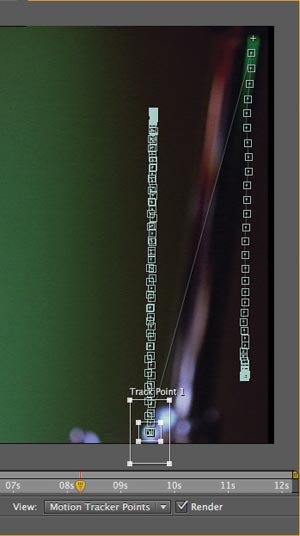
A feature that’s good to track might also not be present for an entire shot. In that case, you need to pick a feature, track it as long as it is viable, stop, back up to the last good tracked frame, then choose a new feature to track from there forward (until it too is no longer viable).
The secret to continuing a track with a new feature is to hold down the Option (Alt) key while adjusting the Track Point. As mentioned above, this will leave the Attach Point (the + symbol) in its current position. You will see the track motion path extending from the old track keyframes to your new position, as shown at right. Once you have set the new Feature and Search Regions, again click Analyze Forward in the Tracker panel.
Tweaking Tracks After Apply
There are a couple of ways to tweak the results after you’ve applied the tracker. Select the layer that has had the track applied to it and press U to reveal its keyframes. Click on Position to select all of the keyframes, and make sure the Current Time Indicator is parked on one of them (the keyframe navigator box in the Timeline panel will have a check mark in it). Use the cursor keys to nudge the layer directly in the Composition panel.
You can also offset the Anchor Point of the tracked layer to change its relationship to the master layer it follows, which is particularly useful if you need to change the center around which it scales and rotates.
Many advanced users prefer to initially apply the result of a track to a Null Object. You can later attach the real layer to the null using parenting, offsetting the layer as needed. Get in the habit of adding a Layer > New > Null Object to your comp before starting a track.
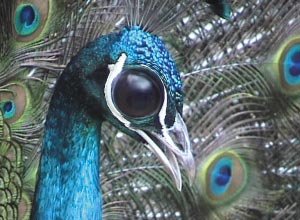 Effect Track
The Motion Tracker also allows you to have an Effect Point – such as the center of Distort > Bulge – follow a feature of the layer you are tracking. First apply the effect you want to the layer, then use the Tracker.
In the example here, we first applied a bulge effect to the peacock footage. We then tracked the peacock’s eyeball, placing the Attach Point at the center of the eye. After analyzing, we clicked on Edit Target, and selected Effect Point Control instead of Layer for the Apply Motion To option. We made sure that the target was set to Bulge/Bulge Center. Then all we had to do was click OK, then Apply, choosing both dimensions so that the bulge would follow the eye in both the X and Y directions.
Trish and Chris Meyer share seventeen-plus years of real-world film and video production experience inside their now-classic book Creating Motion Graphics with After Effects (CMG).
The 5th edition has been thoroughly revised to reflect the new features introduced in both After Effects CS4 and CS5 (click here for free bonus videos of features introduced in CS5.5). New chapters cover the new Roto Brush feature, as well as mocha and mocha shape. The 3D section has been expanded to include working with 3D effects such as Digieffects FreeForm plus workflows including Adobe Repouss©, Vanishing Point Exchange, and 3D model import using Adobe Photoshop Extended. The print version is also accompanied by a DVD that contains project files (CS5-only) and source materials for all the techniques demonstrated in the book, as well as over 160 pages of bonus chapters on subjects such as expressions, scripting, and effects.
We will be pulling a few “hidden gems” out of each chapter to share on ProVideoCoalition.com roughly every week. These will give you a taste for the multitude of time-saving tips, not-obvious features, little gotchas, and other insider knowledge you will find in CMG.
The content contained in Creating Motion Graphics with After Effects – as well as the CMG Blogs and CMG Keyframes posts on ProVideoCoalition – are copyright Crish Design, except where otherwise attributed.