

Filmtools
Filmmakers go-to destination for pre-production, production & post production equipment!
Shop Now
We’re going through our book Creating Motion Graphics with After Effects 5th Edition (CMG5) and pulling out a few “hidden gems” from each chapter. These will include essential advice for new users, plus timesaving tips that experienced users may not be aware of.
After Effects offers a basic set of non-destructive vector-based paint tools for painting on, cloning, and erasing portions of layers. In this chapter in CMG, we explore using these Paint tools, covering the fundamentals of each operation by running through a series of easy exercises. We also explore the various methods for animating strokes, and walk you step by step through automating a repair task using motion tracking and expressions. Along the way we also present tips for incorporating other effects with Paint, as well as saving custom brushes and clone presets.
Although AE’s Paint tools are nowhere near as evolved as Photoshop’s, they are still useful for repair-oriented tasks such as cloning and fixing alpha channels, and their animation capabilities are fun. Here we’d like to share a few shortcuts, gotchas, and ideas to help improve you experience with this section of the program.
 Keyboard Shortcuts
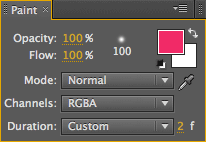
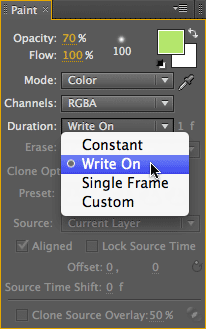
The Paint tools – which are used exclusively in the Layer panel (not the normal Composition panel) – come with a whole host of special keyboard shortcuts. For example, normally you would press Page Up and Page Down to step forward or back by a single frame. However, those keys are on the right side of the keyboard, and most people are right-handed – meaning that they may already have a mouse or tablet stylus in their right hand while painting. Therefore, when the Paint tools are active, the 1 key above the normal section of the keyboard (not the numeric keypad) steps backward by a frame, and the 2 key steps forward. If you happen to have the Duration popup in the Paint panel (pictured here) set to Custom, the number to the right of the popup – which sets how long each brush stroke lasts, for rotoscope work – also controls how many frames you step by.
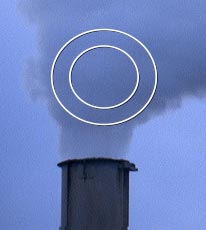 Some users are also unaware of the keyboard shortcuts for interactively resizing both the brush Size and the amount of feather, otherwise known as Hardness. Hold Command (Control) and drag in the Layer panel to set the Size, then without releasing the mouse button (or equivalent on your tablet’s stylus), release the Command (Control) key and scrub to set the size of a smaller circle inside your brush size circle. The difference between these two circles is the amount of feather for your brush.
Other keyboard shortcuts include Command+B on Mac (Control+B on Windows) to toggle between the Brush, Clone, and Erase tools, X to toggle between the Foreground and Background colors, and D to reset the Foreground and Background colors to black and white.
Even if you knew all those, here’s one we bet you didn’t know: If you are in the middle of painting a brush stroke, and decide a portion of it is wrong – perhaps you scribbled outside the lines – you can press Command+Shift (Control+Shift) to temporarily engage the Eraser tool in Erase Last Stroke Only mode. Brush over the portion of the stroke that was mistaken, release Command (Control), and continue on your merry way. Be aware, though, that this uses the Eraser tool’s settings – not the current Brush settings. Therefore, you might want to set up the Eraser tool to match your Brush tool before you start painting.
Tool Settings Gotcha
Expanding on that last tip above, there are three Paint tools – Brush, Clone, and Eraser – but only one set of Paint and Brush panels where you set up the size, hardness, spacing, and other parameters for these tools. As alluded to above, each tool remembers its settings separately: The Eraser may be a different size than the Brush, for example.
Therefore, get in the habit of selecting your desired tool, then setting its parameters. If you set up your desired parameters, then change tools, you may suddenly find you are painting with a different set of parameters than you assumed.
After the Fact
It’s easier than you might think to edit individual paint strokes after you’ve created them; you just need to know where to look. With the layer you’re painting on selected, press PP to reveal the Paint properties in the Timeline panel. Each stroke is represented as its own mini layer bar; you can even drag the end of these bars to change their durations. You can also keyframe most of the properties for each stroke, including its path. A common trick is to keyframe the Stroke Options > Start or End properties to animate a stroke on or off over time:
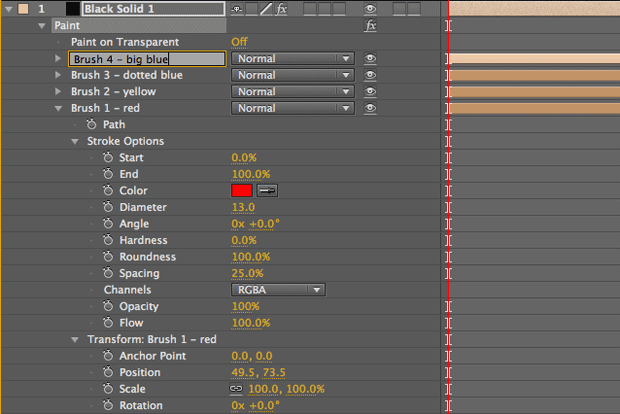
Just be warned that creating a new stroke while an existing brush stroke is selected (after editing one of the above parameters, for example) will replace that stroke! Get in the habit of pressing F2 to Deselect All before creating a new stroke.
 Write On
Paint has a real-time “write on” mode, akin to Window > Motion Sketch for drawing motion paths in real time, or holding Command (Control) while dragging a pin with the Puppet tool (discussed two chapters from now).
To take advantage of this, set the Duration popup in the Paint panel to Write On, as shown at right. Press F2 to deselect any accidentally-selected strokes, and draw your new stroke with the pacing you desire. After you’re done and have released the mouse, press U to reveal all animated properties for the layer, and you’ll see that After Effects automatically added two End keyframes for your new Brush stroke mini-layer, ranging from 0% to 100%. If you were a slow painter or had a short comp duration, the second End keyframe may be located past the end of the comp. To gain access to the second End keyframe, you can either drag the stroke’s duration bar earlier in time, or temporarily extend the comp’s duration.
You do not have direct access to the speed changes you inflected during your stroke. However, you can still alter the keyframe interpolation for the Start or End keyframes for broad overall control, such as easing into or out of your overall movement.
Touching Up Alpha Channels
The Paint tool provides a handy way to touch up imperfect alpha channels that may result from keying, using the Roto Brush (the subject of the next chapter), and the such.
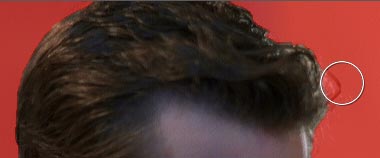 Since Paint (and Roto Brush, for that matter) is actually an effect applied to a layer, perform your keying or roto work first, then select the Brush tool. Set the Channels popup in the Paint panel to Alpha; the Foreground and Background colors will automatically change to black and white. Select white (the Background) to add to an alpha channel; select black to remove areas from it (no, you don’t need to use the Erase tool). Use X to quickly toggle back and forth between the two, and don’t forget to alter the Hardness (feather) of your brush to create soft-edged corrections, such as painting in motion blur.
In the figure at right, we have enabled the Alpha Overlay in the Layer panel to check the result of a Roto Brush application, and are using the Brush tool to remove a stray lock of hair.
Trish and Chris Meyer share seventeen-plus years of real-world film and video production experience inside their now-classic book Creating Motion Graphics with After Effects (CMG).
The 5th edition has been thoroughly revised to reflect the new features introduced in both After Effects CS4 and CS5 (click here for free bonus videos of features introduced in CS5.5). New chapters cover the new Roto Brush feature, as well as mocha and mocha shape. The 3D section has been expanded to include working with 3D effects such as Digieffects FreeForm plus workflows including Adobe Repouss©, Vanishing Point Exchange, and 3D model import using Adobe Photoshop Extended. The print version is also accompanied by a DVD that contains project files (CS5-only) and source materials for all the techniques demonstrated in the book, as well as over 160 pages of bonus chapters on subjects such as expressions, scripting, and effects.
We will be pulling a few “hidden gems” out of each chapter to share on ProVideoCoalition.com roughly every week. These will give you a taste for the multitude of time-saving tips, not-obvious features, little gotchas, and other insider knowledge you will find in CMG.
The content contained in Creating Motion Graphics with After Effects – as well as the CMG Blogs and CMG Keyframes posts on ProVideoCoalition – are copyright Crish Design, except where otherwise attributed.