

Filmtools
Filmmakers go-to destination for pre-production, production & post production equipment!
Shop Now
We’re going through our book Creating Motion Graphics with After Effects 5th Edition (CMG5) and pulling out a few “hidden gems” from each chapter. These will include essential advice for new users, plus timesaving tips that experienced users may not be aware of.
One of the most fun areas to explore in After Effects is using the Puppet tools. These provide a new way to warp layers, including shape and text layers created inside After Effects. Applications include creating character animation or just imparting fun movement to otherwise inanimate objects.
Previously, the best tool in After Effects for character animation was parenting (the subject of Chapter 17). Puppeting takes a different approach. Rather than working with a rigid bone analogy, puppeting is more akin to working with a sheet of rubber. You place pins in this sheet where you want sections to stay put or at points where you want to pull and deform the rubber. All the pixels in-between flex as needed to accommodate your movements. There are optional tools for setting stiffness as well as making sections of a layer pass in front of or behind others.
Chapter 35 of the Creating Motion Graphics provides a quick comparison between the parenting and puppeting approaches, and then goes on to demonstrate each of the Puppet tools as well as share several important tips and gotchas. A few of those are included here.
Special Rules
The Puppet tools differ from conventional effects and other parameters in After Effects in a few significant ways:
- Unlike every other property in After Effects, keyframing defaults to on for puppet pins. As a result, it is important to set the Current Time Indicator to the point where you want to start a puppet animation before you add a puppet pin. Then when you move the Current Time Indicator and move the pin, a new keyframe will be created automatically, without needing to first enable keyframing.
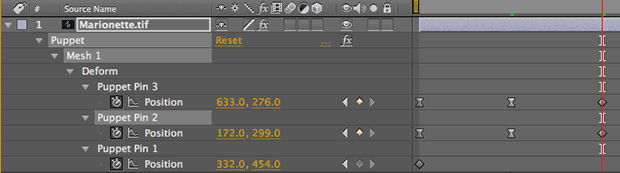
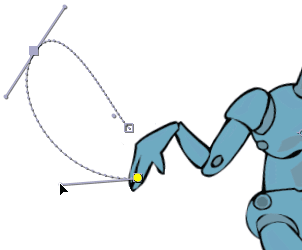
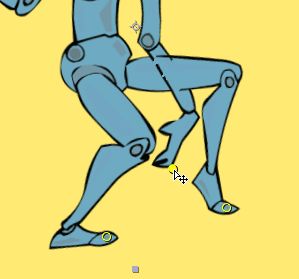
- Unlike Position motion paths, which appear only in the Composition panel, or effect point paths, which appear only in the Layer panel, Puppet Pin paths (such as the one at right) appear in both.
- Puppeting works by creating a mesh based on the alpha channel of a single frame of your image, so the outline of the layer must not change over time. If it does (in other words, if it is a movie or animating precomp instead of a still image or other similar layer), the image will break up as it moves outside the lines defined when you first apply a Puppet Pin.
Puppet courtesy iStockphoto, copyright FeralMartian, Image #2184370.
Puppet Path Clarity
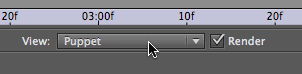 Following on from the last tip above, if you have a busy composition that makes it hard to see the Puppet Pin paths, double-click the layer to open its Layer panel and edit the path there. Remember to set the View popup to Puppet and enable the Render checkbox along the bottom right of the Layer panel to see the Puppet effect.
On the other hand, if your problem is a busy Timeline panel, press SS – Solo Selected – to reveal just the selected pin; twirl it open to reveal its associated parameters.
 Overlapping Limbs
After you apply puppet pins to different limbs, you can drag a pin to cause a limb to overlap another portion of the original image. However, if you don’t do anything else, After Effects can be uncertain as to which warp mesh triangles are supposed to pass in front of or behind the others. For example, note the outlines on the forearm on the image at right: One line is in front of the thigh, while the other is behind.
The Overlap tool is used to define the front/back weighting of a portion of your layer. Each Overlap pin has its own In Front % (weighting), plus an Extent value that determines how far the pin’s influence reaches. Rather than place a large number of Overlap pins to define the area that is supposed to go in front or behind, it is far better to use as few Overlap pins as possible, and then increase their Extent as necessary. Fortunately, Overlap pins can be moved after initial placement to help center their extent region.
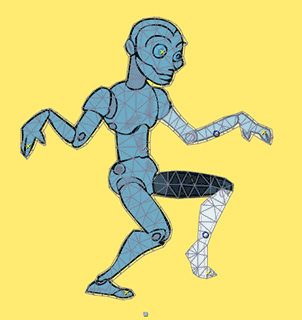
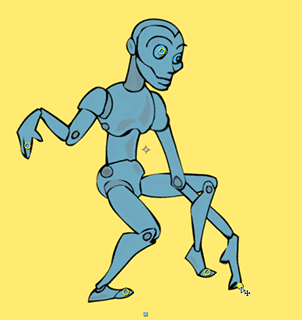
The In Front % assigned to an overlap extent is displayed visually by its color: the lighter it is, the more in front it is; the darker it is, the more behind. The two images below show a trio of overlap regions set up with their In Front shading visible (left), and what happens when you then drag the arm to cross over the thigh and shin (right):
 Mesh Expansion Issues
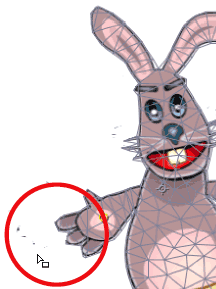
The oft-ignored Mesh Expansion parameter defines how far beyond the alpha channel that the warp mesh triangles should extend. The reason you need to set this value above zero is that unless you have an infinite number of mesh triangles (which would take an infinite amount of time to render), rounded corners may be cut, and you could accidentally slice off part of your original model – such as the bunny’s fingertips at right.
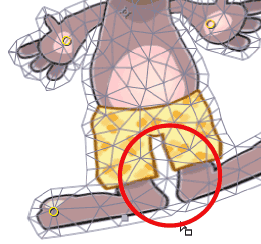 However, the answer isn’t to just blindly increase the Mesh Expansion value. The more you do so, the higher the risk you run of joining together sections of your original layer which you would prefer remain separated so that you could animate them individually. Note in the figure at right how the arms are dangerously close to being stitched to the body, and that legs have been meshed together as one blob – meaning you would not be able to warp and therefore animate them separately.
Our starting point is to set Mesh Expansion to 1.0 and increase the Triangles value until the layer’s alpha is fully enclosed. If the resulting Triangle count is so high that the layer takes too long to render, we then try to balance off increased Mesh Expansion against decreased Triangle count.
Rabbit courtesy iStockphoto, copyright AdiniMalibuBarbie, Image #2188406.
 Multiple Shapes in a Mesh
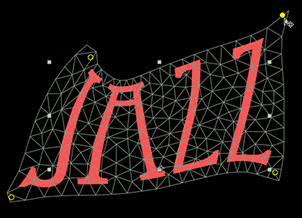
When a layer contains multiple disconnected shapes such as the individual characters of a text layer, if you click inside a shape such as an individual character, you’ll be creating one mesh per shape. However, if you want to deform the entire layer as a unit, first draw a mask that encompasses all of the shapes. Then place a Puppet Deform Pin somewhere inside the mask, but not on one of the shapes. This will create a mesh that fills the mask.
If you want to deform just a portion of a layer rather than the whole thing, you can also use a mask to enclose an area smaller than an entire layer before you create a mesh: Change the Mask group popup to None so that it doesn’t create transparency, or delete the mask after you create the mesh.
Trish and Chris Meyer share seventeen-plus years of real-world film and video production experience inside their now-classic book Creating Motion Graphics with After Effects (CMG).
The 5th edition has been thoroughly revised to reflect the new features introduced in both After Effects CS4 and CS5 (click here for free bonus videos of features introduced in CS5.5). New chapters cover the new Roto Brush feature, as well as mocha and mocha shape. The 3D section has been expanded to include working with 3D effects such as Digieffects FreeForm plus workflows including Adobe Repouss©, Vanishing Point Exchange, and 3D model import using Adobe Photoshop Extended. The print version is also accompanied by a DVD that contains project files (CS5-only) and source materials for all the techniques demonstrated in the book, as well as over 160 pages of bonus chapters on subjects such as expressions, scripting, and effects.
We will be pulling a few “hidden gems” out of each chapter to share on ProVideoCoalition.com roughly every week. These will give you a taste for the multitude of time-saving tips, not-obvious features, little gotchas, and other insider knowledge you will find in CMG.
The content contained in Creating Motion Graphics with After Effects – as well as the CMG Blogs and CMG Keyframes posts on ProVideoCoalition – are copyright Crish Design, except where otherwise attributed.