

Filmtools
Filmmakers go-to destination for pre-production, production & post production equipment!
Shop Now

We’re going through our book Creating Motion Graphics with After Effects 5th Edition (CMG5) and pulling out a few “hidden gems” from each chapter. These will include essential advice for new users, plus timesaving tips that experienced users may not be aware of.
For many motion graphics artists, After Effects serves as their hub where they bring in content from multiple sources (such as 3D applications), enhance it, and then send it out to multiple destinations (such as web pages or editing systems). Therefore, it has to handle a multitude of file and application formats. The previous chapter focused on file-level issues; this chapter primarily discusses higher-level issues of dealing with different programs – although exchange file formats inevitably creep into the mix as well. Here’s a few tips and hidden gems from that chapter.
SWF Alpha Channels
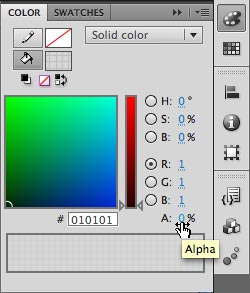 After Effects can recognize transparency in a SWF file; you just have to make sure you set up your project in Flash to have transparent areas. To do this, you need to create a custom background color in Flash: In the Color panel, create a new color with Alpha set to 0%. Then bring the Swatches panel forward, and click along its bottom to add this color to your palette. It will be identified with a graph paper pattern. Then in the Properties Inspector, select this transparent swatch for the Stage color.
By the way, when you import any content originally created for the web – SWF, FLV and F4V files included – you should never separate fields; you’ll just lose half your resolution. Similarly, when you’re creating content for the web, never interlace (field render) your renders, as normal computers do not have interlaced displays.
Flash Professional
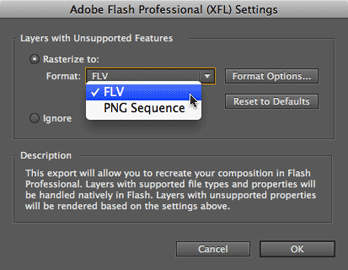 After Effects CS4 and later has the ability to export an After Effects composition as an XFL format project, which can then be opened by Adobe Flash Professional CS4 or later. Open the composition you wish to export, and then select File > Export > Adobe Flash Professional (XFL). You may then open the resulting file in Flash Professional and trim, transform, or add interactivity to them within Flash; you may also insert new symbols in-between these layers in Flash.
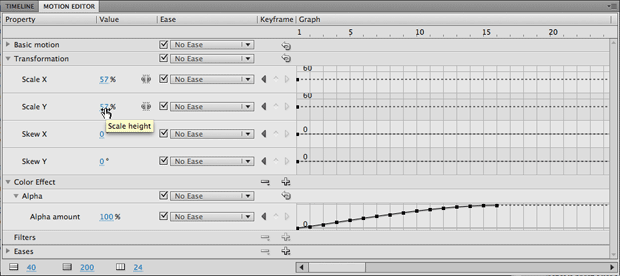
As nice as this feature sounds on the surface, it brings with it a lot of special case exceptions and gotchas, such as no current support for audio(!), and any keyframed animation is either rendered to a movie during export or converted into a transform keyframe for every single frame in Flash’s Motion Editor (as seen in the figure below). We spend a few pages on these issues – along with an example project – in the CMG book.
NLE Integration
Since Adobe makes both After Effects and Premiere Pro, it is only natural that they integrate very tightly. You can import a Premiere Pro project into After Effects, as well as export an After Effects project as a Premiere Pro project file. Additionally, if you have the CS5 Production Premium or Master Collection bundle, you can also transfer the following:
- Footage items – as well as compositions and sequences – can be copied and pasted between the Project panels in both programs.
- Footage items can be copied from an After Effects comp’s timeline into a Premiere sequence’s timeline. You can also copy nested comps, solids, Photoshop layers, and audio tracks.
- Virtually any track item can be copied from a Premiere timeline and pasted into the After Effects timeline.
An example of this bidirectional transfer is shown below, where an After Effects composition has been pasted into a Premiere Pro sequence:

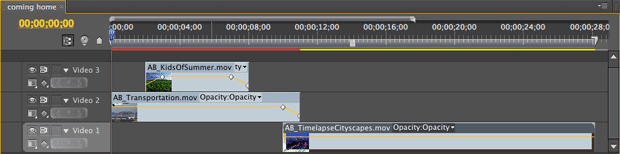
Going further is Dynamic Link, where you can link an After Effects composition into Adobe Premiere Pro or Encore in its unrendered state and use it as a footage item. These applications will render the comp “on demand” to display a specific frame.
Integration with Avid or Apple systems is understandably less straightforward. Although there are various workarounds, in a situation where time is money, third party vendor Automatic Duck’s Pro Import AE plug-in set is money well spent. Note that in these cases, the transfer is one way: You can bring Avid and Apple timelines into After Effects, but not export back to these systems (aside from rendering a final movie). The new FCP-X is also not currently supported – although Automatic Duck has already figured out how to export from FCP-X to Digidesign ProTools, so hope springs eternal that other solutions might also be forthcoming.
Buttons for Adobe Encore
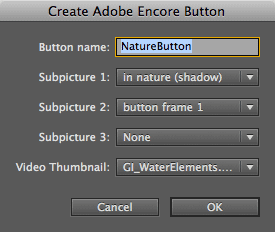 You can start a menu design in Encore (Adobe’s disc authoring program), then use its command Menu > Create After Effects Composition. Encore will save a layered PSD file of the menu elements and create an After Effects project that has these layers already imported and arranged in a composition. You can then modify or create buttons from scratch in After Effects, and save each button as a layered PSD file to import back into Encore.
Encore requires very specific naming conventions to know which layer is supposed to be which element in a button. To automatically rename these elements in the format Encore requires, select the layers that make up the button elements, and choose the menu item Layer > Adobe Encore > Create Button. Here you have the opportunity to tell After Effects which layer corresponds to which menu element, and After Effects will nest the selected elements into a new composition that has the button’s name, with (+) appended to the front which tells Encore this is a button.
Authoring for Multiple Mobile Devices
Creating content for mobile devices is an important business segment for some. The problem is that there are a number of devices out there, and many have different specifications and requirements. This process has been aided by the ability to use Adobe Device Central – installed alongside After Effects – to automatically build a chain of After Effects compositions.
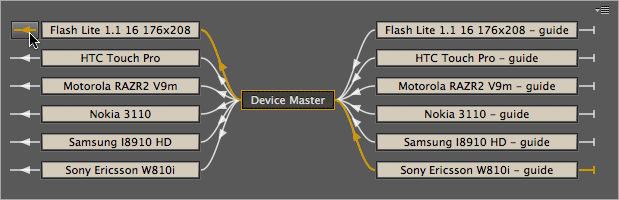
After defining your target devices, Device Central can export an After Effects project that contains a chain of compositions, shown above (using AE’s Mini Flowchart feature). These comps provide guide layers that show the safe areas for each device in a single Device Master composition. This Device Master comp then feeds a number of render comps where the source has been scaled and cropped as needed for each target device. Finally, these individual render comps feed a final Preview comp where you get to compare the relative crops and scalings side by side:
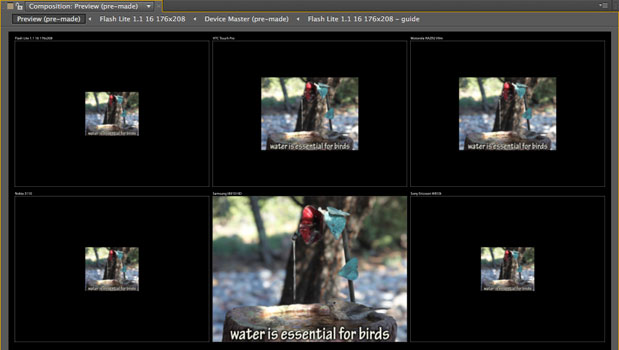
The biggest disappointment with this feature is that it does not set up the After Effects Render Queue with the correct codecs and bit rate settings for each target device; you still need to do some final work in a program such as Adobe Media Encoder. But it still saves a lot of steps.
Trish and Chris Meyer share seventeen-plus years of real-world film and video production experience inside their now-classic book Creating Motion Graphics with After Effects (CMG).
The 5th edition has been thoroughly revised to reflect the new features introduced in both After Effects CS4 and CS5 (click here for free bonus videos of features introduced in CS5.5). New chapters cover the new Roto Brush feature, as well as mocha and mocha shape. The 3D section has been expanded to include working with 3D effects such as Digieffects FreeForm plus workflows including Adobe Repouss©, Vanishing Point Exchange, and 3D model import using Adobe Photoshop Extended. The print version is also accompanied by a DVD that contains project files (CS5-only) and source materials for all the techniques demonstrated in the book, as well as over 160 pages of bonus chapters on subjects such as expressions, scripting, and effects.
We will be pulling a few “hidden gems” out of each chapter to share on ProVideoCoalition.com roughly every week. These will give you a taste for the multitude of time-saving tips, not-obvious features, little gotchas, and other insider knowledge you will find in CMG.
The content contained in our books, videos, blogs, and articles for other sites are all copyright Crish Design, except where otherwise attributed.