

Filmtools
Filmmakers go-to destination for pre-production, production & post production equipment!
Shop Now

We’re going through our book Creating Motion Graphics with After Effects 5th Edition (CMG5) and pulling out a few “hidden gems” from each chapter. These will include essential advice for new users, plus timesaving tips that experienced users may not be aware of.
Chapter 43 of CMG5 is not just about network and scripted rendering (subjects we leave to the book rather than this column here), but also about a set of very useful project management commands found under the File menu inside After Effects. These utilities can help clean up your project by removing duplicate or unused sources, strip out everything except what is needed for selected comps so you can pass a portion of your project onto another artist, collect all of your source footage to one folder for backup or transport, or even enlist the aid of multiple copies of After Effects to help you render a particularly intensive comp. We’ll share a few of those utilities here.
Consolidate All Footage
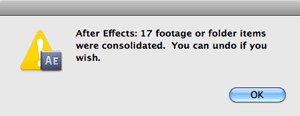 This menu item looks for duplicates of footage in a project, and removes the duplicates. If a comp used one of the duplicates, these layers will be relinked to use the single copy of the footage item that remains. This feature comes in handy when you’ve imported multiple projects or folders or source materials, and there are overlaps in the sources. (Note that if footage doesn’t consolidate, chances are that the interpret footage settings are set differently for each item.)
Remove Unused Footage
This command looks for source items that are not used by any of the comps in your project and deletes them. This is particularly helpful when you’ve imported a large number of source files early on during a job while you were still deciding which sources to use, and now want to reduce a project down to the sources actually used.
Reduce Project
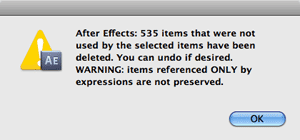 This command looks at the comps you have selected in the Project panel, keeps these comps, any precomps and source material used by those comps, then deletes the unselected comps and all other unused footage. This is good for reducing a complex project just to the comp or comps a coworker may need to work on. The one occasion when this function can trip you up is if an expression in a comp you kept referenced a comp you did not select before running Reduce Project: The referenced comp will still get deleted. (Tip: Before using Reduce Project, be sure to save the project to a different name. This will save you from overwriting your master project file if you accidentally hit Save after you’ve reduced the project down!)
Collect Files
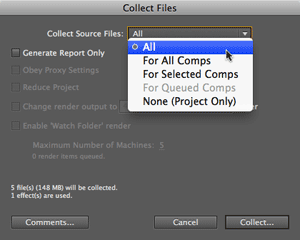 The File > Collect Files command has several uses. Its primary job is to take a project that may reference source items spread out across several folders and drives, and consolidate all of this footage into a single new folder, complete with a new copy of the project file that links to these copied sources. This is handy for archiving, or moving a job and all of its assets to another computer.
Note that in the Collect Files dialog, the Collect Source Files popup has options to either collect just the sources used in the project (akin to running Remove Unused Footage, mentioned above), or copy all sources whether or not a comp currently uses them.
Be aware that Collect Files does not collect everything you need to re-create a project: Fonts, effects, and codecs are not copied. Instead, Collect Files creates a text file named xxxReport.txt (xxx is the name of your project) that gives you statistics on which files are used by the current project or the selected comps in that project, plus a list of fonts and effects used. If you are archiving a project, or moving it to another machine, it is up to you to make sure a copy of the fonts and effects you need make the trip as well.
By the way, you can also add your own hints, reminders, and comments to the Report file; just click on the Comments button in the Collect Files dialog before collecting.
Merging Projects for Render
If you import a project (File > Import > Project), not only will it add all the comps and source material to the current project, it will also merge all of the items in the imported project’s Render Queue into the current project’s queue.
If we are working with several different project files but want to render them as a batch, we’ll set up their respective Render Queues the way we want, create a new project, import all the projects we want to render, open the Render Queue, and click Render to do the entire batch.
Trish and Chris Meyer share seventeen-plus years of real-world film and video production experience inside their now-classic book Creating Motion Graphics with After Effects (CMG).
The 5th edition has been thoroughly revised to reflect the new features introduced in both After Effects CS4 and CS5 (click here for free bonus videos of features introduced in CS5.5). New chapters cover the new Roto Brush feature, as well as mocha and mocha shape. The 3D section has been expanded to include working with 3D effects such as Digieffects FreeForm plus workflows including Adobe Repouss©, Vanishing Point Exchange, and 3D model import using Adobe Photoshop Extended. The print version is also accompanied by a DVD that contains project files (CS5-only) and source materials for all the techniques demonstrated in the book, as well as over 160 pages of bonus chapters on subjects such as expressions, scripting, and effects.
We will be pulling a few “hidden gems” out of each chapter to share on ProVideoCoalition.com roughly every week. These will give you a taste for the multitude of time-saving tips, not-obvious features, little gotchas, and other insider knowledge you will find in CMG.
FTC Disclosure: We receive software from Adobe to help us create our books, blogs, and videos. Aside from that, we have also used their software for nearly 20 years to make a living creating commercial work for clients – so the tips we share are based on real-world experiences, not as promotional material for Adobe.
The content contained in our books, videos, blogs, and articles for other sites are all copyright Crish Design, except where otherwise attributed.