

Filmtools
Filmmakers go-to destination for pre-production, production & post production equipment!
Shop Now

We’re going through our book Creating Motion Graphics with After Effects 5th Edition (CMG5) and pulling out a few “hidden gems” from each chapter. These will include essential advice for new users, plus timesaving tips that experienced users may not be aware of.
One of After Effects’ strengths is that you don’t have to prerender anything:?All of your sources, layers, and manipulations are “live” all the time, allowing you to make unlimited changes. However, calculating everything all the time can slow down both your work and your final render.
In chapter 44 of CMG5, we explain how prerendering complex comps can speed up your workflow, and provide an example for you to work through. Here we’ll share both some background information and specific tips from that chapter.
What’s a Proxy?
A proxy is a file that is designed to stand in for a footage item or an entire composition. It can be used temporarily to speed up editing, or as part of the final render. It is easy to turn proxies on or off on an individual basis, or on a project-wide basis when you render. After Effects will also, if needed, automatically scale a lower resolution proxy to match the size of the footage or comp it is standing in for. When it comes time to archive the project, you can trash the proxies without ruining your hierarchy – just remove the proxies to return the project to its original structure.
Composition Proxies
One little-used strategy to speed up After Effects is to isolate a layer or collection of layers that is slow to calculate into their own precomposition, and then prerender a movie of that precomp. This way, After Effects only needs to read already-rendered frames from a hard drive rather than potentially re-calculate a render-intensive effect or composite later on.
Rather than swap this prerender in place of a precomp (which will cause headaches later on if you decide that precomp wasn’t really “final” after all), you can select the comp in the Project panel and assign it to temporarily stand in for the comp using File > Set Proxy > File. Two things will change in the Project panel: A white box will appear next to the comp or footage item in the list, and when you select this item, two sets of information will appear along the top of the panel. The left one is for the original file/composition; the one on the right is for your proxy:
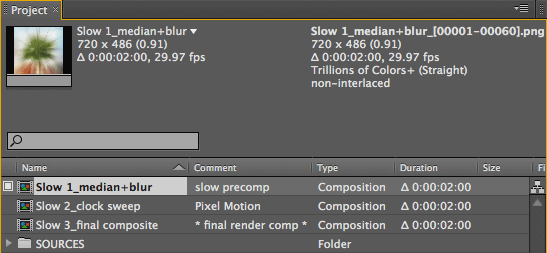
The white box next to the item is the Proxy Switch. Click on it to toggle usage of the proxy off and on. The current status is echoed in the top of the Project panel: The source being used – original file/comp or proxy – will have its name in bold. To change the proxy file, use Set Proxy again; don’t use File > Replace Footage. To remove a proxy, use File > Set Proxy > None.
If you are prerendering a precomp that you know will be used as a Comp Proxy, set the Post-Render Action popup in the Output Module to Set Proxy. When the render finishes, the proxy will be applied automatically, saving a trip to the File menu.
High Quality Prerenders
If you prerender elements that will later be used in the final render, you do not want to lose any image quality in the process. For video work, many have been happy with Apple’s ProRes codecs (installed with Final Cut Studio). For the highest in both quality and compatibility, consider using image sequences of PNG or ProEXR format files, which are good for 16 and 32 bit per channel projects, respectively.
If you are creating field rendered materials, consider rendering your proxies at full frame and double the frame rate (for example, 59.94 frames per second for NTSC). This way, you’ll have the extra visual information you need when you transform them later. However, if you are sure you are prerendering a full-frame layer that will not be scaled or animated further, and your output will be field rendered, you can safely field render the prerender; there is no point in rendering and saving more data than you need.
RED Footage Proxies
Proxies can also be assigned for specific footage items. For example, sometimes we have found it to be more efficient to read a lower-resolution proxy of the huge frames that can be captured by a RED camera. Footage proxies are assigned and managed the same way as comp proxies: Select the target footage item in the Project panel, and use File > Set Proxy.
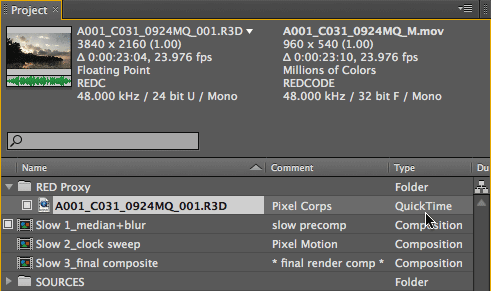
The RED camera creates its own .R3D format raw files, as well as a set of QuickTime movie proxies at full, half, quarter, and eighth resolution that are calculated from the .R3D file. To take advantage of these in After Effects, first you must install the RED QuickTime codec (download it from RED’s Support page; currently only a Mac version is available).
Rendering with Proxies
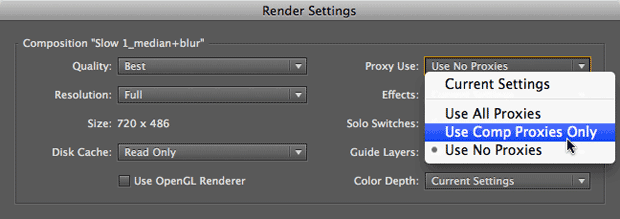
When it comes time to render, you can use or ignore proxies. This is determined in Render Settings under the Proxy Use menu, as shown above. You want to ignore proxies if they were low-resolution versions of your footage; you want to render the proxies that are prerenders standing in for computationally intensive compositions.
A common choice is Current Settings, which means obey the current status of the proxy switches in the Project panel. This means the final comp will render exactly as you are viewing it. The other choices override the Project panel settings.
If you were using low-resolution footage proxies, but the prerendered comps were final versions, choose Use Comp Proxies Only for your final render. This will use the original footage, but still use any composition proxies you may have prerendered to save time. This is the setting we use, and we update all our Render Settings templates to use it. If you use this setting too, be sure to actually remove any comp proxies that are no longer valid – don’t just temporarily toggle them off.
Be aware that the default setting for all templates is to Use No Proxies. If you’ve already prerendered horribly slow comps, Use No Proxies will start rendering everything again from scratch (been there, done that…).
If you used stills to stand in for comps, remove these proxies in the Project panel before the final render, or select the default setting, Use No Proxies.
Trish and Chris Meyer share seventeen-plus years of real-world film and video production experience inside their now-classic book Creating Motion Graphics with After Effects (CMG).
The 5th edition has been thoroughly revised to reflect the new features introduced in both After Effects CS4 and CS5 (click here for free bonus videos of features introduced in CS5.5). New chapters cover the new Roto Brush feature, as well as mocha and mocha shape. The 3D section has been expanded to include working with 3D effects such as Digieffects FreeForm plus workflows including Adobe Repouss©, Vanishing Point Exchange, and 3D model import using Adobe Photoshop Extended. The print version is also accompanied by a DVD that contains project files (CS5-only) and source materials for all the techniques demonstrated in the book, as well as over 160 pages of bonus chapters on subjects such as expressions, scripting, and effects.
We will be pulling a few “hidden gems” out of each chapter to share on ProVideoCoalition.com roughly every week. These will give you a taste for the multitude of time-saving tips, not-obvious features, little gotchas, and other insider knowledge you will find in CMG.
FTC Disclosure: We receive software from Adobe to help us create our books, blogs, and videos. Aside from that, we have also used their software for nearly 20 years to make a living creating commercial work for clients – so the tips we share are based on real-world experiences, not as promotional material for Adobe.
The content contained in our books, videos, blogs, and articles for other sites are all copyright Crish Design, except where otherwise attributed.