

Filmtools
Filmmakers go-to destination for pre-production, production & post production equipment!
Shop Now

This is the final installment of us going through our book Creating Motion Graphics with After Effects 5th Edition (CMG5) and pulling out a few “hidden gems” from each chapter. (Is a celebration in order?)
After Effects features a variety of settings that control importing files, opening multiple compositions, previewing audio, the appearance and interactivity of the program, plus numerous other details. In this final chapter of CMG5, we go through each of the 14 individual Preference panes, giving an overview of what these settings mean and what they do and highlighting those settings that we find aid our efficiency. Here are but a few of those tips.
Reset Preferences
When After Effects is acting bizarrely or otherwise not behaving, sometimes the problem in a corrupted preference file. First, make a copy of your existing preferences, in the event they weren’t the root of your problem. Where they are saved depends on your operating system. To be safe, first save your current prefs: Search for “Adobe After Effects 10.0-x64 Prefs” (10.5 for After Effects CS5.5) and make a note of where you found them. Here are some typical file paths (which are operating system and software version dependent):
MacOS 10.6:
DriveUsers(your user name)LibraryPreferencesAdobeAfter Effects10.0
Windows 7:
C:Users(your user name)AppDataRoamingAdobeAfter Effects10.0
Copy this file to a safe place so that you can return to them later if desired. Then, to restore the default preference settings, hold down Command+Option+Shift on Mac (Control+Alt+Shift on Windows) while launching the program.
Managing the Conformed Media Cache
To improve performance, After Effects (as well as other programs in the CS5 Production Premium bundle including Adobe Premiere Pro, Encore, and Soundbooth) converts some CPU-intensive footage file formats such as MPEG to a faster, uncompressed internal format. There is a slight delay when you first import one of these files, but they will be much faster to access afterward. These files are saved in the Cache location, which should be a large, fast drive (that innocuous statement is in itself is a “hidden gem” of how to improve AE’s performance):
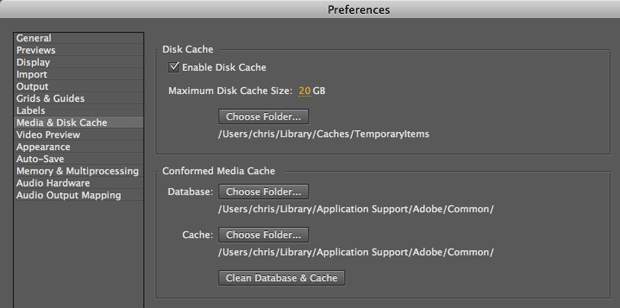
The Database is smaller and can exist on your main drive. The Production Premium programs share the same database so that each can take advantage of the decompressed files, even when they exist in another program’s cache. If the original source file is no longer available, it’s a good idea to click the Clean Database & Cache button so the other applications don’t go looking for a missing file.
Here’s the big gotcha: Cleaning the database is not the same as deleting the cached file! If you are running out of disk space, manually delete items in the Cache folder, then click Clean Database & Cache.
Managing Memory
The Memory section along the top of the Memory & Multiprocessing pane is the section where you balance the amount of memory used by After Effects versus your system and any other programs that may be running. While it is tempting to reduce the “reserved for other applications” number as low as possible, don’t get greedy; if you go too far performance will suffer as the operating system swaps elements in and out of RAM.
Note: Since CMG5 was released, Todd Kopriva at Adobe has posted a number of useful articles on the recommended memory settings for the most recent versions of After Effects. Bookmark this page to stay current: http://forums.adobe.com/thread/543440
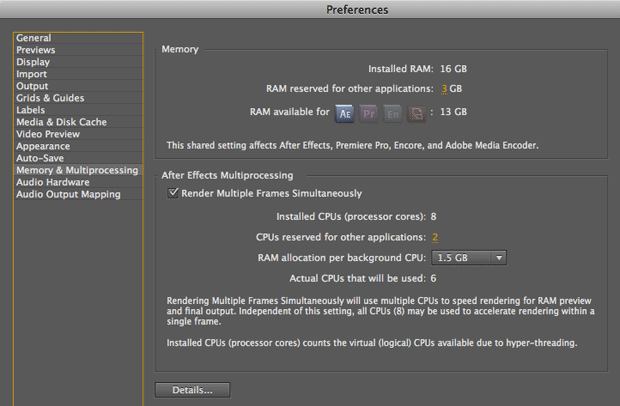
If you have CS5 Production Premium or Master Collection, the video family of applications can share memory between themselves. This is done automatically for you – but if you’re curious, click the Details button near the bottom of the dialog shown above, and you’ll open this special Details dialog:

The Text Preferences
As mentioned earlier, your preference settings are saved in a text file called Adobe After Effects 10.0-x64 Prefs (10.5 for CS5.5). This file is updated each time you quit After Effects. This text preferences file contains a lot of additional internal switches and settings that are not exposed to the user.
If you’re feeling brave, quit After Effects, make a safe copy of the Adobe After Effects 10.0-x64 Prefs file, open the original in a text editor, and look around. Most of this file will read like gibberish, but there are a few gems hidden inside.
For example, say you checked the Enable Disk Cache preference, but feel After Effects is too quick to delete cached frames rather than copy them to disk. With this preference enabled, quit After Effects, open the text preferences, and search for the phrase “Proclivity Multiplier” (we warned you about gibberish). Set its value to something lower (say, 1.2 instead of 1.5), save the prefs file, and relaunch After Effects.
Changing the Keyboard Shortcuts
In the same folder as the text preferences mentioned above is the Adobe After Effects 10.0 Shortcuts file that maps keyboard shortcuts to functions inside After Effects. If you are using a foreign language keyboard, and need to remap a shortcut to a special key, find that key’s Unicode character (such as U+00A7 for §), and replace the current assignment inside parenthesis with the Unicode value.
For more conventional reassignments, you don’t need to edit this file by hand: Use Jeff Almasol’s “KeyEd Up” script, which is available as part of a highly useful collection of Additional Scripts in the After Effects section at share.studio.adobe.com.
Trish and Chris Meyer share seventeen-plus years of real-world film and video production experience inside their now-classic book Creating Motion Graphics with After Effects (CMG).
The 5th edition has been thoroughly revised to reflect the new features introduced in both After Effects CS4 and CS5 (click here for free bonus videos of features introduced in CS5.5). New chapters cover the new Roto Brush feature, as well as mocha and mocha shape. The 3D section has been expanded to include working with 3D effects such as Digieffects FreeForm plus workflows including Adobe Repouss©, Vanishing Point Exchange, and 3D model import using Adobe Photoshop Extended. The print version is also accompanied by a DVD that contains project files (CS5-only) and source materials for all the techniques demonstrated in the book, as well as over 160 pages of bonus chapters on subjects such as expressions, scripting, and effects.
If you’ve updated your copy of After Effects, make sure you’ve also updated your copy of CMG to get the most up-to-date information.
FTC Disclosure: We receive software from Adobe to help us create our books, blogs, and videos. Aside from that, we have also used their software for nearly 20 years to make a living creating commercial work for clients – so the tips we share are based on real-world experiences, not as promotional material for Adobe.
The content contained in our books, videos, blogs, and articles for other sites are all copyright Crish Design, except where otherwise attributed.