

Our book Creating Motion Graphics with After Effects 5th Edition (“CMG5” for short) is not a quick read: It contains 768 printed pages, plus another 160 pages of bonus chapters on the accompanying disc. Although we put a lot of effort into the Table of Content and Index, there will inevitably be a few tips, tricks, gotchas, factoids, and shortcuts you might have missed. Therefore, we’re going to go through CMG5 and pull out a few quick-to-read “hidden gems” from each chapter. These will include both essential tips for new users, as well as timesaving gems that experienced users may not be aware existed.
The first chapter in CMG5 is an overview of After Effects itself, so this first batch of tips will be focused on the user interface and working with source files:
 Finding Missing Files
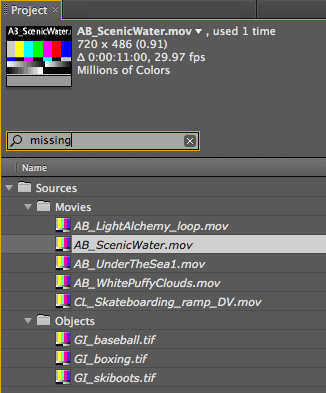
If you open a project that has missing footage, those items will be displayed in italics. To easily find the missing items in a busy Project panel with lots of folders, type “missing” into the QuickSearch field at the top of the Project panel (this field was introduced in After Effects CS4). Only missing items will be shown; double-click the first one to relink it to the file on your hard drive, and other missing items in the same location will also be relinked.
Importing & Merging Projects
You can import an entire project into the current project. After Effects will copy the links to the imported project’s source files as well. This is a handy way to duplicate a complex chain of nested comps, though you might want to apply File > Consolidate All Footage afterwards to remove the duplicate sources. You can also create a blank project and import any number of project files in order to render them as a batch; their respective Render Queues will be imported as well.
Maximize Frame
To expand the current panel or frame to fill the entire Application window, press ~ (the tilde key). This is useful for quickly expanding the Timeline when you are using the Graph Editor, or whenever you want a detailed view of a panel. Press ~ again to return to your previous arrangement.
Browse to Import
Instead of using the age-old File > Import menu option, use File > Browse, which launches Adobe Bridge where you can sort and rename images, as well as preview QuickTime movies. To import one or more files from Bridge into After Effects, select them and either press Enter or Return, or press Command+O on Mac (Control+O on Windows).
 Close All Comps
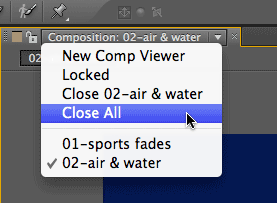
To close multiple comps quickly, use “Close All Comps” from the popup menu at the top of the Composition panel. This also closes all the accompanying Timeline panel tabs. Don’t click the small “x” on the right side of the Composition panel’s tab to close all comps: This closes the Comp panel itself and collapses your workspace (same goes for closing the last tab in the Timeline panel).
Trish and Chris Meyer share seventeen-plus years of real-world film and video production experience inside their now-classic book Creating Motion Graphics with After Effects.
The 5th edition has been thoroughly revised to reflect the new features introduced in both After Effects CS4 and CS5. New chapters cover the revolutionary new Roto Brush feature, as well as mocha and mocha shape. The 3D section has been expanded to include working with 3D effects such as Digieffects FreeForm plus workflows including Adobe Repouss©, Vanishing Point Exchange, and 3D model import using Adobe Photoshop Extended. The print version is also accompanied by a DVD that contains project files and source materials for all the techniques demonstrated in the book, as well as over 160 pages of bonus chapters on subjects such as expressions, scripting, and effects.
We will be pulling a few “hidden gems” out of each chapter to share on ProVideoCoalition.com roughly every week.
The content contained in Creating Motion Graphics with After Effects – as well as the CMG Blogs and CMG Keyframes posts on ProVideoCoalition – are copyright Crish Design, except where otherwise attributed.

Filmtools
Filmmakers go-to destination for pre-production, production & post production equipment!
Shop Now