Using expressions to choose, modify, or create master colors.

The next-to-last subject we’re going to cover is manipulating color inside expressions. This is powerful, as so much of graphics is about color, and also because it is very handy to set up a master color on one layer and then have a large number of other layers or effects look to this master – a great way to accommodate sweeping client changes at the last minute.
Ground Rules
One of the main points to know about color in expressions is that color swatches and pickers define color as RGB (red/green/blue) values. However, it is usually easier to manipulate color in the HSL (hue/saturation/lightness) domain. Fortunately, After Effects has a pair of color conversion methods: rgbToHsl and hslToRgb (which we’ll be discussing in greater detail in just a second).
Secondly, color is an array, akin to position or scale. To access the “R” value in RGB, you would use a statement similar to my_rgb[0]; to pick the “S” value in HSL, you would use a statement akin to my_hsl[1].
The third main point to understand is that color values inside expressions range between 0 and 1 rather than 0 to 255, or 0° to 359° for hue. A white color swatch would have a value of 1,1,1 inside expressions, not 255,255,255. Related to this is that the hue value cannot exceed 1; you cannot keep wrapping around the color wheel. Therefore, if you are going to be altering hue inside an expression, you will need to use the modulus math operator % mentioned at the start of this series to wrap it back in bounds. This usually requires just adding a line to your expression, akin to corrected_hue = my_hsl[0] % 1.
The final point – which can cause unexpected errors when you’re working with color expressions – is that both RGB and HSL value arrays have a fourth dimension: alpha (in other words, they are really RGBA and HSLA arrays). You cannot set the alpha strength with a color picker or swatch, but expressions will break if you don’t place at least a dummy number (a good number is 1, for a fully opaque alpha) in this fourth dimension of an array that holds a color value.
Mastering Color
Our first example employs an example of expressions that manipulate a master color for multiple layers in a comp. The layer master_color below has a Color Control expression controller applied to it. The text layers in this comp have been expressed to use the same Fill color as defined by this master color – we just used the pick whip to assign these:
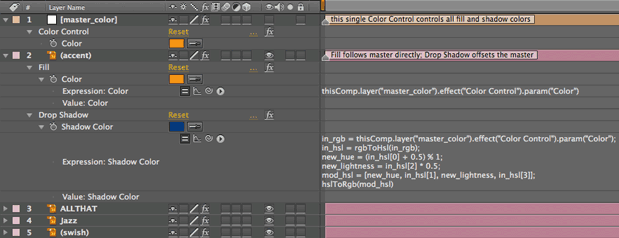
 Let’s say you and the client have agreed on a scheme in which the drop shadows for the text have a complementary color (a hue shift of 180°) at only 40% of the lightness of the text, as pictured at left. After enabling expressions for the Drop Shadow’s Shadow Color, setting up a variable called in_rgb, and dragging the pick whip to our master Color Control to assign it, we then added these lines:
in_hsl = rgbToHsl(in_rgb);
new_hue = (in_hsl[0] + 0.5) % 1;
new_lightness = in_hsl[2] * 0.4;
mod_hsl = [new_hue, in_hsl[1], new_lightness, in_hsl[3]];
hslToRgb(mod_hsl)
- The first line of this expression converts the RGB color to HSL.
- The second line adds 0.5 to the hue value (the first dimension of our color array, or in_hsl[0]), and uses the modulus operator % to wrap around the resulting value to stay within the 0-1 range. We chose to add 0.5 because we wanted a 180° hue shift, and 180 ÷ 360 = 0.5.
- The third line creates our new lightness value by grabbing its value out of our color array (in_hsl[2]) and multiplying it by 0.4 to scale it 40%.
- The fourth line plugs our new hue and lightness values into a color array, while keeping the original saturation (in_hsl[1]) and alpha (in_hsl[3]) values intact.
- The fifth line converts our modified color back to RGB, which is what the Shadow Color parameter expects.
After creating this expression for one layer, we copied and pasted the Fill and Drop Shadow effects – with expressions – to the other text layers. As a result, changing the Color Control will affect the fill and shadow of all the layers automatically.
If we wanted to be really clever, we could add Effect Controls to master_color to allow us to interactively set all of these color adjustments for Shadow Color. This is what we’ve done below:
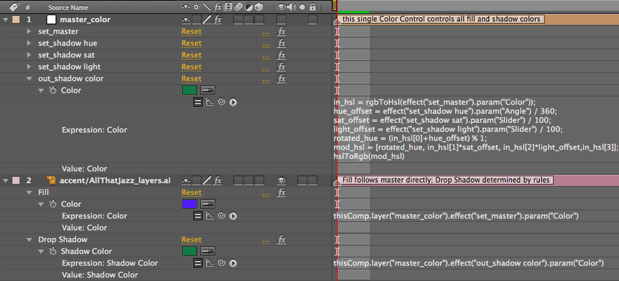
A series of Expression Controls (each renamed to start with the word “set_”) provide a user interface for us to adjust how our shadow color is derived from our master color. We used the pick whip to connect the Fill effect for each text item to set_master, and to connect their Shadow Color to out_shadow color.
Yes, we know it would be easier to just precompose the title layers and apply one Drop Shadow effect to the group, but we’re trying to teach a concept here! Remember that you can use the pick whip to connect expressions across different comps. This means you can set up a set of master color controls in one comp, and wire all of your other comps to this master comp. Change the colors in this master comp, and all of your other wired comps will follow automatically. Just don’t tell the clients – they’ll take this as an opportunity to sit in your studio and play with different color combinations until you fall asleep!
next page: sampling colors from an existing image
Sampling Colors
After Effects CS3 added an expression method that allows you to sample the color of a pixel or group of pixels in an image. You can use this power to do something as simple as matching the color of a lower third bar to a changing color in a background, or as complex as writing your own color correction or flicker reduction effects.
Like many expression methods, sampleImage can be quite simple, or quite complex. Its basic form is sampleImage(point) where point is a position derived from an effect point or another layer. In this form, sampleImage will sample just the one pixel located at that point (the default radius is 0.5 pixels), after any effects have been applied to the layer, and at the current time.
The full-blown version of this method is sampleImage(point, radius, postEffect, time) where radius is a two-dimension array (the X and Y range of how many pixels are being sampled), postEffect is a Boolean (replace it with either true or false), and time is a numeric value. You can leave out time, or postEffect and time, or radius, postEffect, and time.
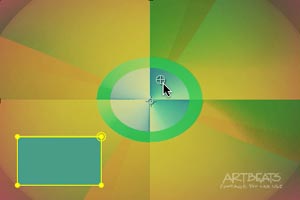 The example at left and below contains a simple application of sampleImage. Note where the cursor is pointing in the image at left: this is the Effect Point being used to sample the underlying footage, The yellow rectangle in the lower left is the area being colored based on this Effect Point.
Image DG101 courtesy of Artbeats.
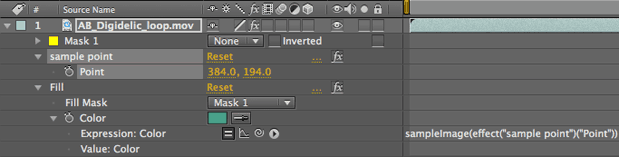
To accomplish this, we added an Expression Controls > Point Control to this layer, and renamed it “sample point.” Next, we created a small mask path (with its mode set to None) on the movie layer and used Generate > Fill to color this masked area. Finally, we applied the sampleImage expression to Fill’s Color swatch, and used the pick whip to wire it to follow the point controller. The resulting expression is:
sampleImage(effect(“sample point”)(“Point”))
Below is a more complex example that points out some real world considerations for using sampleImage. The image whose color we wish to sample – DV_MusicMix.jpg – is larger than the comp. We also want to use another layer – CM_sensor_crl.tif (where the cursor is pointing in the image below) – to determine which pixel we are sampling. We’d like to have easy control over how many pixels we’re averaging together to determine our selected color. Finally, we want to apply the resulting color to yet another image: the shape layer Hex Button (as well as bevel highlight color of the Layer Style applied to it).

Image courtesy Digital Vision/Music Mix.
To pull this off, we applied two Expression Controls to DV_MusicMix.jpg: a Slider Control we renamed “set_sample radius,” and a Color Control we renamed “out_sample color.” We then pick whipped the color for Hex Button‘s Fill attribute to out_sample color.
Next, we started working on the expression for DV_MusicMix’s out_sample color effect. First, we need to translate from the CM_sensor_crl‘s position in comp space to DV_MusicMix‘s own layer space. To do this, we created a variable for DV_MusicMix.jpg called samplePoint, and used the fromComp() expression discussed earlier in this series to do the translation. When pick whipped to the sensor layer to fill the parenthesis for fromComp().
We then created a variable called sampleRadius, and pick whipped to the “set_sample radius” slider to get its value. As it turns out, sampleImage returns an error if you set its radius to a value equal to or less than 0, so we added a quick if/then statement to make sure it was no smaller than 0.5 pixels.
The final line of the expression – sampleImage(samplePoint,[sampleRadius,sampleRadius]) – uses these variables we’ve created. We had to repeat sampleRadius twice inside brackets to convert the one-dimensional slider value into the two dimensions that the radius value requires. (You could also have used a Point Control in place of the Slider Control for set_sample radius in order to give yourself independent control over the X and Y radius of the area being sampled.)
The final expression for DV_MusicMix‘s Color Control is:
samplePoint=fromComp(thisComp.layer(“CM_sensor_crl.tif”).position);
sampleRadius = effect(“set_sample radius”)(“Slider”);
if (sampleRadius = 0) {sampleRadius=0.5};
sampleImage(samplePoint,[sampleRadius,sampleRadius])
The full timeline panel looks like this:
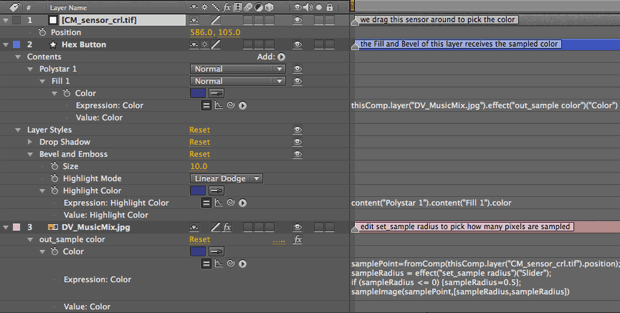
As we drag the sensor layer around in the example above, we get color changes in the hex button based on the pixel underneath the crosshairs of the sensor. If we were to increase the value of the set_sample radius slider and drag our sensor around, the color changes would be more gradual, as adjacent pixels would be averaged together. Of course, you can animate the sensor’s position as well.
(Note: You may might notice the user interface “flashes” occasionally while working with the sampleImage expression. This is just a side effect of the serious voodoo After Effects is performing underneath the hood to make sampleImage work.)
Next Installment: Expressive Text
In our last installment, we will show how to use the mysterious Expression Selector to control individual characters in a text layer. Until then…
We’re in the process of serializing the Deeper Modes of Expression bonus chapter from our book Creating Motion Graphics with After Effects into a set of 12 posts here on PVC.
The latest edition of Creating Motion Graphics – covering the updates introduced in After Effects CS4 and CS5 – is shipping now.
The content contained in Creating Motion Graphics with After Effects – as well as the CMG Blogs and CMG Keyframes posts on ProVideoCoalition – are copyright Crish Design, except where otherwise attributed.


Filmtools
Filmmakers go-to destination for pre-production, production & post production equipment!
Shop Now