

Filmtools
Filmmakers go-to destination for pre-production, production & post production equipment!
Shop NowHow to gain finer control over randomness.

Last month, I discussed using the wonderful wiggle expression to add randomization to your animations. However, wiggle is but one specialized application of random number generation. For those who like take the lid off and truly get under the hood, After Effects also includes the methods random, gaussRandom, and noise. In this installment I’ll also discuss changing random seed values (patterns of randomness), and how to freeze randomness in its tracks.
Degrees of Randomness
The wiggle expression is good at adding some randomization to values or animations you’ve already created. But sometimes, you just need a random number all by itself to factor into an expression. That’s where the random and gaussRandom expression methods come in.
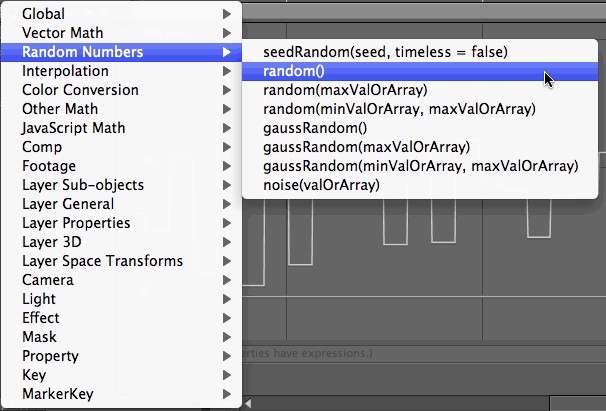
There are several variations on the random theme, depending on how you want to set the range of possible values. The simple random() expression (yes, you need to type the parentheses, even if you don’t want to enter a number) produces a different value between 0 and 1 on every frame. At the other end of the scale is random(min_val, max_val) where you can enter two sets of coordinates you want to randomize between – say, two different Position arrays. If you forget what variations of random are available, look under the Random Numbers submenu in the expression language menu for a reminder:
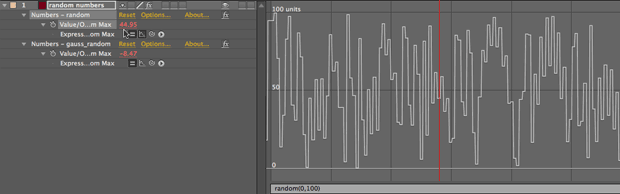
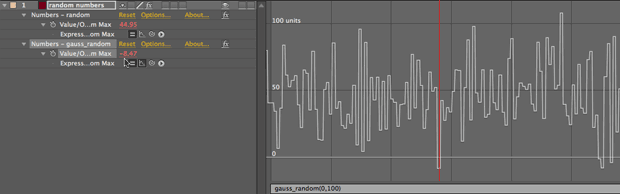
The random method produces truly random numbers. If you want numbers that are more closely clustered to a central value, try the gaussRandom method. Whereas random() produces any value between 0 and 1, gaussRandom() produces values that are generally closer to 0.5, but that can occasionally stray as far as -0.1 and 1.1.
Below is a simple example that demonstrates the difference between the two. This comp contains two Text > Numbers effects, with random(0,100) applied to the Value of one layer, and gaussRandom(0,100) applied to the Value of the other. If you were to step through through the comp, you would notice that the gaussRandom version would stay closer to 50, but would also occasionally go below 0 and above 100 – as shown in the example below (random is on top; gaussRandom is on bottom):
A special case of random numbers is the noise method: Rather than creating a stream of chaotic numbers as random or gaussRandom do, noise can create flowing streams of connected numbers using what’s known as Perlin noise (the same thing used to create fractal noise, automatic clouds, and so forth). However, it is a bit difficult to get your head wrapped around; for one, it doesn’t auto-animate – you have to drive it along its path at your desired rate.
The noise() method outputs a random number between -1 and +1 that changes based on the number inside the (). If you make very small incremental changes in the number inside () from frame to frame, the output of noise() will also change slowly, following a wandering path akin to the way wiggle() or the text engine’s Wiggly work. The faster the number changes inside (), the more chaotic (or “noisy”) the output will appear.
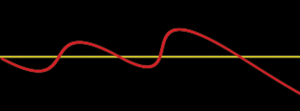 To the right is an image created using the Write-On effect plus the noise() method to draw two lines. The yellow line is a normal straight line; the red line has been offset by noise using the following expression:
noise_result = noise(time/2);
offset = noise_result * 75;
value + [offset, offset]
For a slowly changing number to feed noise, I decided to use time: the current time in the comp, in seconds. To slow down the rate of change even more, I divided time by 2. Using a larger number to divide by would mean the result of the time expression would change more slowly, resulting in a more slowly undulating line.
The second line of the expression boosts the -1 to +1 output from noise to a larger number so I can see its result; the third line adds this result to the normal value of Write-On’s Brush Position. As noise creates a one-dimensional result (i.e. only in the X dimension), and position values have two dimensions (X and Y), I added the noise result to both dimensions of Brush Position to get a more interesting line.
What makes noise even more interesting is that you can feed it a one-, two-, or three-dimension array to drive it along; changes in each dimension affect the answer noise gives you. Again, very small changes mean the results will be very similar; larger changes mean more chaotic results.
 In the example at right, I created five lines using Write-On and noise, feeding noise a combination of time (as I did above) plus the Y position of the solid that holds the line (which increases with each lower line) – akin to changing the second line of the expression above to offset = noise([time/2, position[1]]). The result looks like the lines are waving in the breeze or wandering in 3D space.
Background courtesy Digital Vision/Music Mix
Freezing Chaos
The random number methods “seed” themselves to produce different results depending on the time, as well as internal information for a layer. Unlike the wiggle expression which self-randomizes based on its layer index, if you move a layer with a random method to a different index (layer number) in the Timeline panel, it will still produce the same numbers at the same times – you need to duplicate it (create a new layer object) to get a different set of numbers due to the fact that After Effects assigns a new internal layer ID that is different from the index.
Another way to provide a different seed to the random functions is to precede them with the seedRandom(n) method. Change the value of n to produce a different stream of numbers. For example, using seedRandom(index) varies the random number sequence depending on the layer’s number in the Timeline panel.
The seedRandom method has a second parameter – timeless – that decides whether the random or gaussRandom methods that follow change on every frame. Inserting seedRandom(10, false) or just seedRandom(10) before the normal random method produces a new number every frame; writing seedRandom(10, true) produces a single number that stays constant for every frame. To change the random number that is produced, change the seed – in this example, the number 10. You can replace the words true and false with the values 1 and 0, respectively.
This timeless parameter gives you a technique to control precisely when the random number methods produce a new value. Say you wanted the Opacity of a layer to change randomly between 25% and 100% every second. You could take the value time, and use a math function we discussed earlier in this series – Math.floor(time) – to round it down to the nearest whole second. That means its value would change only every second. Plug that in for the random seed, set the timeless flag to true, and you get an animation that blinks to a new value every second. That final expression (applied to Opacity) is:
seedRandom(Math.floor(time), true);
random(25,100)
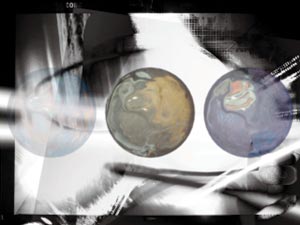
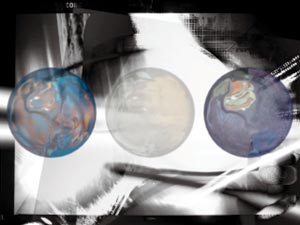
A trio of spheres set to randomlize opacity using the expression above.
Background courtesy Digital Vision/Whacked Up Urban Funk
Another useful expression method is posterizeTime(fps). Make this the first line in your expression, and now the entire expression will only be executed at the rate defined by the frames per second value inside the (); the output of the expression will stay constant between changes.
Next Installment: Dreaming in Color
Enough with random numbers; time to turn our attention to the wonderful world of color. In the next installment I’ll unravel the tricky RGB-to-HSL conversions, plus discuss some ideas for controlling master colors across entire projects. Until then…
We’re in the process of serializing the Deeper Modes of Expression bonus chapter from our book Creating Motion Graphics with After Effects into a set of 12 posts here on PVC.
The latest edition of Creating Motion Graphics – covering the updates introduced in After Effects CS4 and CS5 – is shipping now.
The content contained in Creating Motion Graphics with After Effects – as well as the CMG Blogs and CMG Keyframes posts on ProVideoCoalition – are copyright Crish Design, except where otherwise attributed.