

Filmtools
Filmmakers go-to destination for pre-production, production & post production equipment!
Shop NowThis simple method is our favorite replacement for a calculator.


As we noted last month, we’re serializing the Deeper Modes of Expression bonus chapter from our book Creating Motion Graphics with After Effects into a set of 12 posts here on PVC. As February is the shortest month, perhaps it’s appropriate that this us the shortest installment – but we also consider this to be one of the most important, core techniques offered by expressions: A quick and easy way to convert one range of numbers to another.
Interpolation Methods
Expressions in After Effects have the ability to interpolate between values. Knowing how to use the interpolation methods will make your expressions much easier to write, avoiding the need to drag out the calculator every time you need to scale one value’s range to fit another value’s range.
For example, say you wanted the X Position of a layer to move from X = 60 to X = 260 as Rotation increases from 45 degrees to 315 degrees. It would take a few moments with a calculator and pencil to figure out how to translate one range into the other. However, the interpolation methods make it easy – just plug in the ranges you need to translate between:
x_position = linear(rotation, 45, 315, 60, 260)
What this expression says is that as Rotation varies from 45 to 315, output a value that ranges from 60 to 260, scaling automatically in-between. What if Rotation goes below 45? The output will stick at 60. Same goes if the Rotation exceeds 315 – our resulting position value will stay at 260.
There are also ease, easeIn, and easeOut versions of all these interpolation methods. In the sequence of figures below, the lower wheel uses the expression ease(rotation, 45, 315, 50, 270), which results in an ease in and ease out for the resulting Position animation.
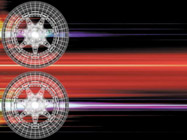
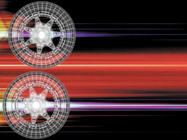
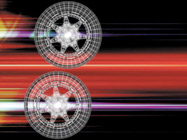
With the interpolation method described above, the wheels don’t start moving away from the left side until they rotate more than 45 degrees. The upper wheel is using linear interpolation while the bottom is using ease; as a result, the upper wheel moves faster initially. Background courtesy Digital Vision/Prototype.
There is a bit of a gotcha with the ease types: They work backward compared with the Easy Ease keyframe assistants. The interpolation method easeIn does not mean gradually slow down as you reach the second value; it means “ease in to the motion” (or away from the first value), then go to the second value in a linear fashion. This is demonstrated in the sequence below, where our wheel “skids” a bit initially, then gradually starts spinning after it moves 50 pixels away from the side of the comp. To do this, we turned the tables and applied the expression to Rotation, borrowing the X Position – position[0] – as our driving force:
easeIn(position[0],50,320,0,360)



We will use these interpolation methods liberally throughout the rest of the installments, as they can replace a lot of otherwise confusing math. In most cases, we will use the long form shown above; there are also shorter forms with just three values – for example, linear(t, value 1, value 2), which outputs a value between 0 and 1 as “t” varies between value #1 and value #2.
The other gotcha with the Interpolation methods is we’ve occasionally found cases where they refuse to convert in a particular direction, such as higher values to lower values. We’ve found that simply flipping the numbers (i.e. value 1 and value 2, as well as value 3 and value 4) makes it behave correctly.
From its name, you might think interpolation methods could also be used as a replacement for interpolating between normal keyframes. And you could use them for this purpose – but we can’t recommend it as a regular practice. Expressions give you far less control over how you interpolate than the normal keyframe interpolation methods do. if you have a copy of Creating Motion Graphics, see Chapters 4 and 5 to learn a variety of ways to control keyframes.
Rubber Hits the Road
Speaking of making wheels travel, ever wonder how to calculate the correct rotation to make a wheel appear that it has traveled a certain number of pixels? First you need to know the diameter of the wheel. Then you can use this formula:
distance = Math.PI * diameter * (rotation/360).
(This uses the JavaScript representation for pi that you learned in the previous installment.)
Next Installment: Deeper Into Arrays
Hopefully that was short and sweet. If you want another take on it (and admittedly, it’s easier to comprehend if you have the example project in our book), our fifth After Effects Apprentice video tutorial covered expressions; the last technique shown is the Interpolation method discussed above.
In the next installment, we’ll tackle a much deeper subject: How to deal with parameters that have more than dimension (such as position), and how to translate between parameters that have different numbers of dimensions – such as when we used position[0] above to grab just the X position value, and translate it into a rotation value. Included in the next installment will be the very useful length and lookAt expression methods. Until then…
The content contained in Creating Motion Graphics with After Effects – as well as the CMG Blogs and CMG Keyframes posts on ProVideoCoalition – are copyright Crish Design, except where otherwise attributed.