

Filmtools
Filmmakers go-to destination for pre-production, production & post production equipment!
Shop NowHow to translate values between parameters that have different dimensions.

We’re in the process of serializing the Deeper Modes of Expression bonus chapter from our book Creating Motion Graphics with After Effects into a set of 12 posts here on PVC. One of the more mystifying areas of expressions – especially for nonprogrammers – is dealing with arrays. Problems with arrays are the cause of a large bulk of the error messages you will encounter with expressions. Here we will recap the basics, dive into performing additional math operations on arrays, and end with a couple of nice expressions that can measure the distance between layers, or cause one layer to automatically face another.
Arrays 101
As a refresher, when a property in After Effects has more than one value – such as Position, which has X and Y values – it is referred to as having more than one dimension. The collection of its dimensions is referred to as an array. The answer to 2D position is referred to as “an array with two dimensions.” In expressions, any multidimensional value is referred to as an array: For example, 3D position has three dimensions; color has four dimensions – red, green, blue, and alpha. We will discuss color in expressions in a future installment.
(You will often hear the term vector used interchangeably with array. Some reserve the term vector to mean only an array that reflects a position or direction, rather than a multivalue property such as color. We won’t bother splitting those hairs here; for our purposes, assume the two are interchangeable.)
An array is written as a series of values inside square brackets separated by commas – for example, the position X = 360, Y = 243 is written as [360, 243]. The dimensions of an array can be addressed individually, with numbering starting at zero. This is referred to as “indexing into an array.” These index numbers are also surrounded by square brackets. In the example we’ve given here, position[0] = 360, and position[1] = 243. If you wanted to be completely redundant and write an expression that sets Position equal to itself, you would enter [position[0], position[1]].
If you are tying one property to another property, and both have the same number of dimensions, you don’t need to use indexing; After Effects will automatically line up the respective dimensions between the arrays (for example, X Position to X Scale). If the properties have a different number of dimensions, then you need to worry about using indexes to specify which dimension of an array you are talking about.
If you do not specify an index, After Effects usually assumes you mean the first dimension, or value[0]. However, most of the time you need to explicitly state which index of an array you mean, or After Effects will give you an error message, such as shown below. Note that the error message says “no index specified.” This is easy to fix: you could add [0] or [1] after the word position in the expression text, or repair it by using the pickwhip to drag to the correct parameter (which will automatically create correct expression code) – for example, here we would have pick whipped from Rotation to one of the Position values in the Timeline panel.
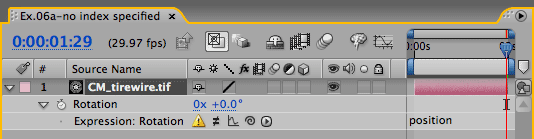
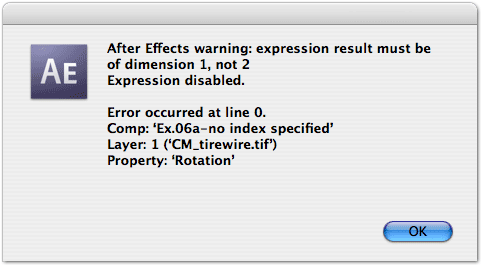
Many errors with arrays are caused by not paying attention to the number of dimensions each property has. Trying to assign a one-dimensional Rotation value to equal a two-dimensional Position value without saying which Position dimension we want (above) results in an error that the result must have one dimension, not two (left).
Vector and Array Math
You can perform math operations inside an array’s brackets, as long as you honor the commas separating its dimensions. For example, if you wanted X Position to equal the layer’s Rotation plus 90, and Y Position to equal the layer’s X Scale times two, you would write [rotation + 90, scale[0] * 2].
There are times you want to perform a math operation on an entire array. Often, you can treat an array similar to a normal value. After Effects also has a number of vector math methods (math functions you can perform on arrays), which usually take the form of a word that signifies what you want to do – such as “mul” for multiply – followed by the array and the number you want to modify it by, both enclosed inside parentheses. The After Effects Help file has a complete list of the supported vector math methods. The expression language menu in the Timeline panel will also show you what methods are available, and what format they require.
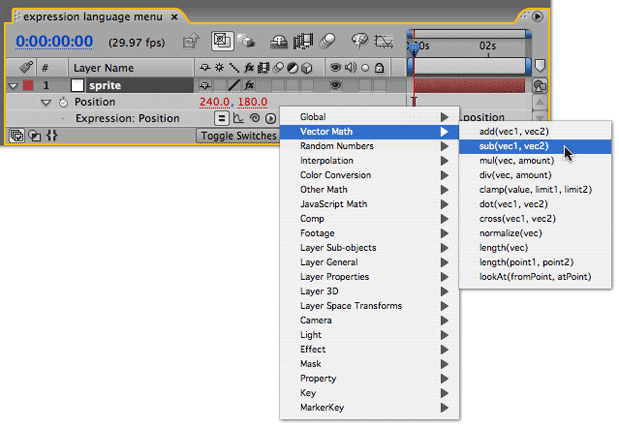
To remind yourself of the expression methods that are available, and the format they require, click on the arrow to the right of the pick whip and use the expression language menu. You will need to replace its hints – such as “vec1” (for vector 1) – with the properties you’re using, such as position.
Here are the vector math functions we use most often, including alternate ways to accomplish the same result using Vector Math methods:
Addition: If you add a single value to an array, this value will be added only to the first dimension of an array. For example, if a layer’s initial Position was 160,120 and you wrote the expression position + 40, the result would be Position = 200,120. If you wanted to add 40 to both dimensions, you could write position + [40,40], or add(position, [40,40]). Finally, you can brute force the math by writing [position[0] + 40, position[1] + 40].
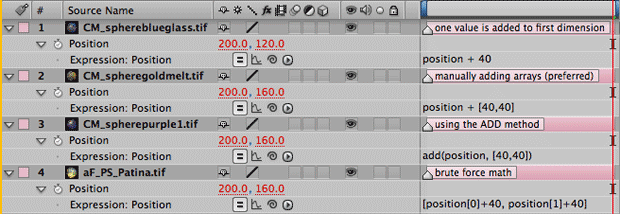
The expressions for layers 2 through 4 do the same thing: add 40 to both the X and Y Position. The expression for layer 1 adds 40 to only X Position, as we are adding a one-dimensional number to a two-dimensional property.
Subtraction: This works the same way as addition. If you subtract a property with one dimension – such as rotation, or the number 40 – from a property with more than one dimension, only the first dimension will be affected. To affect both dimensions, subtract another array (such as position – [40,40]) or use the “sub” method (for example, sub(position, [40,40]). Finally, you can brute-force the math by writing [position[0] – 40, position[1] – 40].
Multiplication: Unlike addition and subtraction, where you need to address each dimension in an array individually, you can multiply all the numbers in an array by a single value. For example, if you want one layer’s Scale to be 60% of another layer’s Scale, you can write either thisComp.layer(“blue”).scale * 0.60 or mul(thisComp.layer(“blue”).scale, 0.60). If you want to address each dimension in an array individually, you will need to do it by brute force, such as [value[0] * 0.65, value[1] * 0.55].
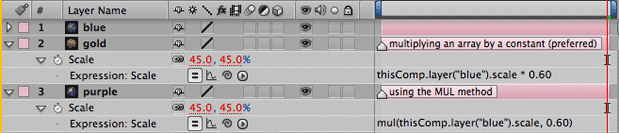
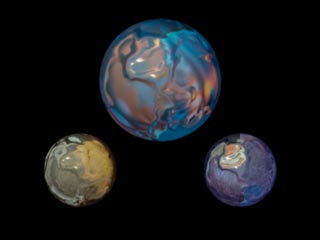
To have the Scale of other layers be a percentage of a master layer’s Scale, you can either multiply the Scale property of the master layer by a single value, or use the “mul” vector math method. Here, the expressions for layers 2 and 3 accomplish the same task: multiplying the blue layer’s scale array value by 0.60.
Division: Division is very similar to multiplication: You can divide all the numbers in an array by a single value. For example, if you want one layer’s Scale to be half of another layer’s Scale, you can write either thisComp.layer(“blue”).scale / 2 or div(thisComp.layer(“blue”).scale, 2). If you want to address each dimension in an array individually, you will need to do it by brute force, such as [value[0] / 2, value[1] / 3].
next page: measuring the distance between layers; causing one layer to face another
Measuring Tape
After Effects provides a pair of “length” expression methods which can measure either the distance between a Position value and the position 0,0 (or in the case of 3D, 0,0,0), or the distance between two different Position values. Oldtimers who remember the Motion Math “span” script may start to imagine some uses for this method.
We tend to use the form length(pos1,pos2). In the lefthand image below, we used it to tell us how far the spaceman is from the wireframe planet he is swinging by – even when the position of both are changing, and even if they are in 3D. To display the result onscreen, we applied the following to the value of Text > Numbers:
pos_1 = thisComp.layer(“spaceman”).position;
pos_2 = thisComp.layer(“globe”).position;
length(pos_1,pos_2)
(You can also apply this expression to the Source Text parameter of a text layer. It can get a bit messy, as you get all of the internal digits to the right of the decimal point. We will discuss using expressions with text in a later installement.)
We wrote this as a three-line expression for the sake of clarity. You could write this in one line, using the pick whip to help you fill in the values between the brackets rather than typing it by hand.
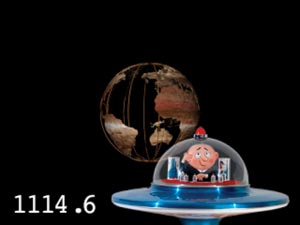
-2.jpg "Deeper Modes of Expression, Part 3: Deeper Into Arrays 32")
In these two examples, we used the Numbers effect and the expression length(pos1,pos2) to help measure the distance between 2D or 3D objects. Spaceman courtesy Classic PIO/Nostalgic Memorabilia.
Constant Size
To keep a layer’s apparent size constant at varying distances from a 3D camera, apply the following expression to its Scale:
distance = length(sub(position, thisComp.activeCamera.position));
scale * (distance / thisComp.activeCamera.zoom)
Here’s Looking At You
Whereas the length expressions measure the distance between two points, the “look at” expression finds the angle between two points. You might already be familiar with the ability to have a layer, light, or camera auto orient along its path, or to have a layer auto orient toward a camera; the look at expression allows one layer to auto orient toward another layer.
For the lookAt expression to work, it must be applied to the Orientation property of a layer that has its 3D Layer switch enabled. To apply it, expose Position and Orientation for the layer you want to apply it to, Position for the layer you want to look at, and follow these steps:
- Enable expressions for the Orientation property of the layer doing the looking.
- Type lookAt
- Drag its pick whip to the Position property of the layer you want to look at.
- Type a comma, and either drag the pick whip to this layer’s Position, or just type position
- Type ) and press Enter.
(By the way, if you use the expression language menu to help write a “look at” expression, note that it has the Position properties backward: It says lookAt(fromPoint, atPoint), but this will make the back of the layer face toward the layer of interest.)
Depending on how your layer was designed, you may find it is facing – rather than pointiong at – the other layer. You can fix this by scrubbing the X, Y, or Z Rotation values as needed to reorient the layer to point as desired. In the example below, we set the arrow’s Y Rotation to 90 degrees to get it to point in the right direction.

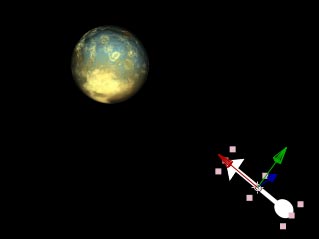
The normal lookAt expression causes a layer to face – rather than point at – another layer. To reorient a layer, scrub its Rotation properties; + or -90 degrees for one of these will fix your problem.
Next Installment: Space Conversions
That was a lot to chew on. But if you made it past the theory on page to the useful length and lookAt expression methods above, now you have a couple more handy tools in your pocket.
In the next installment, we’ll tackle the tricky subject of how to translate between a composition’s “world” space and a layer’s “local” space, or between 2D and 3D dimensions. Until then…
The content contained in Creating Motion Graphics with After Effects – as well as the CMG Blogs and CMG Keyframes posts on ProVideoCoalition – are copyright Crish Design, except where otherwise attributed.