

Filmtools
Filmmakers go-to destination for pre-production, production & post production equipment!
Shop NowGrabbing numbers from places such as the comp settings.


If you can keyframe it, chances are you can control it with an expression, or use it as part of another property’s expression – usually by dragging the pick whip to it. However, there are additional properties you have access to – including those you can’t access with a pick whip, such as whether a layer’s audio or video switches are on, or its current in or out point. You’ll need to either manually type in code to access these, or get some help from the expression language menu. To give you a taste for what’s possible, let’s discuss a couple of comp and footage attributes of interest.
Expressions can access a large number of composition attributes, including the width and height of the comp, the comp’s duration, the duration of a single frame at the comp’s current frame rate, and the comp’s pixel aspect ratio. This saves you from having to calculate or transcribe these numbers by hand; expressions that use these properties will also automatically update as you change a comp’s settings (such as its frame rate). It also makes expressions easier to reuse, as they can automatically refer to a comp or layer’s properties, rather than requiring you to edit the expressions to match a new comp or layer size or frame rate.
Let’s say we want to arrange a series of layers in a line from the upper left corner of a comp to the lower right corner – regardless of the size of the comp:

The upper left corner is easy; it’s value is always 0, 0. We could enter this as its value, but when you resize a comp, the Position values of layers can change. Therefore, to nail it down to that corner, we can enter the expression [0, 0] for the first layer’s Position. (As you know by now, Position for a 2D layer has two dimensions, so we need to give it two values – one for each dimension – inside brackets, separated by commas.)
To place an object in the lower right corner, we need to know the comp’s dimensions. To dig out that piece of information, we would apply the following expression to that layer’s Position:
[thisComp.width, thisComp.height]
Note that if we did not type thisComp. before width, After Effects would have assumed we wanted the layer’s width, not the comp’s width.
It follows that the expression to place an object in the center of a comp is [thisComp.width/2, thisComp.height/2]. And placing objects in between the center and the corners is just a matter of dividing the comp into quarters: [thisComp.width/4, thisComp.height/4] and [thisComp.width * (3/4), thisComp.height * (3/4)]. The resulting timeline panel would look like this (remember, you can select layers and press U to reveal any animating properties be they controlled by keyframes or expressions; type EE to see just the properties with expressions attached):
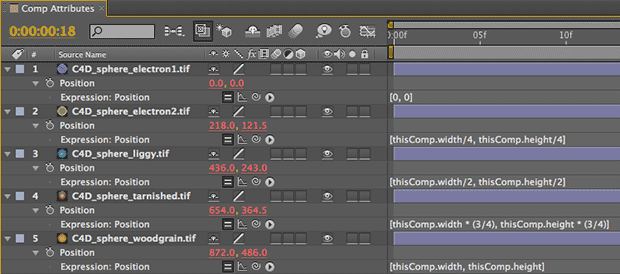
The advantage of using expressions like these is that we can change the comp’s size (maybe because the client neglected to give us the correct deliverable size before we started), and the objects will automatically redistribute themselves correctly with no intervention on our part:

(By the way, one of the small but useful features added in AE CS5 is that many dialogs – such as Composition Settings – have Live Preview switches, meaning you get to see the impact of your changes before you close the dialog. This is particularly handy for editing motion blur settings. But I digress…)
You can use the expression language menu to cut down on typing expressions such as these, but you will need to do it in three steps after you have enabled expressions:
Step 1: Select Global > thisComp
Step 2: Type a period (.)
Step 3: Select Comp > width (or whatever property you want)
It is up to you to decide if that’s easier than just typing thisComp.width – but if nothing else, the expression language menu reminds you of what’s available, and what the correct syntax (spelling) is.
next page: converting between frames and seconds
Frames and Seconds
Expressions, as well as most effects, think of time in terms of seconds. However, most animators think of time in term of number of frames. You can use comp and footage attributes to automatically translate between the two for you.
After Effects features a pair of expression methods – timeToFrames() and framesToTime() – which make it easy to convert these two ways of representing time. You can enter one, two, or three parameters in the () of these methods. If you enter just one number, it is used as the time or frame number you want to convert from. For example, if you want to know the current frame number of a composition, you would write timeToFrame(time) (as time is always the current time in a composition, in seconds).
If you enter two numbers inside the () for these methods (separated by commas), the first number is still the time or frame number, and the second number is the fps (frames per second) value. This number defaults to the comp’s current frame rate; if you instead wanted to know how the current time in seconds would translate to a frame number if the frame rate was 12 fps, you would write timeToFrames(time, 12).
The third, optional value inside () is known as isDuration; it defaults to false. If instead of an absolute frame or time number, you were calculating the difference between two different values, the result may be negative. (This is where the potential rounding errors we discussed back in the first installment with Math.floor and Math.ceil might creep in.) If you set this value to true, the result will always be rounded away from 0, which is generally what you want. Say you had an expression where you calculated a value – time_difference – that you now wanted to convert to the nearest whole frame, at a rate of 24 fps: You would use timeToFrames(time_difference, 24, true).
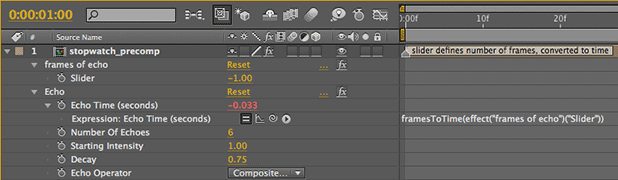
 A simple example of using one of these methods is shown here. The Echo effect requires you to set its Echo Time as a number of seconds. To compute this as a number of frames, we added a Slider Control where we could set the number of frames. Then for the Echo Time parameter, we wrote framesToTime(, dragged the pick whip to our slider, typed ), and press Enter. The resulting expression is:
In addition to these handy time and frame methods, After Effects also provides a pair of attributes to help us find the duration of a frame, either at the comp’s frame rate, or the source layer’s frame rate:
- thisComp.frameDuration: the length (in seconds) of one frame, using the comp’s current frame rate
- source.frameDuration: the length (in seconds) of one frame of the source or precomp, using its own frame rate instead of the comp’s
To convert either of these to a frame rate value, rather than a frame duration, place 1 / before them. For example, 1 / thisComp.frameDuration gives you the comp’s frame rate.
(A complete list of attributes is available as part of the Expression Language Reference section of the After Effects Online Help.)
Next Installment: Managing Time
Continuing the theme of calculating time, the next installment will discuss tricks such as setting up delayed animations using valueAtTime, using indexing to change a layer’s values based on its index in the Timeline, finding the rate at which a value changes, and triggering animations based on markers. Until then…
We’re in the process of serializing the Deeper Modes of Expression bonus chapter from our book Creating Motion Graphics with After Effects into a set of 12 posts here on PVC.
The next edition of Creating Motion Graphics – for After Effects CS5 – is due out by the end of June 2010.
The content contained in Creating Motion Graphics with After Effects – as well as the CMG Blogs and CMG Keyframes posts on ProVideoCoalition – are copyright Crish Design, except where otherwise attributed.