

Filmtools
Filmmakers go-to destination for pre-production, production & post production equipment!
Shop NowLearning how to craft if/then/else statements plus do/while loops will open the door to a wide range of advanced techniques.


As your expressions become more complex, you will want to start making decisions in the middle of them – for example, if the current value is less than a certain number, do one thing; if it is greater than that number, do something different. Other decisions include “wait until the current time is past the next marker – then do this animation” or even “don’t freak out and give me an error message if you can’t find the marker, keyframe, or other layer you’re looking for.”
These sorts of decisions are often referred to as conditional statements, and expressions in After Effects supports them. The most common type of conditional is known as an if/then or if/then/else statement. If you are not familiar with JavaScript, their format may be a bit different from what you expect, but they are easy to learn.
A variation on this theme is a do/while loop, which is an essential tool for overcoming expressions’ inability to remember what happened beforehand. You can use these loops to walk through every frame of the animation – accumulating information – until you get to the current frame.
Bracket Etiquette
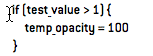
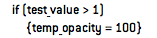
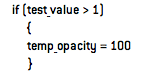
Before we dive in, we need to discuss a code formatting issue. Programmers may find the way we use curly brackets in our book and this blog to be a bit odd. For example, the open curly bracket would normally appear on the same line as the “if” question, and the close curly bracket would appear on a line by itself after the “then” statement, starting in the same column as the if. An example would be:
We personally find reading this unintuitive. Therefore, we tend to rearrange the curly brackets so that they appear on the same line, or at least in the same vertical column. For example:
…or…
These expressions will all work the same, despite the differences in formatting. We will use our own formatting throughout this series; we hope the real programmers out there can forgive us.
Note that if there is only one statement inside a conditional clause, brackets aren’t necessary; you could leave them out altogether in the examples above.
If/Then/Else
Setting up an if/then statement in After Effects consists of two main steps:
- Asking the “if” question (inside parentheses like these, with no semicolon afterward)
- Telling After Effects that if “if” proved to be true, what to do then {placed inside curly brackets like these}; followed by a semicolon
If the answer to the “if” questions proves to be false, the “then” part of the expression inside the curly brackets is ignored, and After Effects will jump ahead in the expression to the next line after the closing curly bracket. Optionally, you can place an “else” statement at this point, {again nested inside curly brackets like these}.
Let’s say you wanted a layer to stay invisible until the current time was later than the first marker in the layer. The if/then expression for Opacity would be
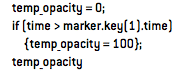
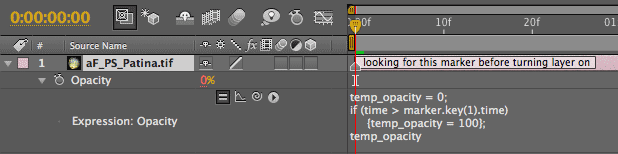
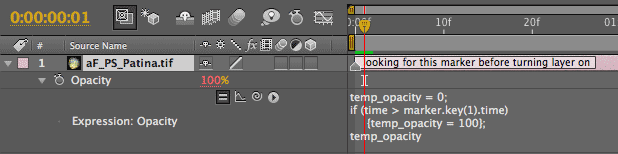
This is demonstrated in the figures below; pay attention to the red Opacity value (remember, red values mean they are determined by expressions). The way we wrote this expression is that first we set up a temporary value, then changed it only when a certain “if” test turned out to be true:
Another approach is the if/then/else statement, in which you make a test, give one answer if it was true, and another answer if it was false. This same expression, written as an if/then/else, would look like this:
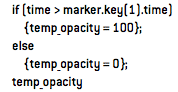
It’s your choice if you use an if/then or an if/then/else statement; both do the same job. Quite often, it comes down to which you find clearer and easier to understand. Note that an if/then/else statement can have multiple “else” clauses (sometimes referred to as “else if” conditionals); just remember to use the curly brackets to keep your statements straight.
You may have noticed in the figures above that the layer becomes visible only after the current time is beyond the first layer marker. This is because we used the “greater than” symbol >. If you really wanted “greater than or equal to,” then you need to use the more complex symbol >=.
After Effects and JavaScript are picky about their order – you can’t use =>. If you don’t have a JavaScript reference handy, you can usually poke around and figure out which order is correct. As a default, start by putting the symbols in the same order you would normally say them – for example, greater than (>) or equal to (=).
next page: some more complex examples; performing automatic error checking
If/Then Continued…
Now let’s put if/then tests to a more practical application. You might remember in our previous installment that we had a layer scale up as it approached a layer marker, then scale down as it moved away from a layer marker. What if we wanted the layer to stay at Scale = 0% until it reached a marker, then jump to 50% and scale down from there? The answer is in the question: Use an if/then statement. In the example below, we’ve modified our prior example to use an if/then statement to give us this modified behavior:
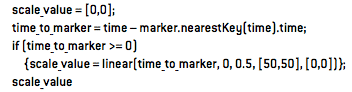
As a quick review, this expression sets up our preliminary Scale value and figures how close we are to the nearest marker. If the resulting time is 0 or greater, that means we just passed the nearest marker, and we can get about the business of replacing our temporary Scale value with a number based on how far away from that marker we are. The linear interpolation function does the ugly math for us of converting 0 to 0.5 second to 100% to 0% Scale; as before, we have it calculating a two-dimensional array for Scale – that’s why we included [50,50] and [0,0] as the upper and lower ranges. The last line plugs in our final answer. (Sometimes you can leave out the final recapitulation of the answer, but we prefer to state it for clarity.)
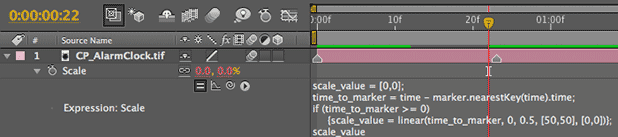
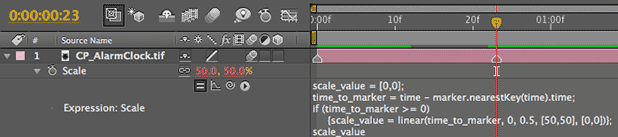
Study the position of the time indicator relative to the marker and the resulting red Scale value in the series of figures below: You will see Scale is 0% just before the marker (when the “if” test fails), 50% right on the marker (the result of the “if” interpolation being executed, with time_to_marker = 0), and slowly returns to 0% as the current time moves past the marker:
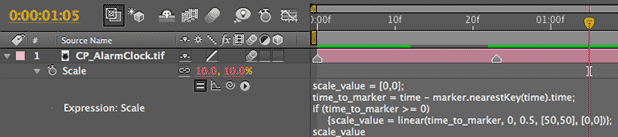
Not all is perfect in our world: After Effects tells us only where the nearest keyframe or marker is – not where the next one is. In this example, we are trying to fade out the layer over 0.5 seconds. If two markers are less than one second apart, we won’t get a chance to get 0.5 seconds away from the marker we just passed; we will already be closer to the next (the “nearest”) marker. This will cause the layer to suddenly jump to 0% scale on the frame before a too-close marker, then resume its programmed behavior from that new marker onward.
You can either start writing even more complicated if/then checks that look at the index numbers of markers and alternate expressions that do something else if markers are too close…or just copy and paste keyframes. We’ve said it before, and we’ll say it again: Don’t write expressions for the sake of writing expressions; write them because you think they’ll save you time and free you up to be more creative. (Or at least, allow you to get more sleep.)
Testing Other Types of Parameters
Some attributes don’t have numeric values; they have yes/no or true/false answers – such as whether the layer has an audio track. These tests need slightly different symbols. If you wanted to test for the presence of audio at the start of an if/then statement, you would type:
if (has_audio == 1)
The == symbol (also known as the “is-equal-to” operator) looks for a logical match, rather than a numeric one. The value 1 means true (or turned on, or enabled); 0 means false (or turned off, or disabled). The symbol != means “is not equal to.”
Note that the double equals signs has a very different meaning than a single equals: Writing has_audio = 1 would try to set has_audio to a value of 1, rather than compare it with a value of 1.
There are even more complex operators and tests, such as AND (&&) and OR (||). Rather than go down all these side streets here, at this point we’re going to turn you over to a JavaScript book (we like JavaScript: A Beginner’s Guide by John Pollock).
Error Checking
What if there was no marker to look for in the examples above? Then After Effects would return an error, and turn off the expression.
This is another case in which if/then statements can come in handy: to check to see if a property you are asking for even exists. You shouldn’t run into problems like these if you are writing an expression for just one layer – you would just remember to add a marker, for example. However, if you have complex expressions that you plan to reuse later, or that you intend to hand off to someone else to use, if/then error checks allow you to “bulletproof” your expressions against special circumstances or user error.
Below is an updated version of our previous example, with some error checking added. After we set up our temporary value for opacity, we use an “if” test to see if any markers are present. If so, we then go into a second if/then statement embedded inside this overall error test. This embedded code is the same that we demonstrated previously, turning a layer’s Opacity on only if we have passed the first marker in the layer.
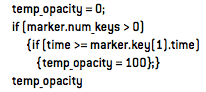
If you get lost reading that expression, search out the curly brackets: They indicate the “then” part of the expression. In the first test – if (marker.num_keys > 0) – if the answer was false (in other words, marker.num_keys = 0), then After Effects will ignore everything inside the pair of curly brackets that follow.
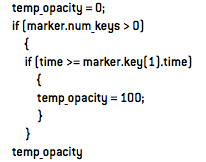
The opening curly bracket is obvious – the hard part is finding its corresponding close bracket. If you find another open curly bracket while you’re looking for the close bracket, this new open bracket belongs to another if/then statement that is buried inside the one you were working your way through. You then need to look for two close brackets: the first one is for the nested if/then statement, and the second one is for the original if/then statement you were trying to finish off.
Nested if/then statements are hard to read; that’s why some use an approach of indenting lines that are inside if/then statements, and even using extra lines and spaces to make sure the curly brackets for each separate if/then statement line up with each other:
In short, if you’re having trouble getting the logic of an expression or interpolation method to behave, consider using if/then statements to break it down into separate conditions (for example, a value is above or below an important threshold), and then solve your problem a piece at a time.
next page: creating while/do loops to accumulate numbers over time
While You Wait
This is the most advanced topic we’re going to discuss in this series. If you are still new to expressions, feel free to skip this section for now.
Perhaps the greatest weakness of expressions is that they have no memory. They execute fresh each time the time indicator moves to a new frame, with no recall of what they did the frame before. Yes, you can use the valueAtTime method demonstrated in the previous installment to see what a property’s pre-expression value was at an earlier point in time, but you still don’t know how you got there.
This becomes a big issue if you are trying to create “simulation” types of expressions. For example, say you wanted to keyframe the amount of throttle being applied to a motorcycle – and you wanted to write an expression that automatically rotates the motorcycle’s wheels in response. To know how much the wheel should be rotated by the time you reach a certain frame, you need to know how much it had been rotated by the frame before…which needs to know how much it had been rotated by the frame before that…which needs to know…you get the idea. As a result, an expression needs to walk frame by frame through a comp from the beginning until the current time, accumulating results as it goes.
To create these types of simulations, you need to create what is known as a while/do loop. An if/then statement executes only once and then is finished, regardless of whether the answer to the “if” question is true or false. By contrast, a while loop executes the “do” statement (equivalent to an if/then’s “then” statement) and then returns back to the top until the answer to the “while” question is finally false.
Typically, a while loop will use a variable to count how many times the loop is executed, and exit the loop only when this counter reaches a certain value. In our example of walking through a comp’s timeline, a while loop would start at frame=0, see if that time equaled our current frame, and if not, our expression would keep adding a frame at a time to our counting variable until it finally reached the current frame number. Inside this loop, you can then add code that accumulates the data you need. This is what the basic format of this loop would look like (using a nifty method discussed in an earlier installment that converts time in seconds to much easier-to-handle time in frames, at the current frame rate):
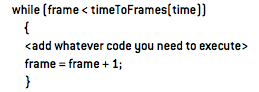
The figures below shows the expression and resulting Graph Editor display for our aforementioned motorcycle throttle example. The pink line is the throttle amount that uses an Expression Controller > Slider Control to represent the throttle setting from 0 to 100%. We’ve keyframed it to represent the throttle being varied over time, including stopping. For the sake of this simulation, we’ve decided that at full throttle, the wheel should rotate 20 degrees per frame (which translates to the throttle setting of 100% divided by 5). The turquoise line shows the resulting total rotation; note how it increases while the pink throttle line is above zero, and is flat and horizontal when the pink throttle line is at zero:
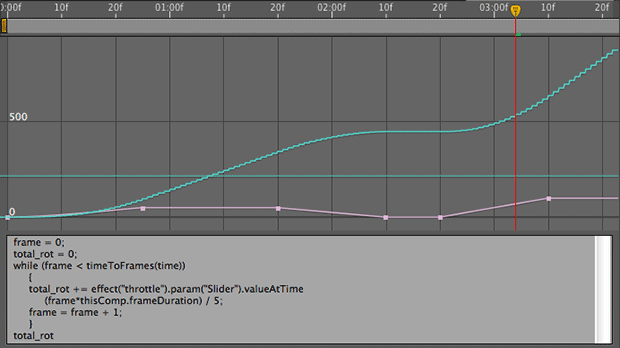
(Notice the stairstepping in the turquoise graph? That is the result of the expression calculating a discrete value per frame, in contrast to normal keyframe interpolation which is smooth. More in that in a sec…)
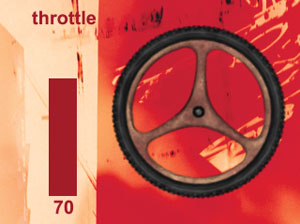 Using techniques we discussed near the start of this series, we also decided to add a bargraph display and numeric readout to the left side of the comp that represents the amount of throttle being applied.
What if we planned on field rendering this composition, which means we would be rendering two images per frame? Then we would need to calculate a new result twice per frame. To do this, we would need to increment frame by a half-frame (frame + 0.5) each pass of the loop, and increment total_rot by only half as many degrees each pass (as we would be adding degrees twice as often).
While loops can take awhile to execute – especially in long compositions where they have to walk through a large number of frames. Remember that you can “bake” the result of any expression into keyframes, which execute much faster. To convert the results of an expression into keyframes, select the property with the expression, and use Animation > Keyframe Assistant > Convert Expression to Keyframes. The expression will not be deleted; it will just be disabled.
By the way, motion blur does not work well with animations driven by while loops that count time by frames – there are no intermediate values between frames to create the multiframe blur effect. If you need motion blur for an expressed animation, fake it with a blur plug-in, count time by much smaller increments, or convert your expressions to keyframes before you render.
“While” loops are pretty cool, and they open the door to a whole new family of complex animations, but again you should ask yourself if this is the easiest way to solve a particular problem. For example, this comp would have been much easier to set up if we had keyframed the rotation of the wheel, and then used a velocity expression (discussed in a previous installment) to derive the throttle amount.
Accumulating Numbers
Loops often use numbers that you have to increment – for example, a count of which frame number you are calculating. JavaScript (and by extension, expressions in After Effects) has some special math operators that make it easier to accumulate values.
For example, in our examples for “while” loops, we use the statement step_time += thisComp.frame_duration. The += symbol is called an “add-and-assign” operator. What it means is, take the number on the left, add the number on the right, and store the result back into the number on the left. It means the same thing as saying “the new value for step_time equals the old value for step_time, plus the length of a frame.”
Other similar operators include :
-= subtract-and-assign
*= multiply-and-assign
/= divide-and-assign
Next Installment: Going for a Loop
Is your head spinning after all this? Don’t worry; in our next installment, we’ll discuss the much simpler concept of looping animations – based on time or keyframes. Until then…
We’re in the process of serializing the Deeper Modes of Expression bonus chapter from our book Creating Motion Graphics with After Effects into a set of 12 posts here on PVC.
The next edition of Creating Motion Graphics – for After Effects CS5 – is out now.
The content contained in Creating Motion Graphics with After Effects – as well as the CMG Blogs and CMG Keyframes posts on ProVideoCoalition – are copyright Crish Design, except where otherwise attributed.