

Filmtools
Filmmakers go-to destination for pre-production, production & post production equipment!
Shop NowCausing animations or footage to loop by repeating already-placed keyframes or segments of time.


Our previous installment was about decision-making loops (if/then and while/do statements). This installment is about a different kind of loop: repeating an animation without having to loop footage or places copies of an animation end-to-end.
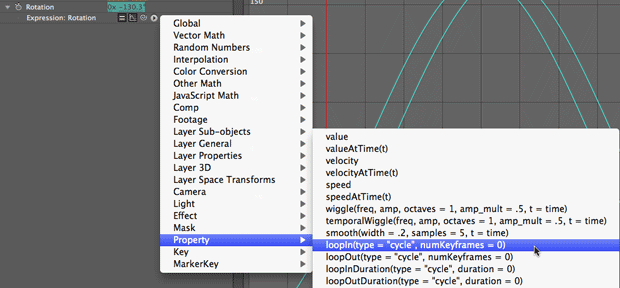
After Effects supports the ability to loop a number of keyframes in an animation, repeating their values and timing. There are four different looping methods, found under the Property submenu in the expression language menu:
looping(“type”, keyframes)
loopInDuration(“type”, time)
loopOut(“type”, keyframes)
loopOutDuration(“type”, time)
The two loopIn methods repeat the property’s animation from the first keyframe back to the trimmed in point of the layer. The two loopOut methods repeat the animation from the last keyframe to the trimmed out point.
The “type” is typically one of three words; each must be in parentheses:
- The type “cycle” (parenthesis required) repeats the keyframed values, as if you copied and pasted them end to end.
- The type “pingpong” loops these keyframes back and forth.
- The type “offset” is a version of “cycle” that automatically offsets the value of the property so that when the expression loops back to the first keyframe, the animation proceeds smoothly rather than jumps in value.
- The type of “continue” automatically increments or decrements the value based on the rate of change of that value at the specified keyframe.
You don’t need to include the comma and second value (keyframes or time); if you leave them off, After Effects will assume you want to loop as much as possible – for example, all the keyframes, the entire duration from the in point to the last keyframe (loopOutDuration), or the entire duration from the first keyframe to the out point (loopInDuration). Otherwise, you can specify the number of keyframes, or the length of time in seconds. Note that loopIn always hinges around the first keyframe, and loopOut always hinges around the last keyframe.
Spinning Wheel
That all sounds very abstract so far, so let’s look at a few examples. As before, we’re going to use the Graph Editor has it helps reveal both what the original keyframes are doing, and what the result of the expression will be:
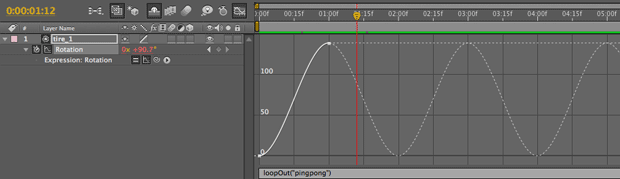
In the example above, the layer has just two Rotation keyframes, going from 0° at time 0:00 to 140° at time 1:00 (shown as the solid portion of the line in the Graph Editor). But if you to play this animation, you will see that the tire rocks back and forth for the entire duration of the comp (represented by the dotted lines after 1:00 in the timeline). This is because Rotation has the expression loopOut(“pingpong”), which loops back and forth between these keyframes.
Note that if we were to slide the keyframes later in time, the tire would not rotate until the first keyframe is reached, but will keep rocking back and forth afterward. This because the method loopOut is concerned about what happens after the existing keyframes -not before.
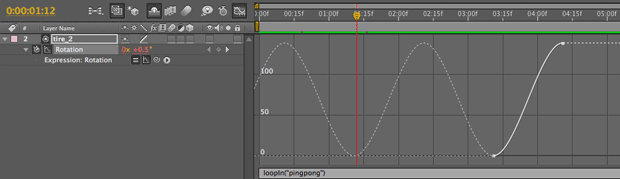
Indeed, below is a second example, with a similar set of keyframes – except they start later in time. In this case, the tire layer would rock back and forth before the first keyframe is reached. This is because we used the expression loopIn(“pingpong”):
When you loop based on keyframes, After Effects tries to make the first and last keyframes exist at the same point in time. This is great if you have keyframed a seamless loop, but creates perhaps unexpected results if the first and last keyframes do not have the same value: As you move one frame beyond the last keyframe looped, you will see the same parameter value as one frame after the first keyframe – not the same as the first keyframe itself.
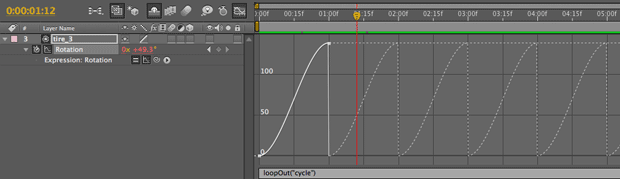
To illustrate this, in the next example we used the expression loopOut(“cycle”). As you can see from the resulting graph, the tire layer rotates forward from 0° to 140°, then on the next frame jumps to 0.5° – the same value as one frame after the first keyframe:
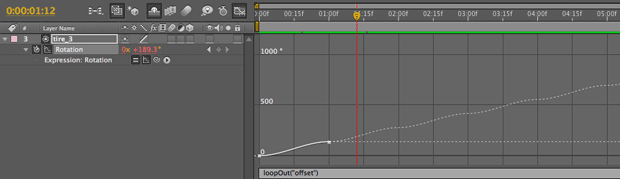
To have this animate smoothly, one solution would be to edit the expression text to change the type from “cycle” to “offset” and preview again: Now the motion is smooth, because the “offset” type resolves the difference between the first and last keyframe values:
The same concept applies to controlling Position or other properties.
The method loopOut(“cycle”) has the interesting characteristic where the value of the first keyframe exists at essentially the same time as the last keyframe. As you move one frame beyond the last keyframe looped, you will see the same parameter value as one frame after the first keyframe – not the same as the first keyframe itself.
Looping Time
The loop expressions can also be used to loop a footage item or a precomp. This is especially useful as there is otherwise no way to loop a comp other than to prerender it (and then loop the resulting footage item). To pull this off, apply the loop expressions to Time Remap keyframes.
In our final example, the layer [Ex.18_precomp] contains an animation that seamlessly loops, but only one copy of this loop is contained in the comp. This could be any looping animation you create.
In the master comp shown below, we applied Layer > Time > Enable Time Remapping to this layer, and dragged the layer’s out point to the end of the comp. We then added the expression loopOutDuration(“cycle”, 2.5) to Time Remap, where 2.5 equals the duration of the precomp in seconds. As a result, our animation loops seamlessly for the duration of its new comp:
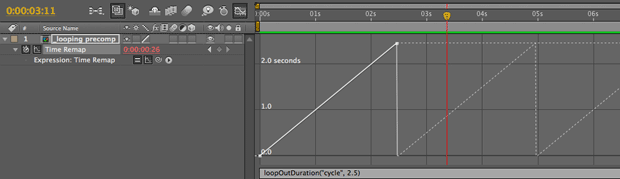
Note that we did not use loopOut(“cycle”), which would rely on keyframes. There are many potential pitfalls in using this technique with Time Remapping, as you can get glitches around the last keyframe. As discussed in the sidebar “The Real Out Point” in the Frame Rate Manipulation chapter in our book Creating Motion Graphics, Time Remapping places its second keyframe on the frame after the end of the source. Additionally, loopOut assumes the first and last keyframe exist at the same point in time – all of which is difficult to untangle in the case of looping footage or a precomp.
By the way, you only need to use this trick if you are trying to loop a keyframed animation. You can loop footage directly in the Interpret Footage dialog for the desired clip.
Next Installment: Wiggly World
In the next installment, we’ll discuss one of the essential expression tools to add to your arsenal, regardless of your After Effects skill level: wiggle. Until then…
We’re in the process of serializing the Deeper Modes of Expression bonus chapter from our book Creating Motion Graphics with After Effects into a set of 12 posts here on PVC.
The latest edition of Creating Motion Graphics – covering the updates introduced in After Effects CS4 and CS5 – is shipping now.
The content contained in Creating Motion Graphics with After Effects – as well as the CMG Blogs and CMG Keyframes posts on ProVideoCoalition – are copyright Crish Design, except where otherwise attributed.