

Filmtools
Filmmakers go-to destination for pre-production, production & post production equipment!
Shop Now
Let’s face it, a lot more editors, artists and animators have Premiere Pro loaded on the systems they use every day than are actually using it. And yet over the last few years-and in particular over the past year, since Adobe started demoing real-time playback of all kinds of files, including 4K RED .r3d source, in Premiere Pro on systems with CUDA-enabled nVidia cards-there’s been this notion that the application is really pretty good, and worth learning more about. Sure, clients tend to ask for other non-linear editors, so even if your day-to-day job demands that you edit in some other application, the question remains, what are you missing out on in Premiere Pro, both with its integration with other Adobe apps and by itself, if you’re not using it? I’ll be focusing on this in more than one article.
To begin with, I thought I would take a look at what the app can do with DLSR footage, since I basically have my choice of what app to use with footage from 7D or 5D, as well as related cameras with similar formats like the GoPro I have sitting here. I’ve heard that Premiere Pro kicks ass with these formats, but is it true, and even if true, is it useful?
My DSLR workflow, I have to admit, has been sloppy at times. In the early days there was no application that handed the ingest process nicely, so I got into the habit of just dragging files with their original names and timings right off the card onto a local drive, then importing them wherever needed – in After Effects or Final Cut Pro, say. Lately Lightroom 3 tempts me with its ability to handle both the videos and stills on that card. But if you asked me to show you my organized volumes of video from my own cameras, you might see a sad, wistful expression cross my face. And improving that situation sounds cumbersome, for a few reasons:
- Native DSLR filenames are practically useless. At least when transferring from tape, you get timecode and are compelled to create tape and take names.
- It’s too easy to be lazy and just import everything. I have frankly imported a lot of unusable takes because I lack a good way to review and organize them while they’re still on the card.
- “Real-time” is not how I think of reviewing and editing DSLR footage, even though I can easily pop up a preview in the Finder. The apps I use tend to require transcoding and buffering into RAM before I can view those clips, and adding even a simple color correction also adds render time.
The above assumptions are based on having worked with After Effects, Final Cut Pro (with its dramatic revamp still at least a month out) and Lightroom. My main reasons then, to think of Premiere Pro when I first remove the CF card from the camera and insert it in the card reader could be:
- Easy real-time preview
- Ingest of selected preview files
- Edit flexibly without transcoding
- Conform/Prep without rendering
Here’s what I found in Premiere Pro with the question in mind of how it could help me with these.
Step One: Preview
01_ppro_Preview from ProVideo Coalition on Vimeo.
The Media Browser panel in Premiere Pro lists all attached volumes that show up in the Finder, including any CF card that might be attached via a card reader or the camera. That means that to preview a clip from the card, you can simply double click it and hit play in the Source panel (and use the tilde ~ key to bring that up full screen).
It’s essential to understand that there is no transcoding in Premiere Pro of DSLR clips, whether or not the display card is CUDA-enabled. Previewing a clip directly from a CF card shouldn’t be a big deal-after all, you can do this from the Mac Finder just by hitting the space bar-yet video applications that aren’t compliant with as wide a variety of formats as Premiere Pro obstruct the process (click here for Premiere Pro’s system requirements). I was equally able to preview mp4 files from the GoPro at full speed and resolution; it didn’t even matter whether I was on the Mac Pro with its CUDA-enabled nVidia Quadro FX 4800 card or on the Core I-7 Macbook Pro and ATI display technology, therefore not among the supported cards.
The default “Buffersize” (why one word?) for Audio Hardware is too stingy to play more than a couple of seconds before audio drops out, but on a system with ample physical memory there is no downside to maxing that out.
Step Two: Ingest
02_prpro_Ingest from ProVideo Coalition on Vimeo.
Because DSLR is a file-based system, the normal capture process when working with tape doesn’t apply. Merely previewing a file from the Media Browser doesn’t import a clip into the Premiere Pro project, but doing so is a simple matter of dragging it from one panel to another.
However, doing so leaves the clip in place on the source media, because of Premiere Pro’s non-destructive workflow. How does one go about transferring selects and applying a better name than MVI_2470.MOV to a clip? More importantly, how do you do that with a whole bunch of clips?
One method is to rename the files once they are in the Project panel, and then open the Project Manager to move them to whatever attached storage or archive will house the footage. The copied files take on the names applied in the project, and can be organized into subfolders (or bins, if you like). That’s fine if there are just a few files, or if you have individual names in mind to type in for each clip, but what if you have a batch renaming scheme in mind?
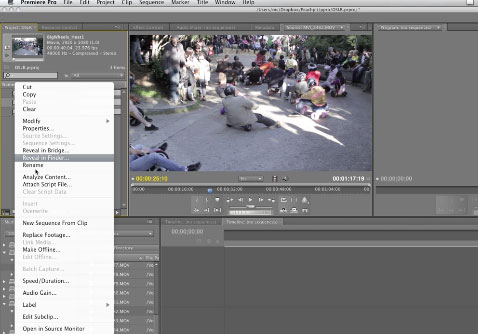
In that case, the methodology seems to be to use Project Manager to grab the files with their original names, and then use Adobe Bridge to batch rename them. Rich Harrington has a tutorial on doing just that.
Step Three: Edit
03_ppro_MixedFormats from ProVideo Coalition on Vimeo.
It’s when I started to work with a variety of clips together that I really began to appreciate the speed and flexibility of the Mercury playback engine, whether or not I was on the CUDA-enabled system.. Just like in After Effects, you can create a sequence whose setting match that of a source clip by dragging the clip icon to a new sequence icon, all in the Project panel. It’s not even a big deal, like potentially destabilizing the whole application, to mix and match formats and frame rates.
This is where After Effects artists want to pay attention, as well. If you ever find yourself editing this type of footage in any way in After Effects, which is not optimized to do it without creating a RAM Preview (the equivalent, you could say, of transcoding), keep in mind that you are one Dynamic Link operation away from getting things sorted in real-time, then bringing the edit back where you can nerd out on it.
Step Four: Conform/Prep
The real-time party doesn’t end there, particularly if you are working with a CUDA card. Many built-in effects you might use to create an initial color pass on a source clips – in particular, the color correctors and matte generation tools – are accelerated when such a card is in use, so it’s possible to apply color correction and still retain real-time playback. Moreover, as Todd Kopriva explains, it’s not always a question of doing things faster; he states that case that scaling with CUDA in Premiere Pro is better.
From Premiere, you can use Dynamic Link to work back and forth with After Effects. Details about that process will follow in a separate article. Meanwhile, on the whole, I would describe Premiere Pro’s handing of DSLR source as fast, flexible and uncomplicated.