

Filmtools
Filmmakers go-to destination for pre-production, production & post production equipment!
Shop Now
Last week I wrote about some of the great new features in Motion 5: a sleek new user interface, deep integration with Final Cut Pro X, the ability to publish your own “Smart Templates” along with parameters you specify, a powerful new Rigging feature, and an unbelievable low price. There’s also a fantastic new Keyer and a few other goodies that I’ll be discussing in future articles.
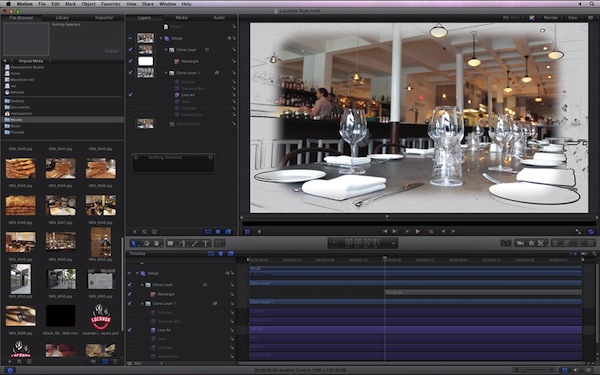
Motion’s attractive new interface
However, as folks are beginning to discover, Apple also removed some features in Motion 5 – features that many editors and motion graphics designers relied on as an integral part of their workflow.
If you are brand new to Motion, you probably won’t notice anything missing. But if you’ve been using Motion 4 together with Final Cut Studio 7 and you are expecting everything to work the same – well, some things just won’t. Specifically, here are what I consider the top five missing features in Motion 5 – and what the workarounds are.
1) Send To Motion Project and Round-tripping
By far the most glaring omission is the loss of the “Send to Motion Project” command that we could use to send one more more clips from Final Cut Pro 7 to Motion 4 in order to add motion graphics and visual effects. The Send To command not only automatically created a Motion project with the correct project settings that contained the selected clip(s), but also optionally embedded that Motion project into the Final Cut sequence so that any changes you might need to make could be accomplished by using the “Open in Editor” command: just change and save the Motion project, and it would automatically update in the Final Cut Pro timeline.
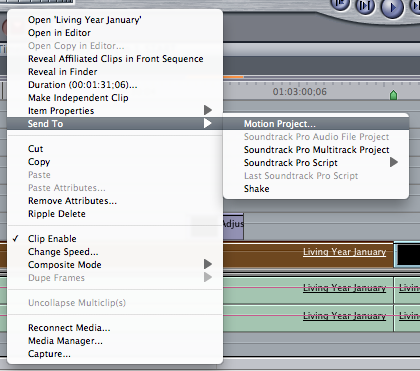
The Send to command in Final Cut Pro 7.
In Final Cut Pro X, the Send To command has vanished.
Now, it’s true that in certain cases, sending clips from Final Cut Pro to Motion are no longer necessary. For example, you no longer to need to send clips to Motion in order to take advantage of Motion’s Optical Flow retiming algorithm – Optical Flow is now built directly into Final Cut Pro X.
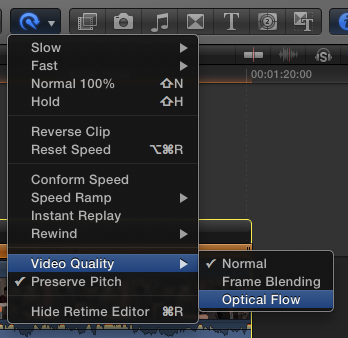
Selecting Optical Flow from the Retime menu in Final Cut Pro X.
Another reason for sending clips to Motion in Final Cut Pro 7 was to have a reference image for designing titles, such as lower thirds. But in Final Cut Pro X, you can do a great deal of design work directly within the application thanks to the Effects, Transitions, Titles, and Generators Browsers – they contain a ton of highly customizable presets. So you can design “in context” right inside of Final Cut Pro X.
But there are definitely times when you want to create your own title, transition, or effect from scratch – and it’s helpful to be able to send the clips you want to use to Motion in order to do that. And, if you want to track a shot in order to add an image to scene, you have to do that in Motion – there’s no way to do it in Final Cut Pro X.
Workaround: for these situations, what you’ll need to do is the following: in Motion’s File Browser, navigate to the Final Cut Event that contains the clip(s) you want to use, import them into your Motion project, and trim as needed. After you are done designing, you can either render out a movie, or you can publish your Motion project as a Generator – it will then be available in Final Cut Pro’s Generator Browser, where you can drag it to your timeline to replace your clip(s). Neither of these solutions are elegant – but that’s why they’re called workarounds.
By the way, if you’ve installed FCP X and Motion 5 on the same partition as Final Cut 7 and Motion 4, when you choose Send to Motion from FCP 7, by default Motion 5 will launch – and the resulting project will not embed into the FCP 7 sequence. However, if you first launch Motion 4, so that it is running when you use the Send to command in FCP 7, the selected clip(s) get sent to Motion 4 and work as expected. See this support article from Apple for more information.
2) Video Output
Just as with Final Cut Pro X, there is no way to output your Motion 5 project to a professional calibrated monitor to check for broadcast-related issues such as interlace flicker, title and action safe, and color space issues. You could do this easily in Motion 4.
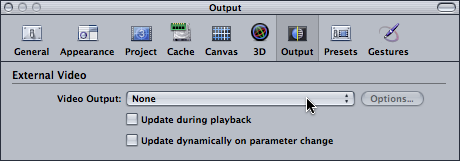
Video Output in Motion 4 – not currently available in Motion 5.
For me this is not a critical issue, since over the past few years my work has moved to almost 100% web delivery. But if you deliver for broadcast, especially in standard definition, the loss of this feature is painful.
Workaround: use the Safe Zones in the Canvas, use projects that are not interlaced as much as possible, and render and test your final output using Final Cut 7 to see it on a calibrated monitor.
3) Opening Multiple Project Files
In Motion 4, you could open as many project as you wanted: you could work on multiple projects at the same time, refer to other projects while designing, and copy layers and groups from one project to another. In Motion 5, you are restricted to opening just one project at a time: as soon as you double-click another project, choose File > Open, or choose File > New, the current project closes (Motion of course prompts you to save if necessary).
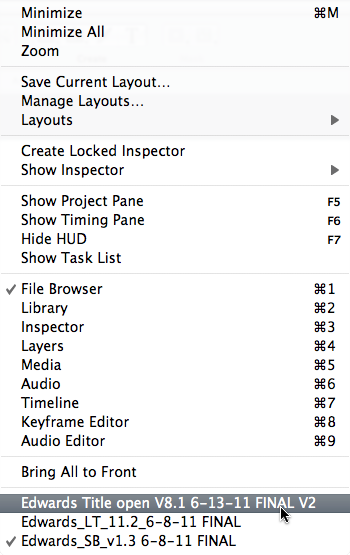
In Motion 4, you could have several projects open at the same time.
Furthermore, you can no longer import entire Motion projects into another Motion project – a great workflow for building more complex motion graphics out of components.
Workaround: you can still save layers and groups by dragging them to the File Browser. You can close the project, open a new project, and drag those layers or groups into the new project. Not as easy as dragging between two open projects, but it works.
4) Rearranging the Workspace and Using Multiple Monitors
In Motion 4, the Utility Pane (File Browser, Library, and Inspector) was a separate window from the Canvas – so it could be moved to a second monitor, creating more room for the Canvas. You could also tear off any of the nine tabs and move them wherever you liked to customize your workspace.
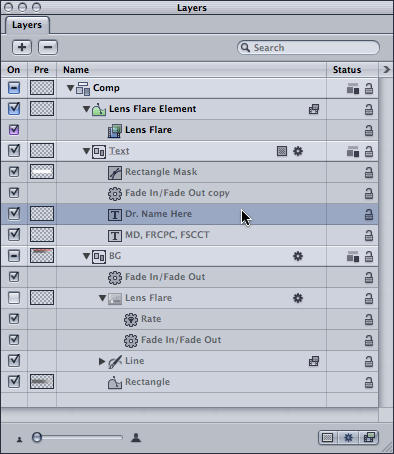
The Layers tab in Motion 4, split off into its own window so that it can be moved anywhere – even onto a second monitor.
Motion 5’s single window interface can’t be split across multiple monitors – and “tabs” can’t be moved at all.
Workaround: the F8 key still provides a full-frame Canvas view, just like in Motion 4 – but that’s about it.
5) Performance
While I’m very excited that Motion 5 is now a 64-bit, fully color-managed application that works in float-space all the time (providing higher-quality renders) – I was really hoping for a performance boost. With the rewrite of the application and the introduction of new graphics cards (which Motion uses for most of its workload), it seemed reasonable to expect some really impressive gains. But I have found Motion 5’s performance to be the same or worse compared to Motion 4. On a Mac Pro with a good graphics card like the ATI 5770, 4870, or 5870, performance is ok – but on my Mac Book Pro, just one generation behind the brand new Thunderbolt Macs, performance is much worse.
Workaround: design more complex projects on a Mac Pro with a good graphics card.
In addition to these top five, there are several other features of Motion 4 that have disappeared in Motion 5:
- You can’t preview Motion titles, transitions, effects, or generators in the Finder.
- You can no longer rename your .motn project to .mov in order to import it into After Effects.
- Certain filters from Motion 4 have been removed, like Vectorize, Movement Blur, and Edgework.
The Finder view of a Motion 4 project.
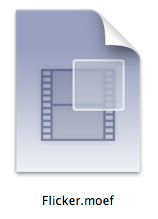
The Finder view of a Motion 5 effect project.
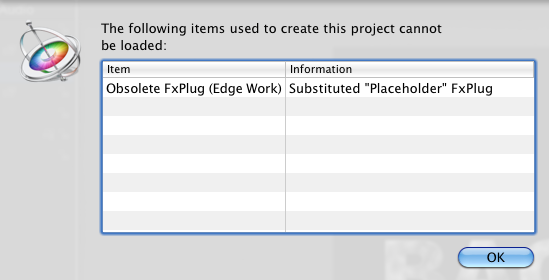
A few filters from Motion 4 are no longer available in Motion 5.
So while we have a great new interface on top of a completely rewritten 64-bit application with powerful rigging and publishing features, we’ve also lost several features – features that will be sorely missed by folks like me who have come to depend on them for our workflow. Some of these omissions, like roundtripping and external monitoring, I hope will get addressed in future updates. Others – like like the lack of Quicktime previews, After Effects integration, and the ability to only open one project at a time – may well be part of the new world that is Motion 5 and Final Cut Pro X. Overall I’ll take Motion 5 over Motion 4 any day of the week and twice on Sundays – but I do hope some of these missing features find their way back home.
If you want to learn more about how to use Motion 5, I have two in-depth tutorials available at Ripple Training