

Filmtools
Filmmakers go-to destination for pre-production, production & post production equipment!
Shop Now
Getting your footage from Final Cut Pro to After Effects is a very common workflow. In fact, so many people choose to work this way that there are several free and for sale workflow tools on the market. While the task may seem as easy as a batch export, there is often precious metadata and organizational work that you’ll want to take from Final Cut Pro into After Effects.
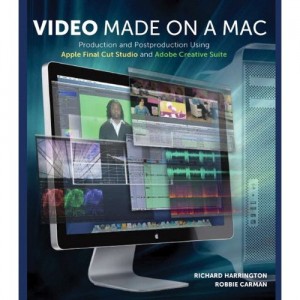
These techniques are excerpted from my new book – Video Made on a Mac: Production and Postproduction Using Apple Final Cut Studio and Adobe Creative Suite. In it, Robbie Carman and I explore several workflows and techniques for getting more done with software from Apple and Adobe. Let’s take a look at a few workflows you might employ.
The Power of QuickTime and XML
What makes all of these exchange options are two shared technologies – QuickTime and XML. The first one is easy, Final Cut Pro captures QuickTime natively, After Effects can also read pretty much any file type using the QuickTime architecture. Just be sure to install any special codecs on the After Effects machine if using proprietary codecs like ProRes.
You can also export an XML file from Final Cut Pro, which can then be used in other applications to bring in clips and data. This allows you to easily import a sequence and its media into Premiere Pro or After Effects. This workflow avoids any duplication of media while preserving edits, footage handles, and sequence organization.
Creating an XML File
The first step in moving from a Final Cut Pro timeline to an After Effects composition is XML. This process is very straight-forward (but differs slightly depending upon which version of Final Cut Pro you are using). While making an XML file involves a couple of steps, it’s pretty straightforward.
- Edit your clips into a sequence or select an existing sequence in Final Cut Pro.
- Mark an In and Out point for the range you’d like to export in a sequence. You can only send one sequence at a time.
- Choose File > Export > XML. In the dialog that opens, choose Apple XML Interchange Format, version 4 and click OK. Do not use the default version 5 that is in Final Cut Pro 7).
- Specify a location for the XML file (such as your media drive) and click OK to write the file. The XML file is very small and references the original media on your drive.
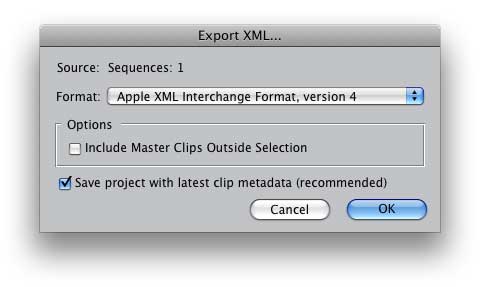
That’s it (and the process is so quick that you might think you missed it). Let’s put that XML file to good use.
Using Premiere Pro to Import XML
A lot of folks have taken the plunge and purchased a Creative Suite bundle from Adobe. If you have Premiere Pro CS4 installed on your system, you can get a clean handoff to After Effects by taking a jump to your left and then a step to the right. You can choose to send a full sequence (or just part) to Premiere Pro and then bring those clips into After Effects.
- Create an XML file for the desired media as previously described.
- Launch Premiere Pro and create a new project that most closely matches the video format you’ve been using.
- In Premiere Pro, choose File > Import.
- Navigate to the XML file you created and click Import. Premiere Pro creates a sequence and adds the media and a report to the project (Figure 11.13).
If you need to make any touch up edits go ahead. To make the process easier, choose Edit > Keyboard Customization. Choose Shortcuts for Final Cut Pro from the Set menu and click OK.
Using Dynamic Link
One way you can move from Premiere Pro to After Effects is with Dynamic Link. The principal goal with this method is to minimize time lost from rendering or exporting.
In After Effects choose File > Adobe Dynamic Link > Import Premiere Pro Sequence to use a sequence as a single layer in your After Effects composition without having to render or export.
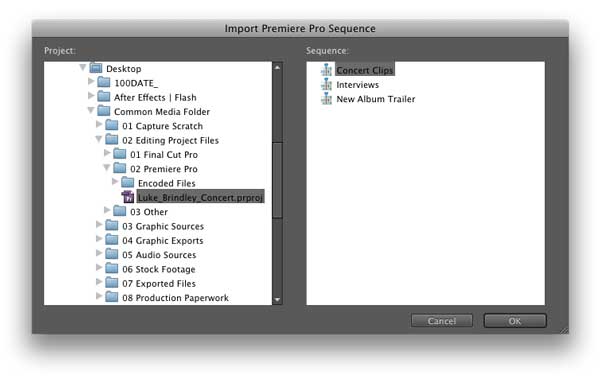
If you make any changes in Premiere Pro, they will be automatically reflected in your After Effects comps. With Dynamic Link you can import a single sequence as a clip into After Effects. Changes to the clip in Premiere Pro are automatically updated in After Effects.This is useful if you want to move an edited piece across in its entirety without making frequent changes.
If you need to import a whole project, you can do that too. In After Effects choose File > Import >Adobe Premiere Pro Project to bring in an entire collection of footage, bins, and sequences. All the media (with handles) is now imported into the After Effects project. This works well as you can import multiple Final Cut Pro XML files into one Premiere Pro project.
Using Copy and Paste
You can also move media from Premiere to After Effects with just your computer’s clipboard. This method relies upon a lot of “under the hood” integration between Premiere Pro and After Effects.
- Check your imported sequence to make sure all the clips are present.
- Click in the Project panel to select the sequence you want to copy.
- Press Command+C or choose Edit > Copy.
- Switch to After Effects and create a new project (or select an existing project).
- Click in the Project panel.
- Press Command+V (Edit > Paste) to add the sequence. This converts the selected sequence into an After Effects composition. The associated media files are imported into your After Effects project. You can press U to see all the keyframes in the Timeline.
- Choose File > Save and capture the new project.
We found that most features translated cleanly (including some time remapping). However, not all opacity keyframes came across correctly (but motion ones did). Dissolves also did not translate in our tests.
Direct Import of XML into After Effects
While its not supported directly, you may want to migrate media between Final Cut Pro and After Effects without using Premiere Pro. Fortunately XML is very flexible and there are third-party tools that allow this.
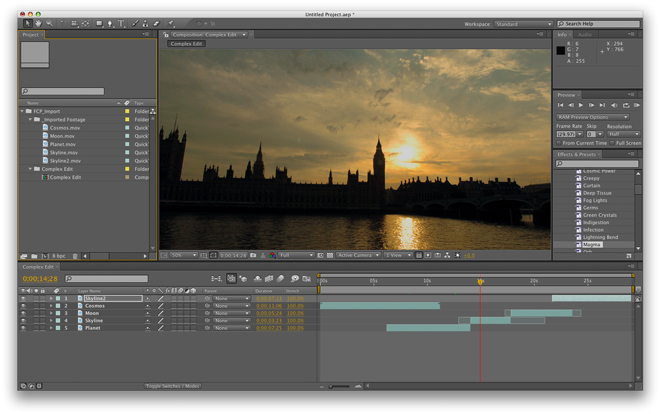
Footage ©Kuhn Foundation, from the series Closer to Truth Cosmos. Consciousness. God.
Free methods. We recommend downloading either of these After Effects scripts:
- Popcorn Island – www.popcornisland.com/after-effects/final-cut-2-after-effects. We explored this workflow here on ProVideo Coalition already.
- Creative Workflow Hacks – www.creative-workflow-hacks.com
Paid method. If you need to move media between Final Cut Pro, Avid, and After Effects, Automatic Duck has workflow tools for you. Its solutions aren’t cheap, but they exchange much more than standard XML. You can hand off multiclips, keyframes, motion properties, markers, and even data between many third-party filters. You can find out more at www.automaticduck.com.
The Bottom Line
The bottom line is that cuts and basic properties like Scale, Position, and Opacity can be easily translated to After Effects. Your footage can be easily swapped with edits (and handles) in place. These techniques are much more efficient than media managing large projects and unnecessarily duplicating media. If you do need to bundle up a project to send it off your network to another user, just use the Collect Files feature in After Effects.
Also, be sure to check out the new book, Video Made on a Mac. More than 400 pages and 5.5 hours of video on Production and Postproduction Using Apple Final Cut Studio and Adobe Creative Suite.