

Filmtools
Filmmakers go-to destination for pre-production, production & post production equipment!
Shop NowAnd reclaim some drive space in the process

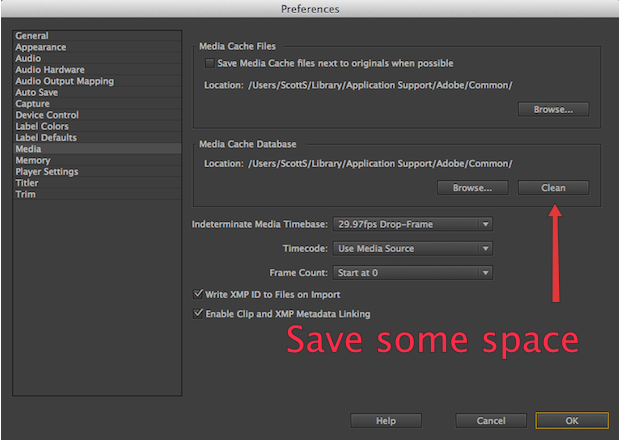
I learned something today about Adobe Premiere Pro that I was unaware of. The application creates a media cache when it imports media and that media cache seems to default to the system drive in the user Library folder. This cache can balloon in size over a period of time as I found out when cleaning up a drive. But it can be easily cleaned and relocated.
While cleaning and preparing my system drive for a backup recently I was looking through the great visual disk management application DaisyDisk and I saw a big chunk of files on my boot drive in an Adobe folder called Media Cache Files.
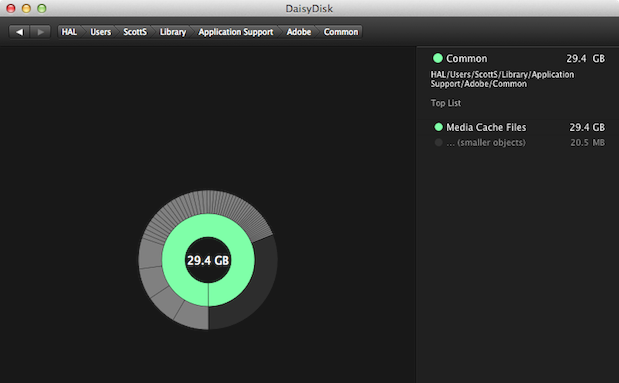
DaisyDisk is a nice visual way to look at hard drive usage
I’m diligent not to place media on a boot drive, and most certainly not in a Library folder, but a little research (and some help from Twitter) revealed this to be a place where Adobe Premiere Pro writes previews to greatly improve “performance for previews, because the video and audio items do not need to be reprocessed for each preview.” Okay. They are also accessed by other Adobe applications as well. If you’ve ever noticed the little conform progress bar that pops up in the corner of a PPro timeline when you import new media you’ve seen this cache at work, at least I’m guess that’s when it writes those file.
I dug into the Library folder and there it was, nearly 30 gigs:

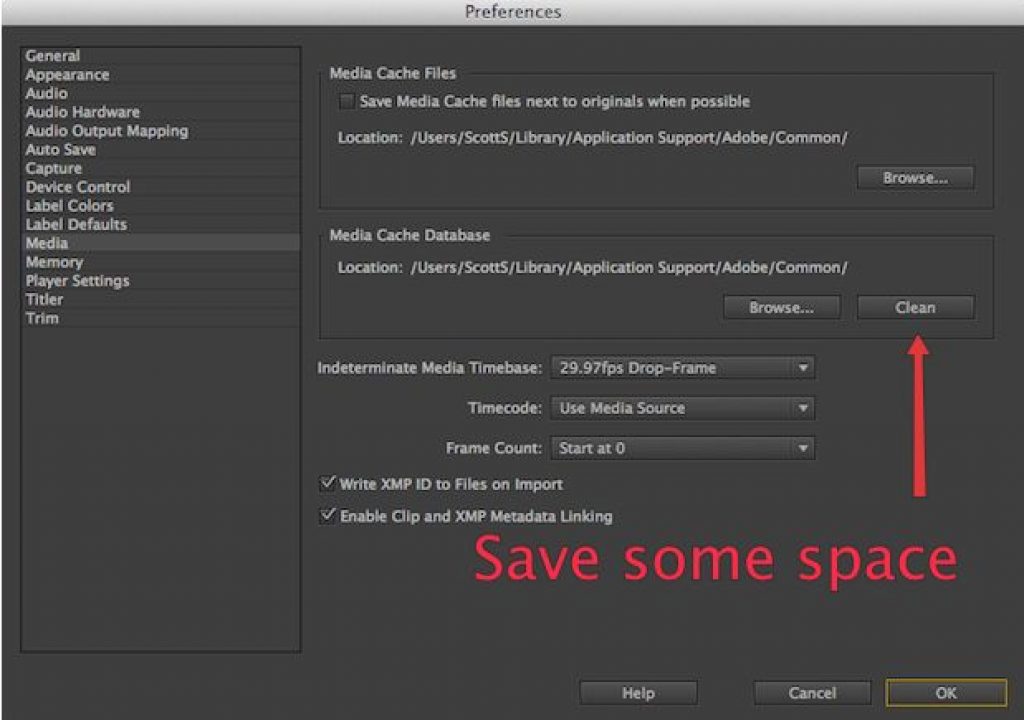
That’s a lot of extra stuff on the system drive though not as big as some users have seen. Cleaning it was easy. Just head into Premire Pro’s Preferences > Media and there’s button under Media Cache Database called Clean.
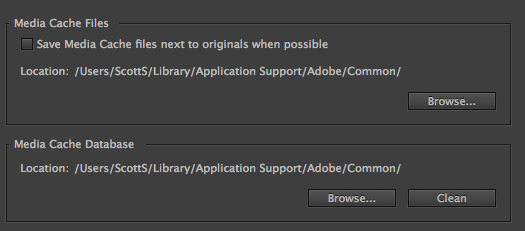
Click that and away PPro goes cleaning that folder out. According to Adobe help this command “only removes files associated with footage items for which the source file is no longer available.” If a drive is unmounted it might remove those so be sure and mount up media drives when cleaning this Media Cache Database.
After that I had saved some 20 gigs of space:

That was easy enough. I went back into the folder and manually removed another 5 gigs or so. If you remove cache files that might be needed PPro will regenerate them when the project is opened again. From this point on I’m going to keep these cache files on my media scratch drive.