

Filmtools
Filmmakers go-to destination for pre-production, production & post production equipment!
Shop NowDuring a recent long-form edit I came across a few new (to me at least) Avid discoveries

I’m just finishing up a three week edit using Avid Media Composer. I enjoy longer-form projects like this one as I always find myself learning something new about the non-linear editing tool that I’m using for that extended period of time. While I’m in and out of these editing tools nearly everyday (be it Avid, FCP or Premiere Pro) it’s a prolonged period in a single one of them that often revels something I never knew before. In this case it was some tips, tricks and tutorials about Media Composer.
A new way to Match Frame
One of the best tips I’ve come across in a long, long time was one that came via Twitter from editor Evan Schiff http://www.evanschiff.com/ :
Who knew Cmd-double-clicking a track selector match frames to the source of whatever clip is under the blue bar on that track?
For me that was one of those ah-ha moments where I immediately wondered how I’ve lived without that during all the years editing.
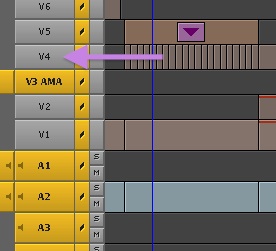
It doesn’t matter if a track is enabled or disabled when using this Match Frame trick. Just command + double click to Match Frame the clip under the playhead on that track.
It’s incredibly simple and came in very useful with the multiple split-screen effects we were doing on this edit. I found it saves a lot of keystrokes and/or mouse clicks turning tracks on and off when you’re trying to match frame a specific track. And it works on audio too.
The ever useful Paint effect
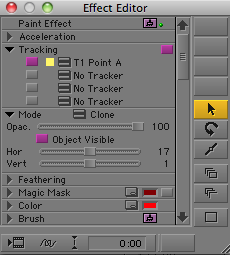
If you don’t know the Media Composer Paint effect then it’s a good one to learn.
A few shots needed some selective blurring and clean-up within the image and the Paint effect is very useful for a lot of these types of tasks. The Paint effect is very complex and I often find myself in the Media Composer manual or looking something up online when I need to use it extensively. This particular trip to the Internet reveal this great post on the Avid Community forums: Just a Quick Paint Job – Fixing problematic shots using Media Composer’s Paint effect.
This forum post has three specific examples of how the Paint effect can be used to spruce up footage or fix some problem areas. It’s a great reminder of what all the Paint effect can do or it’s a good introduction if you’re unfamiliar with the Paint effect.
Better effects feedback in the Record monitor
As I mentioned, in this particular edit there were a number of instances of split-screen and picture-in-picture effects. When you apply a PIP effect like Media Composer’s Picture-In-Picture or 3D Warp you have the ability to directly manipulate things like position and rotation by grabbing the image, corner or rotation handle in the Record monitor. When you manipulate a parameter in this way (as opposed to dragging a slider in the Effect Editor) Media Composer will show a wireframe of the image to give feedback as to what you’re doing. If you hold down the ALT key then MC will show the actual image as it moves, scales, rotates or does whatever it is you’re doing. It’s not as fast to react overall as showing only the wireframe but it can be very useful in certain operations. Like cropping.
This screen grab shows the result of using the ALT modifier key (this is on a Mac) when directly manipulating the 3D Warp effect in the Record monitor vs. not using the modifier key at all. Notice that it is showing the the actual results on the image and not just a wireframe as it scales, rotates and crops.
A few things in the Effect Editor
Speaking of the effect editor and its many, many sliders … if you don’t like the sliders there’s an option to display thumbwheels instead of the sliders in the Effect Editor. Right + click on either the Keyframe button at the bottom or pretty much anywhere in the Effect Editor for most effects to get a pop-up menu:
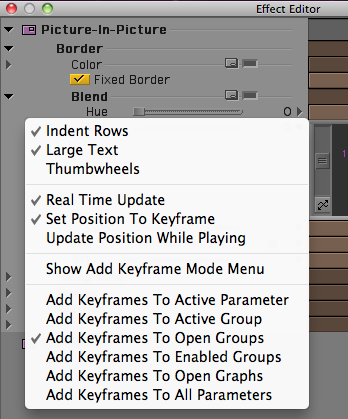
A submenu will pop-up with an option for Thumbwheels near the top. Check that and the sliders change to thumbwheels:
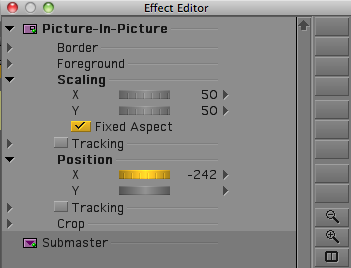
Why use thumbwheels at all? There’s a bit less mass to the Effect Editor when using thumbwheels so if you’re on a small laptop screen that might be valuable. Mainly the thumbwheels allow more precise parameters changes as it’s easier to scroll them in increments of one that it is with the sliders.
I also never realized you can access that Effect Editor menu by right + clicking pretty much anywhere in the Effect Editor (depending on the effect you’re in). I’ve always accessed it right + clicking on the Show Keyframes Graph button or the Add Keyframe button when the graphs are open. It’s a small thing sure but one of those things that it’s nice to know now as that’s one less precision mouse move to get to a specific menu. It’s often the little things that add up over time.
That’s what this post is all about, little things. Hopefully Avid users will find a little something useful in this post that will save some time here and there. Add that up over a decade editing and that’s some good time saved. If this post was helpful then check out a recent post called Some Avid Tools You Might Not Already Be Using for a few more tips.