

Filmtools
Filmmakers go-to destination for pre-production, production & post production equipment!
Shop NowVeteran Avid editors will notice quite a few new things with this upgrade

With any big software upgrade there’s going to be changes. Some visible, some not so visible. Personally, I love those changes … as long as they add new or needed functionality without getting in the way. One of the big things we often worry about with big upgrades are interface changes that might clutter up a clean design or impart on the editor additions or subtractions that might seem more like a step backwards. Of course much of this type of thing is subjective. One editor’s productivity enhancement is another editor’s unnecessary feature. With that said, here’s a look at some of the bigger interface enhancements that I noticed upon first working with Avid Media Composer 5.0.
I was lucky enough to be included in a group of editors / bloggers who got an advanced copy of the new Avid Media Composer 5.0. This made me very happy as I was able to install the new software on my home editing system without waiting for my work to purchase the upgrade. It was great to get a hands-on sneak peak at this tool that I saw demo after demo of at NAB 2010. Full disclosure, I’m currently a member of an Avid customer advisory board, a group of working editors that Avid has asked to give feedback on the current direction of a number of their products. I knew about some of the updates in Media Composer 5.0 but many I did not. I can happily say that when I finally heard about them all in detail at NAB 2010 it looked like a nice leap forward.
A new tool right there in the Timeline
The most noticeable change in Avid Media Composer 5.0 is the addition of the Smart Tool to the left side of the timeline:
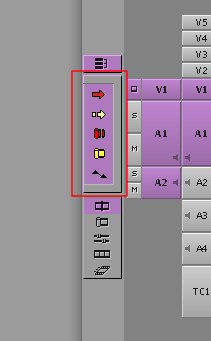
The new Smart Tool outlined in red above
The red and yellow Segment Mode arrows are gone from the bottom of the timeline and now reside within the new Smart Tool. There’s also a red Overwrite Trim roller, a yellow Ripple Trim roller as well as a Keyframe Selection toggle that lets you move audio keyframes without the use of a modifier key. Each of the icons within the Smart Tool are buttons and they can be toggled on and off. If you turn on either (or both) of the Segment Mode arrows then you’re able to grab clips in the timeline without enabling Segment Mode since the Smart Tools, combined with the new drag and drop timeline functionality, lets you essentially leave these modes turned on all the time. If both Segment Mode arrows are turned on then depending on where your cursor is hovering in a segment on the timeline (in the top half for red Lift/Overwrite, bottom half for yellow Extract/Splice-In) that cursor will change to one of the two arrows to identify what type of Segment Mode you’ll be in if you click a clip.
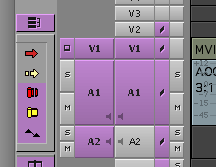
The Smart Tool with only the trimming options and audio keyframes enabled
A similar thing happens with the Trim rollers turned on in the Smart Tool. When your cursor hovers over an edit it will change to a trim roller indicating you can simply click and drag to trim an edit point. If hovering directly over an edit you’ll get a double roller trim. Hover on either side and you see a single roller trim icon and those single rollers change depending on where your cursor is hovering. The traditional Avid Trim mode hasn’t gone away, you can still enter Trim mode and way you have done in the past, the Smart Tool just provides a new way being able to interact with the edit.
Below those four Segment mode arrows and Trim roller icons is a Keyframe Selection button. With that enabled the cursor changes to a hand when hovering over an audio keyframe. Grab the keyframe and you can change the levels but you’ll still have to use the option modifier key to move the keyframes left or right.
These five different “modes” in the Smart Tool can be turned on individually, in any combination or not at all. Plus you can toggle the entire Smart Tool on and off by clicking bezel around the edge.
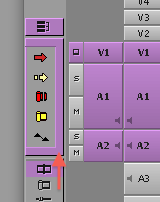
Click the bezel edge of the Smart Tool to toggle it on and off.
That full functionality can be mapped to the keyboard via the Command Palette as well, giving the editor the best of both worlds between the new drag and drop timeline and the Avid timeline of old. Below the Smart Tool is some rather familiar icons to Avid users. That’s where the various edit mode buttons lie to take you to Trim mode, color correction mode, edit mode or to the motion effects editor. Above the Smart Tools is a new addition, the Linked Selection button:
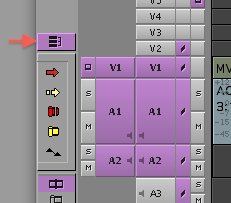
With this turned on, all video and audio that have come into Media Composer together can stay linked together. When you click on a piece of video the linked audio that came in with that video (either by tape, tapeless ingest or AMA) will be selected too. And that’s both in segment mode and trimming operations. This Linked Selection idea will be very familiar to Final Cut Pro users making their way into Media Composer.
If you look above the timeline you’ll see a new timecode ruler and a small timecode display to the left of the timeline window:
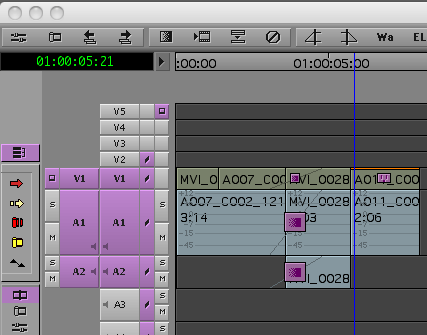
This new timecode ruler is a permanent fixture or the 5.0 timeline. It has to be there to allow scrubbing of the timeline when the Smart Tool is enabled. With the Smart Tool enabled you can’t click and drag anywhere on the timeline anymore since clicking in timeline selects a segment or an edit. In addition to scrubbing in the new timeline ruler you can still scrub using the various timecode tracks that might be visible below the audio tracks.
Next to the new timecode display in the timeline is a small triangle. Click this and a new panel in the timeline expands to reveal the Track Control panel. This is a great addition since it adds both new functionality and a way to access existing features:
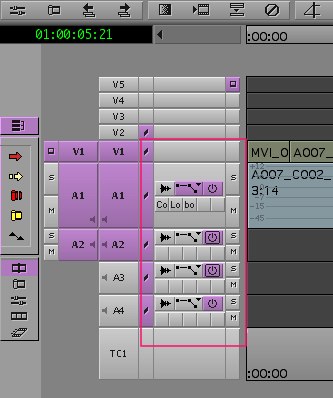
The new Track Control panel is outlined in red above
The buttons on top take commands that used to be buried in the timeline Fast menu and places them a click away. The first is the waveform button that turns on the waveform for that associated track. With this you can turn on a single track’s waveform without turning them on for all audio track. Next to that is a pop-up for toggling gain adjustments and rubber banding for the audio tracks. It’s a pop-up as there are several different selections for what type of rubberbanding you want, Clip Gain, Auto Gain and Auto Pan. Next is an Inactive button that turns the entire audio track off. Click again to turn back on. Below those buttons are five empty wells where the editor can place up to five Real-Time Audio Suite plug-ins, on a per track basis. More on these when we discuss the plugins in the Effect Palette. And finally next to all of those new buttons there is an s and an m. Anyone familiar with Pro Tools will recognize those as solo and mute buttons.
If you’ll notice in the image above, there’s a lot of empty space beside the video track selectors when the Track Panel is open. I hope there’s features to be added there too.
AMA gets updated too
One of the biggest improvements in 5.0 is the update to the Avid Media Access architecture. Newly supported formats include native RED R3D and pretty much any flavor of QuickTime. If you can open the QuickTime file on your Mac (all my testing has been on a Mac so I’m not sure if this hold true for Windows) then you can link to the clip via AMA. That means your ProRes files and H.264 Canon DSLR files will all import into an Avid bin without the transcode and/or rewrapping to the Avid file format of old. It’s also nice to see that lots of different audio formats will import as well.
The importing of these AMA formats really isn’t importing at all, rather linking to the files so it’s probably best if we all begin using the term linking when referring to AMA. Importing implies more that your are copying or moving the media in a process that might take some time. Linking is just that: point Avid to those files which are then instantly in a bin.
There’s a new option under the File menu to Link to AMA File(s)… Select that and a navigation box opens for the editor to select files for AMA to link to:
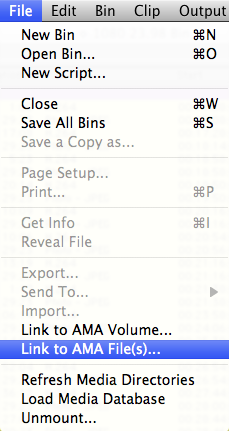
Choose that menu item, navigate to your folder of files and they instantly populate the bin. As always AMA clips are identified by their yellow highlight. Below you’ll see a single bin with lots of different AMA clips. Note all of the different audio file formats:
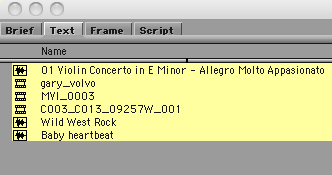
A few formats loaded via AMA. The audio formats above include an aiff, mp3 and m4a, no rendering required.
One fun thing about big software updates like this is that you’ll see a lot of these visual changes as you continue working with the application. Avid has updated a number of dialog boxes and popups around the application. Some of these things may have gotten an update with version 4.0 or even 3.5 (like when AMA made its debut) but they may be seen the first time with 5.0.
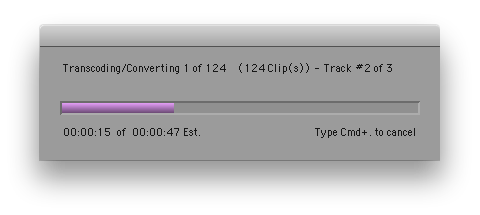
The Media Composer progress bar, for example, gets a facelift with a bit of a more 3D look. There was word that Avid was going to make things like estimated render time a bit more accurate as well.
The Command Palette adds a new tab for the Smart Tools. Here you’ll find all of the tools included in the new Smart Tool as well as the new Link Selection toggle. There’s a Smart Tool toggle button in this tab that is the keyboard mappable button to turn the entire Smart Tool on and off. It’s should be noted that which ever of the 5 smart tools are toggled active when you turn the entire Smart Tool off will still be active when turning it back on.
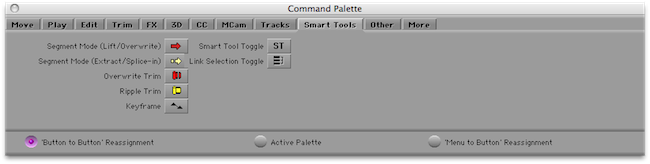
All of the Smart Tools tools can be mapped via the Command Palette
The Command Palette also gets a new Tracks tab for selecting and mapping of all the video and audio tracks:
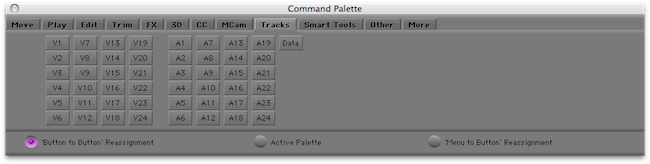
Notice the Data track above as well. That’s one I need to read up on.
Next Up:
Some updated Settings and the new RTAS audio plug-ins
Some Settings get updated too
Check the Settings tab and you’ll notice a few things that are new to version 5.0.
Email will allow the application to email you a message when a render is complete. This is a nice addition that might bring you a piece of mind when you set those long overnight renders. If you’ll notice Render Complete is the only thing listed under the big, empty Send Email Events window. Let’s hope there’s more email notifications to come in future versions; like when a tape is done capturing or a batch is done importing to name two!
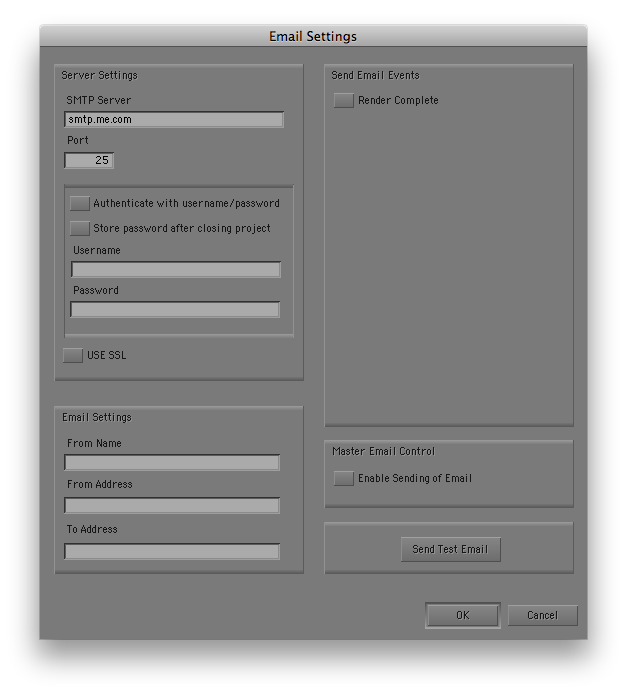
That’s a lot of empty space in the new Email settings. Let’s hope Avid adds more notifications in future updates
The Interface setting has changed a bit as well. There’s a new Interface Brightness slider that can change overall darkness or lightness of the application’s interface:
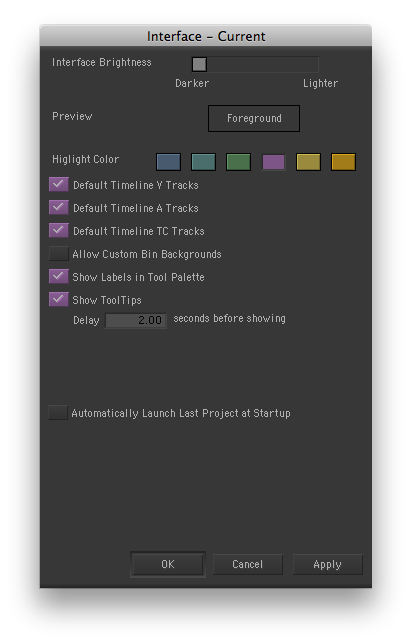
The Interface settings have gotten an overhaul
This should make happy those that think a very dark interface makes for a more pro application. There’s also a new option to toggle the default timeline color of the video, audio and timecode tracks. This is a nice to have if you’ve ever changed the timeline track colors beyond recognition. If these Default Timeline Tracks are checked then they become unchecked once you change a track color in the timeline. To restore the default just return to the Interface setting and check the appropriate box. Curiously, gone are the options to really customize the interface and change the buttons shapes, depth and shading. Not that I’ve ever seen many people make extreme customizations to the appearance of the buttons but it is interesting to see a simple feature removed that was once there.
And finally, in the Effect Palette there’s whole new list of the RTAS audio plugins:
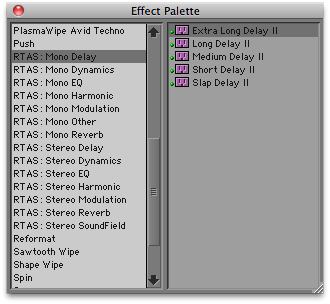
The new Real Time Audio Suite effects appear in the Effects Palette
To apply just drag the effect into one of the RTAS wells in the Track Control panel of an audio track in the Timeline. You can also open the new RTAS tool from the Tools menu (it opens automatically when you drag an RTAS effect to a well in the timeline) and apply the effects from there. In the RTAS Tool you’ll see all the cool audio plugin interfaces.
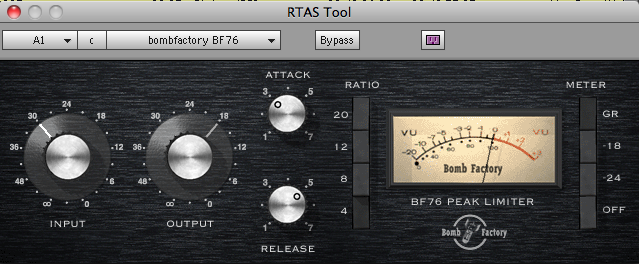
In addition to tweaking the RTAS effects with the RTAS Tool you can also apply the effects as well via the drop down menu at the top of the tool
That’s a quick tour around some of the bigger visual changes an Avid editor will be faced with when they open Media Composer 5.0. While these are certainly not all of the visual changes these are some of the more notable ones that I encountered as I’ve been kicking the tires on the new application. There’s certainly a lot more to learn and explore as I begin using the software on regular jobs. In fact some of these visual changes noted above I haven’t even had time to use as of yet, they just caught my eye as being visually new and noteworthy. For an early review of Media Composer 5 check out PC user Dylan Reeve’s review for a more in-depth look at overall functionality. There’s a lot more to come as this is a big, exciting update.
The software ships this Thursday, June 10 and there will be a fully functional demo of 5.0 as well so try it out. And students, don’t forget the amazing educational pricing of Media Composer for the educational market at $295 with 4 years of free upgrades. That’s quite the bargain.