

Filmtools
Filmmakers go-to destination for pre-production, production & post production equipment!
Shop NowOver a month and a few jobs later, it’s still a great upgrade

Okay, let’s get one thing out of the way first: the new Drap and Drop timeline in Avid Media Composer 5.0 isn’t a direct rip-off of Final Cut Pro’s timeline. Nor will an FCP editor sit down in front of MC5 and instantly be able to rip into the timeline via mousing in the same way they do with FCP. Nor will an Avid editor sit down in front of MC5 for the first time, turn on the new Smart Tool, and instantly have their editing world changed. Avid’s implementation of the open, Drag and Drop timeline is complex, well thought out and will take some time to master. Like most big change / feature implementations in Avid’s Media Composer product, it often takes some time for things to get added to the software but when it happens these features are usually feature rich and often leap-frog the competition.
I posted an article about some of the many interface changes in Media Composer 5.0 just after its release but I’ll recap them a bit here as these visual changes are important to convey a later story. If you’re overly familiar with all these new features then skip to page two of the article for a story and some commentary.
A Few of the Biggest Changes
The best thing about Avid Smart Tool and the drag and drop functionality that it adds to Media Composer is that it can be turned on and off. Want Media Composer to act pretty much like it always has? Turn the Smart Tool off. Want the timeline to behave more like Final Cut Pro, Adobe Premiere Pro or Avid’s own DS? Turn the entire Smart Tool on? Want to customize the timeline interaction where you can grab clips and move them around the timeline without entering Segment mode but not have the option of click and dragging to trim edits? You can do that too by customizing exactly what parts of the Smart Tool operate. It’s like one of the best features of a professional editing application: built fully customizable to suit the needs and desires of the editor. Plus all of those different features of the Smart Tool can be mapped to the keyboard as well so you don’t have to use the mouse to enable or disable the Smart Tool and it’s features.
The second big addition to Media Composer 5.0 is a greatly expanded Avid Media Access architecture. Most already know this but for those that don’t: AMA was the first step in Avid opening the Media Composer universe beyond the Avid way of importing and tracking media. Before AMA all media was copied into proprietary Avid media (OMF, MXF), logged into Avid’s database and placed into a special folder on the editor’s media drive. With the introduction of AMA Avid offered the ability to directly link to certain media formats like Sony XDCAM and Panasonic P2 media. This introduced an amazingly fast workflow where you pointed to a supported volume and clips would instantly populate an Avid bin and playback in their native format. I openly wondered when we would see more formats supported, most notably DNxHD Quicktime files since these were clips using Avid’s own codec. With 5.0 Avid delivered full QuickTime support with playback for pretty much any .mov file that your system can play. This include both Apple ProRes and H.264. The ProRes support works very well. The H.264 support isn’t as good with those files encountering some choppy playback. I ended up transcoding a Canon 7D job to DNxHD 115 as there was some critical lip sync that I need to get just right. I stayed native H.264 to whittle over an hour of an interview down to about 5 minutes. I then transcoed those 5 minutes and an hour plus of b-roll into DNxHD media and finished the edit. The native MC5 H.264 playback is nice to have but it takes a backseat to Adobe’s Mercury playback engine in Premiere Pro CS5. This isn’t necessarily the case with RED.R3D media which is natively supported in MC5. AMA adds RED support with all RED media playing back at HD resolution but it does this very well and playback was smooth in my testing. There’s also full RED color control settings that can be accessed and tweaked as well.
Avid has also added RTAS to Media Composer. RTAS is the Real Time Audio Suite technology that has brought over from ProTools. It’s most notable for me as an editor who has to do the occasional audio mixing for two reasons. First, it’s realtime. Second these new audio tools can be added on a per-track basis as opposed to clip by clip. There’s tiny “wells” that are now part of the MC timeline where these RTAS plug-ins can be dropped. And there’s a fair amount of them that ship with 5.0.
The Visual Changes
Veteran Avid editors will notice a few changes once they boot up for the first time. There’s a new icon that does away with the Avid logo entirely:
The biggest visual change within the application will be in the timeline. The new Smart Tool resides on the left in a new tool palette:
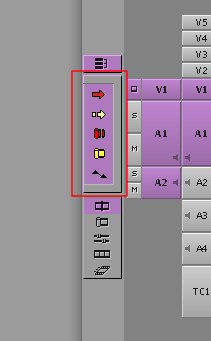
The familiar red and yellow Segment Mode arrows that used to reside at the bottom of the timeline are gone and have been relocated as part of the Smart Tool. The segment modes still operate the same, and if you have had them mapped to the keyboard they will still work, but they can be toggled to stay on and whenever the mouse hovers over a segment in the timeline you just click the segment and drag as you are instantly jumped into Segment Mode. While this is a totally new behavior the old segment mode behavior of not being able to move non-adjacent segments still exists.
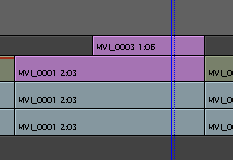
Avid added the ability to move clips on different video levels via Segment mode a version or two ago.
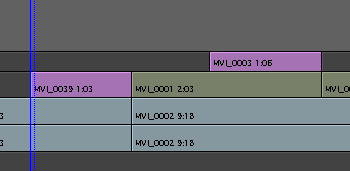
You can also move clips like those selected above.
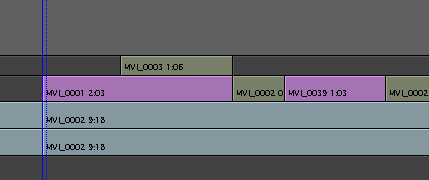
But you still can’t move non-adjacent clips on the same video track like those selected above.
Let’s hope that gets fixed in the next version as it just seems silly that you can’t do this.
The other big visual timeline change happens when you toggle open a little drawer by clicking the small arrow next to the new upper timecode display and timecode bar at the top of the timeline:
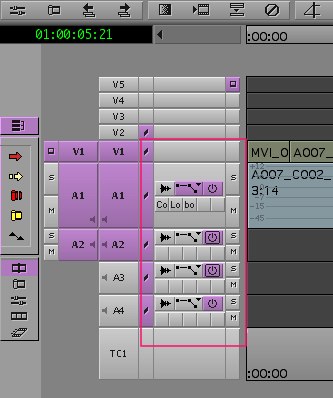
On my install, this was closed by default. It opens the drawer to reveal the wells for the RTAS plugins as well as toggle buttons for audio waveforms and audio clip and keyframe overlays. These were previously located under the timeline Fast menu and they are still there. Solo and Mute buttons were added too, very Pro Tools like. There’s also a toggle to allow the per track settings for audio data display in the timeline so make sure that’s checked if you aren’t seeing the audio data when toggling the buttons in the timeline:
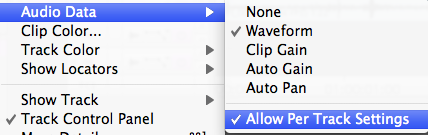
Make sure Allow Per Track Settings is checked to toggle the items in the timeline. Mine was unchecked by default so the timeline buttons worked.
Next Up: An interesting discussion with a long-time Avid user about the new changes
All of these timeline changes might be a bit unnerving to the veteran Avid editor … in fact I talked to one older Avid editor (who had never touched Final Cut Pro btw) at NAB back in April of this year who had been testing the beta version. He basically hated some of these new changes.
He loved the RTAS audio plugins but didn’t like the drawer that opened in the timeline for their application as well as the waveform and keyframe overlay buttons. The only reason I can think that someone wouldn’t like this new feature has to be that they are sitting on a comfort zone with the product and don’t really want anything to change. He also didn’t like the Smart Tool even though it can be turned off. At that point the only real difference in MC5 and MC4 would be the placement of the Segment Mode arrows. At the time I had this discussion I hadn’t seen or used the new MC5 (other than a demo at the Avid booth) so I pressed him on why he didn’t like the Smart Tool as to me it seemed like the best of both worlds. After a bit of conversation he admitted that he hadn’t really used the Smart Tool as much as he should, only toggling it on a time or two. But he wasn’t going to use it anymore as he was always confused by what happened when he moved his cursor around over the timeline.
It is a totally new way of working with the Media Composer timeline so it does take some getting used to as the cursor itself can change quickly and change often depending on your timeline, the size of your tracks and how many edits you might have. My worry is that seasoned Avid editors might dismiss this new Smart Tool and its way of working since they’ve used the application for years without it. They also might dismiss it as being a Final Cut Pro feature Avid added to appease FCP editors and the pro-FCP voices on the Internet. That’s probably only partly true since Avid DS uses the same idea with direct timeline manipulation that can be turned on and off. Plus the name Smart Tool even comes from Avid’s own Pro Tools.
Above is an Avid demo of the new Media Composer 5.0 Smart Tool.
Compare that to the Pro Tools Smart Tool and you can see where it came from.
It was inevitable that this would make it into Media Composer if the software continued to evolve. My suggestion to Avid editors unsure about the Smart Tools is to take your time, read the manual to understand exactly how it works and give it a chance. Don’t try to integrate into an edit under a tight deadline or at the last minute. Ease into it when you have time to be able to stop and really understand how it works and what these new operations in the timeline are all about. And besides, you shouldn’t be upgrading a major piece of software in the middle of an edit an anyway! I would even go so far as to say there are some veteran Avid-only editors who will upgrade to MC5.0 and, even after trying it out, won’t make much use of the Smart Tool and the drag and drop timeline functionality. They’ve been just fine without it all these years. But for me, the simple fact that it can be toggled on and off makes it a very powerful tool that one can adapt to their current way of working in addition to developing entirely new editing techniques. I can only see it increasing my productivity.
My MC5 Jobs Thus Far
The first job I cut on MC 5.0 was a small EPK. I left the Smart Tool turned off completely as I was piecing together my radio edit to tell the story of a particular song being recorded. I was able to string out sound bites with the speed I was used to, jumping into Trim mode with a key stroke, like I have always done in Avid. But as I was beginning to work with multiple layers of video, graphics and titles the ability to turn the Smart Tool on grab edits, clips and graphics without an additional keystroke really sped that part of the edit along …. like it does in FCP. It was a great feeling to have BOTH options, finally, in one editing application.
As I’ve been working with MC 5.0 even more, cutting a couple of music videos and a demo reel I’ve found myself doing something similar, leaving the Smart Tool off as I’m building an early cut and turning it on more and more as I’m fine tuning the edit. But one of the best things about MC 5.0 is still having the traditional Avid Trim Mode available that I can jump into with a keystroke and get that playback and interactivity that only the Avid Trim Mode can provide.
There’s a lot left to discover in this new version of Media Composer as it’s a big update, worthy of the entire number increase from 4.0 to 5.0 and has only been out in the world for just over a month now. I feel I haven’t really given the new drag and drop timeline the real workout that it is due since as I mentioned several of my projects have been music video-like edits. They are more single-layer, cuts only types of projects. While I’ve used the Smart Tools quite extensively on these edits I feel like a much more graphics heavy, multi-layer timeline will be a place where it can really shine and I plan on doing just that soon.
Are you a veteran Avid editor who’s now using Media Composer 5.0 and the new Smart Tool? If so please post your reactions and comments below?