

Filmtools
Filmmakers go-to destination for pre-production, production & post production equipment!
Shop NowPlus a few other Media Composer 6 bits and pieces


Last week a review that I wrote of Avid Media Composer 6 went online over at Studio Daily. Here’s the link so if you’re interested in what I think is a rather thorough review that tries to go beyond just bullet points and a feature list then please give it a read. Now that I’ve had a couple of months beyond the first kicking the tires reaction here’s a few more MC6 observations.
Title Tool Application
If you go to launch the title tool in Media Composer 6 you’ll see that it’s now its own, separate application.
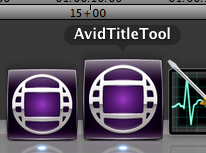
The title tool opens into it’s own separate application in MC6.
This was a bit of a surprise as I didn’t think the Title Tool would ever get any work, though it really needs some. Making the Title Tool its own application was probably done in the interest of stability. From looking at the Activity Monitor it appears to still be 32bit so there’s another reason right there. It is launched the same way the old title tool was launched (including a keyboard shortcut if you’ve so mapped it) and works pretty much the same way.
As far as changes to the Title Tool, the biggest one I noticed is the addition of an option to soften a drop shadow!
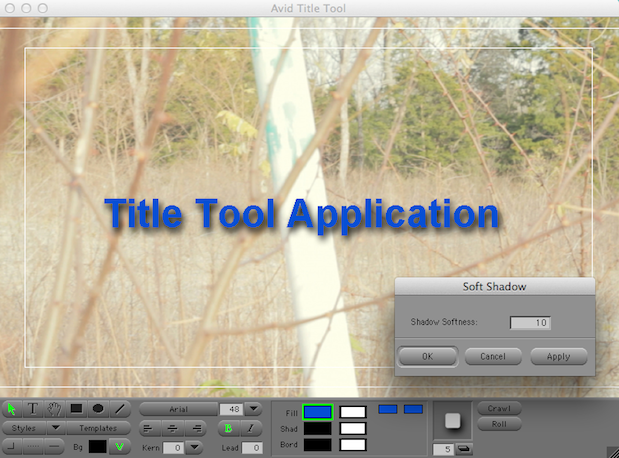
The Soften Shadow commands is a welcome, albeit long time coming, addition to the Title Tool.
Marquee is still there and all the old options persist to … well, persist if you want to launch Marquee as a default instead of the Title Tool.
Colors
If you make good use of Media Composer’s fantastic clip labeling abilities you’ll instantly notice a change to clip labeling colors the first time you head under Edit > Set Clip Color. There’s a lot less color to choose from for coloring your clips now.
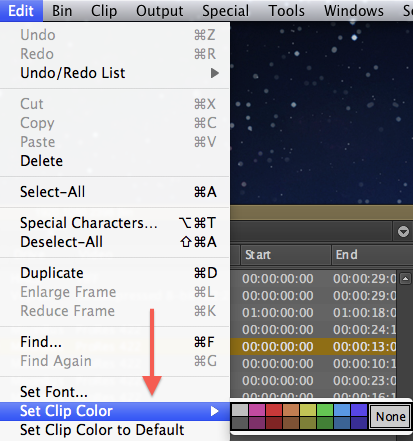
At first glance I thought that this was maybe a good thing as the old coloring scheme gave a lot of color choices, many of them very similar. I would often find myself wanting to label a clip in a particular color but I would choose a shade that was just off of the actual shade I had used for the similar clips. Sometimes it would take a couple of tries to get that exact color.
Now the colors are very easily distinguishable … there just aren’t nearly as many of them. I’ve found myself running out of label colors.
Also, in past versions, when you labeled a clip with a new color the clip icon changed to reflect that color. That no longer happens as I think the recommended practice is to use the Color bin column for color identification. The color column has always been important for sorting by color but I liked the old way of the clip icon changing to reflect the label color. I have a couple dozen bin column templates and only a couple of those include color so with the new way of labeling clips I often don’t know if a clip has had its label changed.
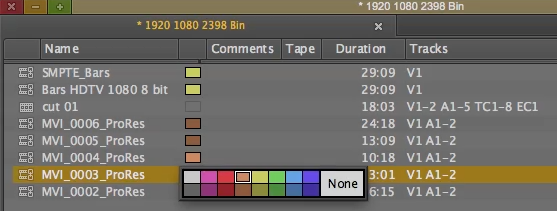
It is nice and easy to change a clip color by right clicking on the color directly in the bin.
One thing that now seems to be missing is the ability to pick custom colors for clips that had been previously available. It actually does still exist. You have to OPTION + right click on the color in the bin column then the custom color picker will open.
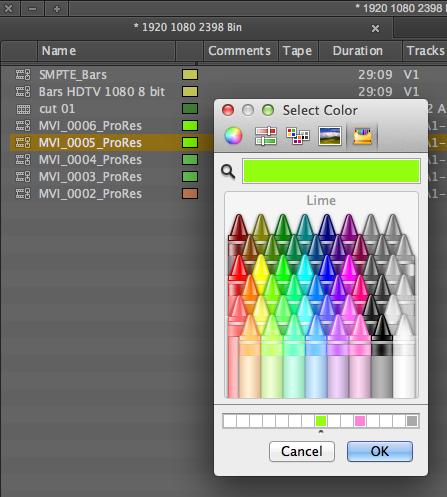
Option + right click on the color in the bin and you’ll get the Mac OS custom color picker if you need more color options.
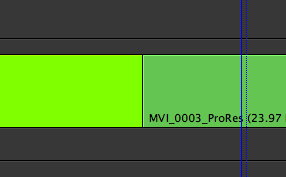
Those two greens don’t look that different in the bin color swatch (the brighter green is from the custom color picker) but they are easily distinguishable in the timeline.
A way to organize presets?
I want to expand on one thing I mentioned in the What’s Missing heading of the Studio Daily review. I said one thing that was missing is “A way to organize saved presets in the Settings.” Whenever you save user settings like bin column templates, export presets and timeline views (there are others but these tend to get a lot of custom options) every saved option shows up in the Settings window. Media Composer has never been short on settings and the more presets/templates you save the longer that Settings window can become when you’re viewing all the options.
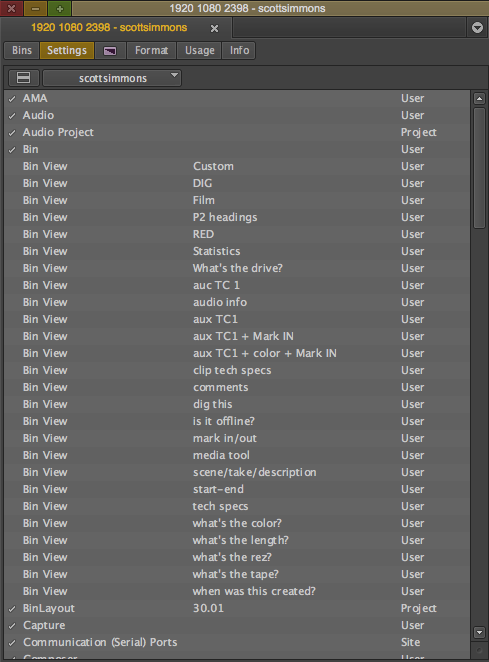
These are just my saved bin column templates. It would be nice if they could be organized into a folder since I have about twice as many Export templates.
As you continue to move and refine your Media Composer User Settings over many years of editing you may have a lot of them for any given option. It seems to be that the Settings should have a way to move all of these saved user settings into a folder for better organization. Yes you can view different groups of settings so that means you don’t always have to see them all but I usually just view them all at once.
Can’t wait for what’s next
As I said in the Studio Daily review and in an earlier article here I’m really excited to see what comes next for this new, 64bit version of Media Composer. It’s still the application we know and love so this version 6 is a bit like a rebirth. Things should really get good from here.