

Filmtools
Filmmakers go-to destination for pre-production, production & post production equipment!
Shop NowYou can add BITC in both Media Composer and FCP (Premiere Pro too) but one is better than the other

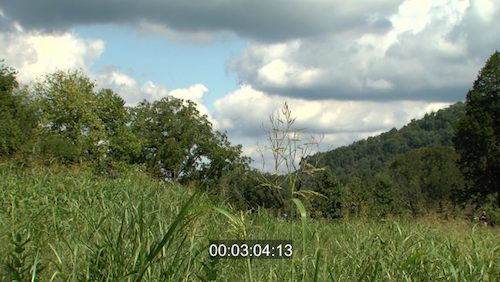
If you’ve ever had to send out a copy of an edit for client review (and really, what editor doesn’t do this on a very regular basis) then you may have very well been asked to provide a BITC. BITC stands for burn-in timecode and is as old as editing itself. Dylan Reeve noted right after this post went up that in some countries it’s called TCIP for Timecode in Picture. The numbers running on a BITC give the client an exact number to provide back to the editor when commenting on specific points in an edit. That timecode references the master sequence timecode of the edit. Back in the “old days” of editing you often had to output a cut to videotape and then make a dub of that tape using the super-output of the deck. But today’s non-linear editors provide a filter that you can throw on a cut to produce the BITC. Media Composer and Final Cut Pro both have this effect but they operate in a very different way.
There’s two schools of thought on the BITC. One being that it’s essential when sending out edits for review as it’s such an easy way to reference the cut. The other being that those running numbers might encourage extra notes and more changes. IMHO the BITC is essential as it’s such a simple way to communicate with the client about a cut. The information that you can provide in that BITC must also be taken into consideration and depending on your editing application you may have quite a few choices.
Avid Media Composer’s Timecode Burn-In generator
Avid Media Composer, by far, has best tool for applying burn-in timecode to an edit. Besides just being able to display the running code of the sequence itself there’s a ton of other options that can provide useful data, depending on who you might be sending a cut to.
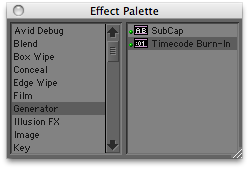
The Timecode Burn-In effect is located in the Generator heading of the Effect Palette.
Avid’s 2008 YouTube video when the effect was introduced.
The Avid Timecode Burn-In tool was introduced a couple of versions ago and is located in the Generator heading of the effects palette. It takes advantage of Media Composer’s unique ability (at least unique when compared to Final Cut Pro or Premiere Pro) to apply an effect to an empty video layer at the top of a timeline. When it’s time to add BITC just insert a new video track at the top of the timeline and drag the Timecode Burn-In generator to that track. The black (or Filler as it’s really called) can accept pretty much any effect and acts kind of like a null object in the timeline. It accepts the Timecode Burn-In effect and since there’s nothing in this new, empty video track the timecode data shows through referencing the video clips (and their metadata) below. And since the video track runs the length of the timeline you’ve instantly got burn-in for the entire edit.
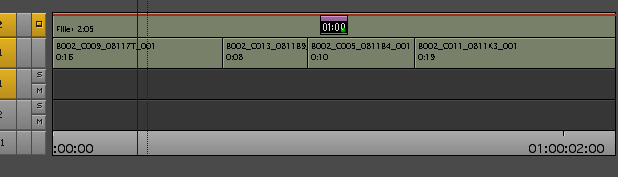
The Avid Timecode Burn-In applied to empty video track Filler in the timeline.
This ability to apply an effect to Filler in an empty Media Composer track isn’t unique to the timecode generator btw. This technique can be very handy for applying an overall color correction to an edit or adding a letterbox mask to an entire edit.
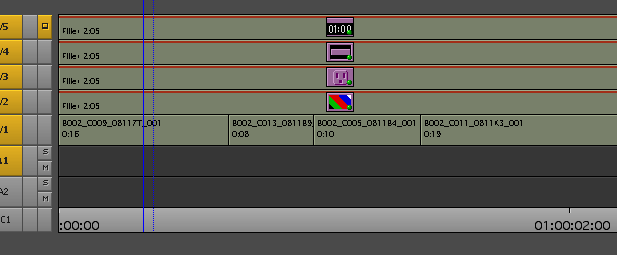
The above timeline has a color correction, grain, mask and the timecode burn-in all applied to the entire sequence and getting realtime playback.
The Avid timecode generator is also unique in that it’s able to provide a lot more data than just master timecode from an edit sequence. While that’s probably the most popular application of the tool if you dig into the timecode generator controls you’ll see a lot of useful data that can be displayed.
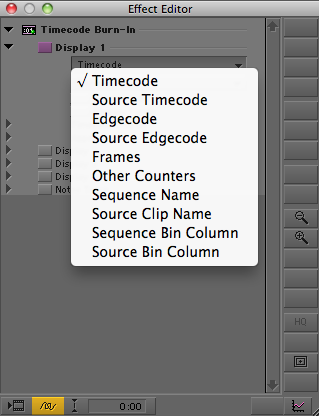
A sampling of the data the Media Composer Timecode Burn-In can display.
The Source Timecode is a handy option that displays a burn-in of the actual source clip timecode of the clips in the timeline. This is great if you want to send over an entire shoot of media for a client to pull selects or work on a paper edit. Media Composer’s ability to apply that timecode generator to the empty filler track in the edit means you don’t have to apply a specific filter clip to each and every master clip in the timeline like you would have to do in Final Cut Pro. While you can add and remove a filter from multiple clips at once in both MC and FCP it’s just faster and easier to add the effect to an empty video track.
One of my favorite things about the Media Composer timecode generator is its ability to show the name of the clip that is in the timeline. Oh how this has come in handy when clients were reviewing footage, especially when there were no slates used on the shoot. It has been useful both when providing an entire shoot of material for review on DVD as well as when providing an offline approval copy of an edit. Couple that with the default file names that come out of the tapeless cameras today and you’ve got a nice system for review and approval. Of course we editors always properly log footage before an edit so our clients don’t have to see files name 4576334 or 254_MVI.MOV right? Right?
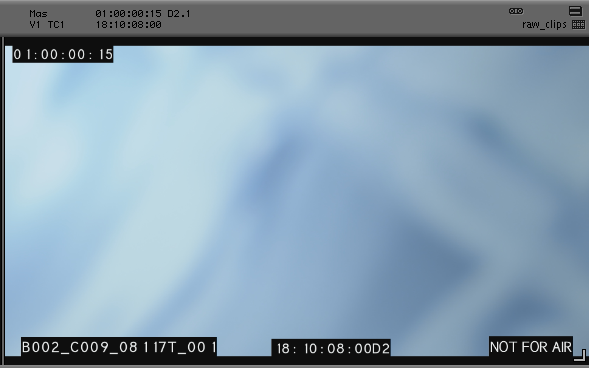
The Timecode Burn-In applied and displaying sequence timecode, RED source clip name, source file timecode and a custom note. All this data is generated from one application of the Timecode Burn-In generator
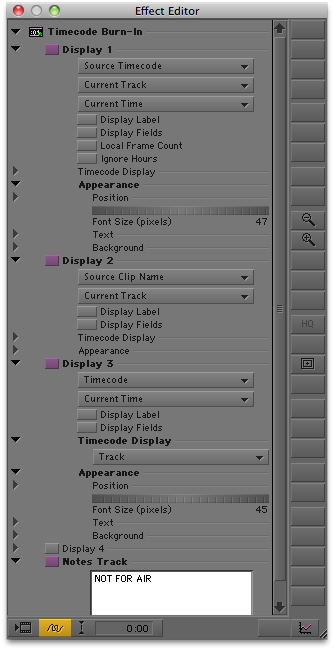
The Effect Editor for the above application of the Timecode-Burn In. Notice there’s one unused display (Display 4) that could still be toggled on.
The Media Composer timecode generator is customizable too in that once it’s applied you can choose the location of all data, as well as size, color, opacity and things like that. It is possible to put too much data onscreen so just be aware of what you are providing and what is really needed by the client so the screen isn’t so cluttered as to be too distracting for proper viewing. You can also choose a display to show metadata from any of the Bin Columns that are available in an Avid bin. While that’s way more data than you ever might want to put on a BITC is really shows the power the tool has to be able to tap into the metadata that exists in the master clips.
And the final point worth noting about the Media Composer Timecode Burn-In generator: it’s a realtime effect. That can be a lot of data that the application has to pull out of the clips if you have a lot of the display options enabled but Media Composer is able to do it, in realtime. Of course if you have a complex, multi-layered, effects heavy edit that you’re placing the timecode generator onto you might have to render certain sections as well as be selective in what video tracks of data the generator will be displaying but that realtime playback can be a lifesaver when the producer asks for quick screener DVD of a two hour movie. If you can playback to a DVD recorder deck then there’s no waiting, often no rendering to get that cut, with BITC, out the door.
Next Up: Final Cut Pro has BITC options as well.
Final Cut Pro’s BITC tools
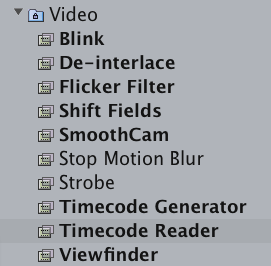 Final Cut Pro has timecode generators too but they are much less functional. Located in the Filters > Video menu there’s both a Timecode Generator and Timecode Reader. The reader is usually the most obvious choice as it will read the source timecode of master clips it’s applied to or the sequence timecode of a nested edit. That’s probably the most common way to produce a BITC of an entire edit. Nest your cut via one of the FCP timeline nesting methods and then apply the Timecode Reader to the entire nest. Depending on the complexity of the edit it may or may not be realtime, either all or in part, so rendering may be required. Once a Timecode Reader is applied to a nest you have to right+click and load the nest in the Viewer to gain access to the filter’s parameter controls. A double-click of that nest will open the timeline. You also have to set the Starting Timecode of the sequence you’re nesting (via the Sequence Settings > Timeline Options tab) as that’s the timecode the Timecode Reader looks at when nesting a sequence.
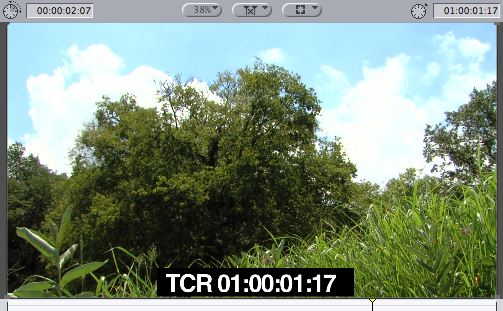
FCP’s Timecode Reader produces a simple BITC.
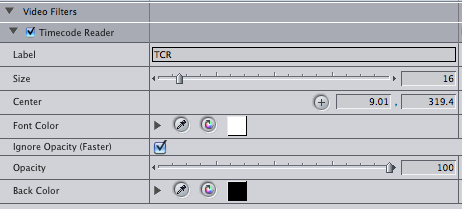
The Timecode Reader controls allow the adjusting of the BITC appearance.
FCP’s Timecode Generator is the tool that allows a user definable timecode as opposed to reading the timecode of another clip or sequence. On shorter edits I tend to use this one to generate client BITCs as I don’t particularly like a bunch of nested sequences floating around in an FCP project. The more sequences in an FCP project the bigger the project file becomes. The bigger an FCP project becomes the more unstable it might be.
If I’m working on something like a music video I’ll usually just grab a long master clip and throw it in a new video track on the timeline and apply the Timecode Generator. I’ll then position the burn-in to my liking and crop the clip so the only thing that’s seen from that clip is the BITC window. The final step is assigning the right code for the generator to display. Here’s where the FCP Timecode Reader is a little bit dumb. You’d think that since the Timecode Generator is generating new, user defined timecode for display there would be a place in the filter controls where the editor would just type in the starting frame number of the desired code and that would be that. Instead there’s a Frame Offset slider that you have to slide around to set the starting code.
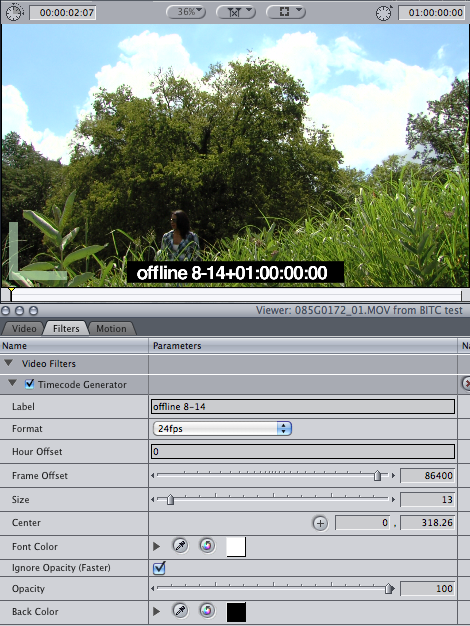
The FCP Timecode Generator has to have the Frame Offset slider set to get the desired start time for the BITC.
Unless you’ve memorized the exact number of a starting code like 01:00:00:00 then it takes a bit of time to dial that in via the Frame Offset slider and the numbers. That starting number doesn’t stay the same as it may fluctuate depending on your frame rate. There’s also the hour offset as well you help dial in exactly the right timecode. You would think the FCP engineers would have made it a bit easier. I guess the nesting / Timecode Generator method is a bit easier but as I mentioned the extra stuff that it generates in the FCP project isn’t always worth it to me … pick your poison.
Here’s the most common BITC start times that I use and their FCP Timecode Generator frame offsets that I noted for myself way back when:
- 24fps – 86400
- 29.97ndf – 108000
- 29.97df – 107892
Starting timecode 01:00:00:00
- 24fps – 86280
- 29.97ndf – 107850
- 29.97df – 107742
Starting timecode 00:59:55:00
Once you’ve loaded either the FCP Timecode Reader/Generator you then have a few controls for picking frame rate, size, color and location of the BITC and a label. After that’s all set you’re ready to output or export. These timecode tools are realtime effects but rendering may be required depending on the complexity of the edit.
And just since it’s there, below is a short tutorial that someone posted on YouTube about how they achieve a BITC in FCP:
The handy Clip Labeler application
One thing the FCP Timecode filters won’t do is display anywhere near the tons of data that the Avid Timecode Burn-In generator will display. I once asked an FCP plug-in developer if there was a way to create a new timecode reader filter that could display things like source clip name and timecode. I was told that the FCP plug-in architecture didn’t allow developers those kinds of hooks into the clip data.
But like many FCP things third party developers have created work-arounds and there’s once such work around that was created by editor / developer David Heidelberger. It’s called Clip Labeler and is a free download at David’s website (along with quite a few other useful tools).
This little application will take an XML generated from an FCP timeline, process that XML and generate a new sequence with an outline text generator placed above the clips in the timeline displaying the source name of the clip below. You can set parameters for size, width and colors.
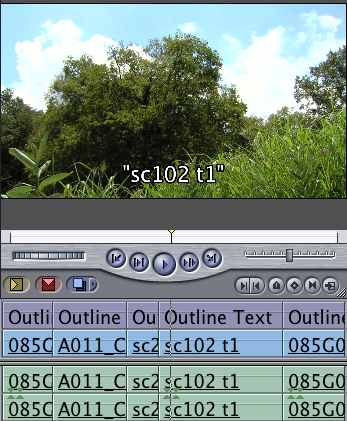
Clip Labeler will automate the process of adding a source file clip name via a text generator.
The application is quite simple with only a few options for setup:
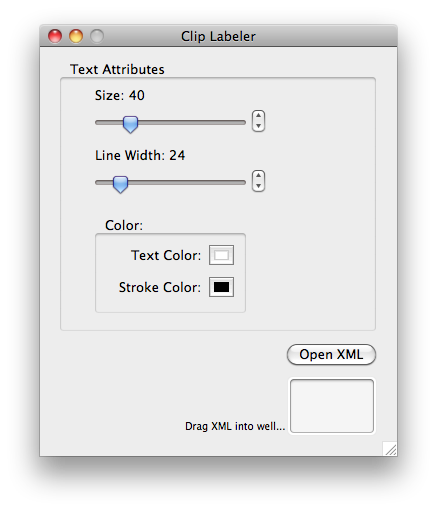
The Clip Labeler interface.
It’s a smart little workaround in the absence of FCP’s ability to accomplish that task on its own and a nice example of both the power of the FCP XML as well the ingenuity of an editor to work around an FCP limitation. David’s Clip Labeler is available as a free download at his website as is all of his other tools. If you do find some of them useful then consider a donation via the Donate button. It’s this kind of spirit amongst the FCP community that provides a lot of great tools.
Premiere Pro has a Timecode effect too
And not to be outdone, Adobe Premiere Pro has a Timecode effects as well. It lands in the middle between the functionality of Media Composer and the limits of FCP. There’s a single Timecode effect in the Video folder:
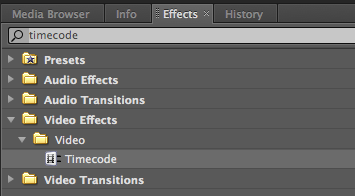
This example is from the Premiere Pro CS4 release.
Drag the effect on a clip or a nested sequence and you can then choose the appearance of the burn-in as well as choose the Timecode Source.
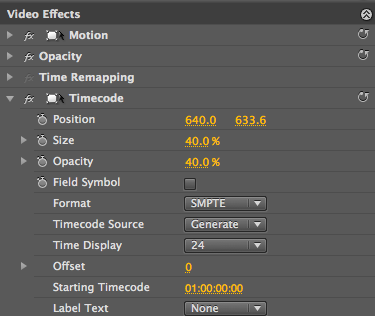
The Adobe Premiere Pro CS4 Timecode effect controls.
The Timecode Source parameter is nice in that you can choose it to be a reader or a generator from within the same effect. And when set to Generate you can then directly type in the desired starting number. Of course there’s options to change Premiere Pro’s BITC appearance but the default is nice and unobtrusive (unlike FCP’s default which is large and often in the way).