(Page 1 of 1 pages for this article )

Tuesday, February 24, 2009

Filed under: EditingPost ProductionTips

Flipping those upside down 35mm adapter images

Scott Simmons | 02/24

There’s a couple of options for properly orienting your upside down 35mm adapter images

image

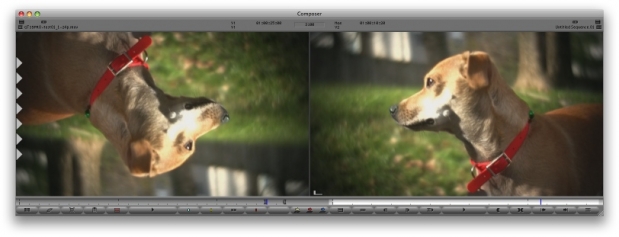
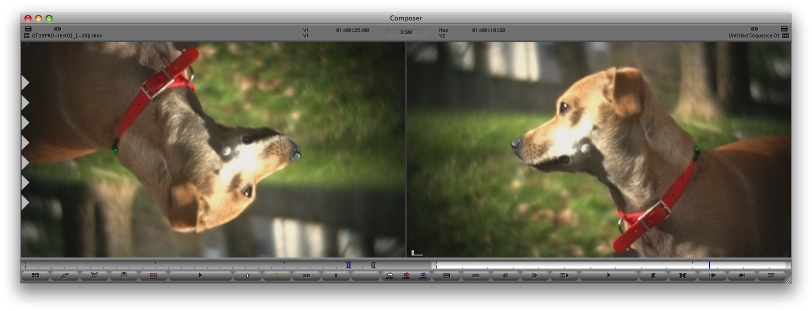
As nice as a 35mm depth of field adapter is one big disadvantage of such an adapter, at least the affordable ones, is they flip the image and that image is recorded upside down. It’s upside down on your tape or your file and it’s upside down on the camera’s LCD monitor. Options and hacks abound for dealing with the upside down image but probably the most common way to “right” your footage is to do it in post. I’ve been editing my footage shot with the GT35pro adapter in both Final Cut Pro and Avid so this is how I deal with the upside down footage.

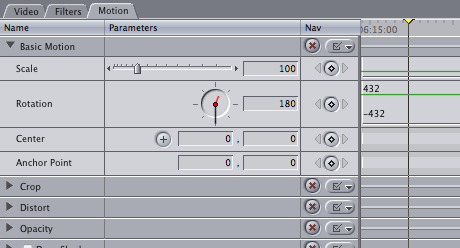
There’s two easy ways to flip your footage over in Final Cut Pro, in the Motion parameters tab of each clip or by applying a Flop filter. If you bring a clip into FCP’s Viewer then all you have to do is change the rotation to 180 (or -180, both work) and the clip will then be right-side-up:
image

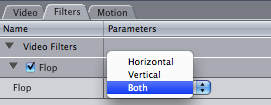
If you have a lot of clips in the timeline you can copy that clip, select all those clips in the timeline and Paste Attributes > Basic Motion to apply that rotation to multiple clips. Another way is to apply the Flop filter (Effects > Video Filters > Perspective > Flop) and then choose Both from the parameters pop-up menu:
image

One problem with these methods is that you have to apply the filter in the timeline or bring all the clips into the Viewer to change the rotation. You could make a timeline with all of your master clips, apply your flipping method, then drag these clips back to the Browser to create new master clips but no matter which method is used something has to be done unless you want to edit upside down.

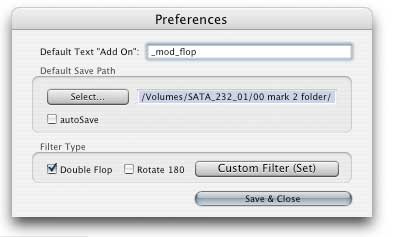
The problem with the above methods is that it takes a bit of time. What would be better is a batch process. I’ve been using a handy little tool called rotateClips from spherico that uses Final Cut Pro’s XML export functionality to automatically add the 180〫rotation or the Flop filter:

From the spherico website: “Just export bins, a sequence, clips or even a complete project as XML and drag the XML(s) onto the programs icon, after a few seconds the conversion is done and you can import the newly created XML into FCP. All clips are either rotated or flopped.” The tool works well and is a nice option for flipping an entire edit’s worth of master clips before you begin. According to the rotateClips developer, it’s an older tool and hasn’t been updated to run under Leopard but I have used it a number of times without any problems. There is a free demo on the site that is limited to 15 clips. If you work with a lot of 35mm adapter footage then rotateClips is a very useful tool to have in your editor’s toolkit.
image

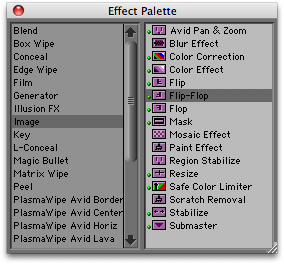
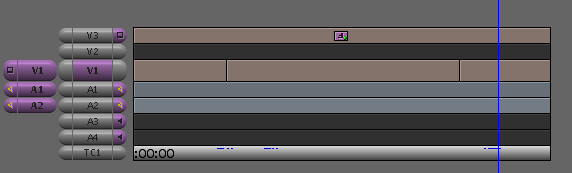
The process is a bit different in Avid. While you can add the Flip-Flop effect to an individual clip in the timeline the easiest thing to do is add the effect to a black video track above your edit. Avid allows you to add effects to a blank video track and then all the media under that track will reflect the above effect:
image

This is perfect for something like a music video or multicam concert where most of your editing takes place in the Record monitor / Timeline since clips loaded into the Source monitor are still upside down. I’ve never found a way to apply an effect to an Avid master clip and have that reflected in the Source monitor. That would be a great addition to a future Avid release!

Since the HV20 shoots HDV my first step after capture is to always use Compressor to transcode the footage to 24p ProRes 422 for FCP or DNxHD for an Avid project. It would be perfect if Compressor allowed for the flipping of the image during that conversion process ... but since Compressor does not it’s other options to the rescue!

(Page 1 of 1 pages for this article )

                    Clip to Evernote


You must be registered to comment. This is an effort to reduce spam. Please REGISTER HERE.

The closest I’ve come to source-side effects in Media Composer is to create a sequence with the source footage in it, applying the effects in that sequence and then using is as a source for editing.

I do that anyway with XDCAM and P2, and anything shot Time of Day where I get lots of individual clips from a single tape/disc/card.

Posted by Dylan Reeve  on  02/24  at  01:35 PM


Am I the only person who thinks it’s utterly insane that we have to resort to post-flipping, or crazier still, additional optics in the adapter, to get a right way up image, when the manufacturers could add a tiny firmware change and do it all in camera.

Surely the manufacturers acknowledge the popularity of this workflow, and its positive effect on camcorder sales. Are there any downsides from their point of view?

Posted by Ben Richardson  on  02/24  at  04:11 PM


Good tip Dylan. I didn’t even think about that. Better than nothing!

Ben, you hit the nail on the head. How hard would it be for Canon to add that to the HV40? Just put it on that one camera that has really taken off in the “DV Rebel” market and you’ve got something. Makes no sense.

Posted by Scott Simmons  on  02/24  at  04:53 PM


Another way to do it, if you’re dealing with QT files, is to open the files up in QTPro, then flop them using Movie Properties (cmd+J). That way the original files are correct - I personally try not to use filters or other special workarounds in FCP if I don’t need to.

Posted by Boyd McCollum  on  02/26  at  10:28 AM


That’s a great tip Boyd. Learn something new everyday! But I noticed something odd. You flip your shot over in QuickTime Pro and save it so it does playback in QuickTime Player properly oriented ... but it doesn’t reflect in Final Cut Pro that way. Oddly when I bring it into Premiere Pro, After Effects, Motion and lots of other apps it does. FCP must ignore that setting. I wonder why.

do you know if any kind of batch script that can do that task in a batch process?

Posted by Scott Simmons  on  02/26  at  12:15 PM


Scott, that’s really weird about it not working in FCP. I think it has to do with how FCP reads QT files, and that it ignores certain attributes. Chatting with a couple of other folks, it appears that FCP always had some quirks regards QT. I did do a quick test and exported a flipped QT movie file out of QTPro, and that imported into FCP with the image flipped. Exporting it must have burned in the changes to the display/visual settings. It also worked when I transcoded it (DV25 to DVCproHD) using Compressor, so it might be something you can do if you shot HDV (as in your example) and were to use Compressor to transcode to ProRes.

I don’t know of any batch script, but it may be possible to build something using Apple Script and the QT library.

Posted by Boyd McCollum  on  02/26  at  06:46 PM


Name:

Email:

Location:

URL:

Smileys

Remember my personal information

Notify me of follow-up comments?

Submit the word you see below:


My lengthy Adobe Premiere Pro CS6 review now online
Final Cut Pro X Multicam Editing webinar now available on-demand
10 Final Cut Pro things FCP editors might be missing in Adobe Premiere Pro CS6
A collection of Avid Media Composer related links for my NAB Migrating to Avid class
An elegant iPhone timecode calculator
Random notes from my first “real world” Adobe Premiere Pro CS6 edit
NAB 2012: SpectraCal
NAB 2012: Apple and Final Cut Pro X
NAB 2012: Lightworks
NAB 2012: Baselight for Avid Media Composer
NAB 2012: Quantel new Pablo and Neo Nano
NAB 2012: Promise Technology’s portable Thunderbolt J4 and J2
NAB 2012: NewBlueFX Titler Pro
NAB 2012: PluralEyes 3.0 from Singular Software
NAB 2012: Technicolor CineLights from the GoPro booth
Autodesk Smoke 2013: it really changed for the better
My top 5 (or so) Adobe Premiere Pro CS6 features
How to preview Avid Media Composer’s MXF files for free without Media Composer
My NAB 2012 Post|Production World classes
Baselight for Final Cut Pro is one of the most powerful legacy FCP grading plugins ever
ARRI’s DNxHD Alexa update, Sorenson Squeeze Pro and OP this, OP that
What’s happening at NAB 2012?
The C300 short Hustle and some before and after images
Tip Tuesday: Disable a clip in the Avid Media Composer timeline
Testing the 7toX Final Cut Pro 7 to Final Cut Pro X conversion
Q and A with Bunim/Murray’s Mark Raudonis about their recent Avid switch
Kicking the tires on the Final Cut Pro X 10.0.3 Multicam update
Update Alert: Final Cut Pro X goes to 10.0.3
Adobe teases Prelude at the San Francisco Supermeet, FCPUG changes its name
Tangent Element panels are now shipping


To be considered for listing, contact pr (at) provideocoalition (dot) com


Copyright © 2012, HD Expo, LLC a division of Diversified Business Communications. DBA Createasphere

All rights reserved. HD EXPO, High Def EXPO, Createasphere, E-Tech, Entertainment Technology Exposition, 3D Production Workshop, VariCamp, P2 Camp, ColorCamp 101, and Lighting, Filters & Gels for HD are all trademarks of HD Expo, LLC.

Terms of Use  |  Privacy Policy

Check PageRank