

Filmtools
Filmmakers go-to destination for pre-production, production & post production equipment!
Shop NowA few early workflow tests as we get to know Resolve

DaVinci Resolve for Mac has begun shipping en masse and is now getting into the hands of a lot of end users. Apparently I talked up the right people as I stalked the Blackmagic Design booth at NAB as they sent over a copy for testing and review. I wanted to install Resolve right away but a busy week of editing meant I didn’t have to time gut the office machine to get the cards in for a proper Resolve configuration. After looking at the install discs sitting around for a few days I couldn’t stand it any more and took them home to install there and at least get a taste for what Resolve for Mac is like. But my home Mac Pro doesn’t really meet the recommended system requirements ….
The Mac Pro I am working with at home is a single processor 2.66 GHz Quad-Core Xeon with 7 megs of RAM. As I mentioned it’s not technically a supported system but I do have the supported video cards (NVIDIA Quadro FX 4800 for Mac [which has been discussed here] and a GeForce GT120). The 4800 does the heavy lifting for Resolve while the GT 120 runs the GUI. My home system doesn’t have the supported DeckLink card nor does it have the exact recommended internal storage (all system recommendations are in the Resovle for Mac Configuration Guide: PDF link). Instead I have a 2-disc RAID from the internal drives. It should be noted that an updated Resolve was recently released, 7.0.2, that does add some support for some older Mac Pros.
Installation
I wasn’t sure if Resolve would even install on this system since the MacPro wasn’t a “recommended” dual processor unit and I have an odd 7 gigs of RAM. RAM specifications in the Resolve Mac Configuration Guide are very specific: RAM: 6, 12 or 24 GB for memory optimization (not 8, 16 or 32 GB).
When I went to do the first install it actually didn’t work as I got this error message when the disc tried to mount:
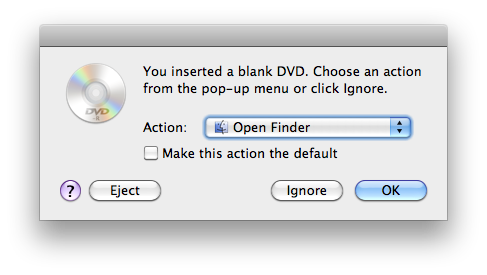
Uh oh.
Ii looked like it was just a bad disc. After a discussion with Blackmagic I was told to log onto the support website and download the Resolve for Mac update. This was a full installer of version 7.0.1. Resolve for Mac is protected via a USB dongle so with that unique serial number I download the installer and ran it, installing without any issues.
Installation went off without a hitch. There was this message that popped up as I didn’t have any control surface attached:

Despite what this warning says the Tangent Wave panel doesn’t require a power cable which is good since it can’t get external power anyway. Wave power comes via its USB connection. The much bigger and much more expensive Resolve panel probably does require power even though it’s a USB connection as well.
Getting familiar with the application
Launching Resolve takes you to the User Login screen where you log in to the application or the administrator can manage users:
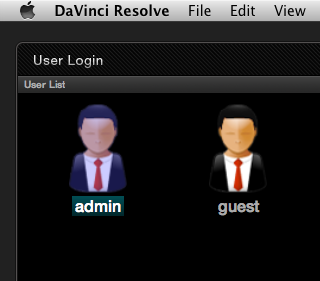
You have to first log in to Resolve in order to get to work. [FYI – the Resolve GUI is large and takes up the whole monitor screen. With the image size constrains here on the web I’ll be showing pieces of the GUI as opposed to the whole Resolve screen]
The application uses buttons across the bottom of the screen to navigate to its different work areas or rooms:

The Resolve tabs for moving to various rooms for various tasks.
These aren’t rooms in the sense that Apple Color has rooms but they are different parts of the program itself. One thing I noticed right off is that Resolve is a more complex application than Color overall. That’s not saying it can do more or is a better grading application (I don’t want to step into what will surely become a debate) but Resolve for Mac comes from its big brother Resolve system that has been grading feature films and network television for quite a few years. With that kind of full featured-ness you’ll see preferences and settings for a lot of things that you don’t see in Color. There’s probably a lot of settings that the Resolve for Mac user will never touch.
I’m most certainly a new user to Resolve only having seen a full blown Resolve out in the world a time or two. In preparation for the Mac version I have been studying the Resolve user manual for a few weeks but the best training I experienced was the DaVinci Resolve course from FXPHD. They’ve had a Resolve course in the past and were selling it in the Vault during the July 2010 term. While the class revolved around the older Linux version and the older Resolve panel the software interface seems nearly identical so it was very helpful to have watched the course when I sat down with Resolve for Mac. If you check the new October FXPHD term that’s just been announced you won’t see the Resolve class in their vault but rather a new Resolve for Mac course. Well worth taking if you’re going to invest in the software.
Upon signing in a user you begin in the Config room where there’s tabs to setup various user and project configurations as well as manage projects. The Project List will become important as you build time with Resolve as projects are loaded up there as well as keeping tabs different versions and lists that are imported on a specific project.
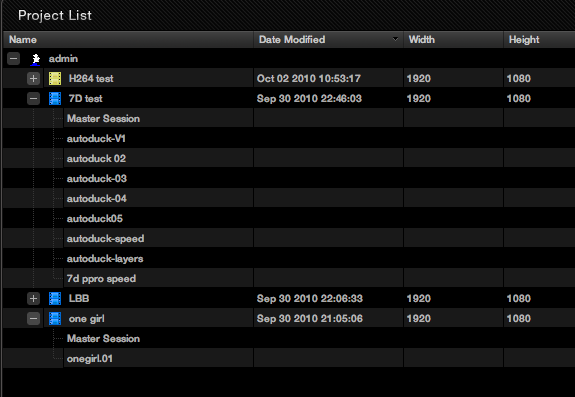
The Project List will manage your Resolve projects
There’s two basic ways to grade a project in Resolve, conforming an edit from raw footage or working with a self-contained clip like a QuickTime. With a self-contained clip you can use Resolve’s Automatic Scene Detection to have the application determine where it thinks the cuts are and then export an EDL for reference in the Conform room. Automatic Scene Detection works well and is faster than realtime (unlike a tape based DaVinci 2K which requires playback of a tape). You can manually tweak the results of Scene Cut Detection but it works best if you are provided with an EDL.
If you’re working with raw media you’ll become familiar with the Conform room in Resolve as this is where you’ll bring in an EDL or AAF file to conform an edit from the source files. The term “conform” might be foreign to some users coming to Resolve for Mac as a color grading session might have meant working right in Final Cut Pro with full resolution ProRes files or using the Send To command to get an edit into Apple Color.
With Resolve you have to conform the edit via a list (an EDL or AAF) and the media on your hard drive. With properly formatted media and a properly prepped timeline it’s really a breeze, at least it was on the simple edits that I used for my testing which is what I’ll talk about here.
The first step in conforming an edit is to get media into the Resolve Media Pool. You aren’t copying media from drive to drive as Resolve looks at media drives you’ve designated in the Resolve preferences when it comes time to add media. When you drill down to the proper media folders you then select the clips you want and add those to the Media Pool. It’s this media that will be used when Resolve goes to conform an edit. This Media Pool interaction takes place in the Browse room, which is the second tab in the Resolve tab bar. You can also audition clips with the Browse room’s viewer.
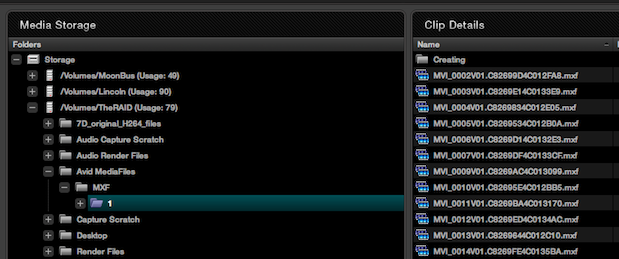
Designated drives are listed in the Browse tab’s Media Storage window.
A lot of actions in Resolve seem to take place via contextual menu option when you right click on the GUI. For example, in the Browse room you shift + select to highlight the clips you want to add to the Media Pool, right + click and choose Add to Media Pool:
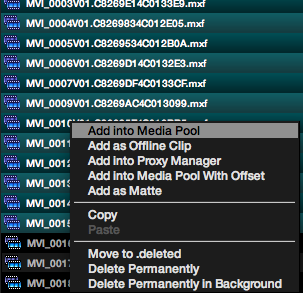
You’ll also see the command for Add as Offline Clip (among other things) that is used to add an offline reference clip for checking a conform.
Once the Media Pool is populated with the proper clips for conform you hit the Conform room. It’s there you load an EDL or AAF and the conform should happen instantly where a timeline is created for the edit. Multiple lists can be conformed and you can jump between them with a single click, handy when changes come in. This is also where you view the offline reference against the conformed edit to check the conform’s accuracy.
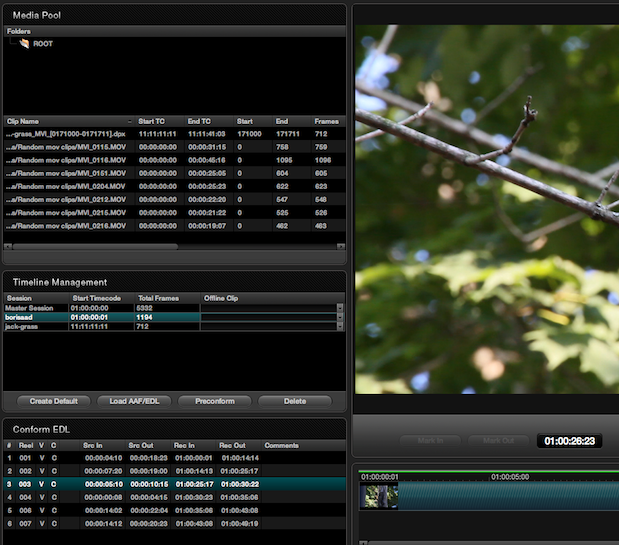
A screen grab of the corner of the Resolve Conform room. The left windows include a Timeline Management pane for the different lists that have been conformed as well as detail of the currently selected EDL. The right is a viewer with transport controls as well as a timeline.
It’s also possible to Enable Editing via a right+click on the conformed timeline for simple drag adjustments of clips in the timeline:
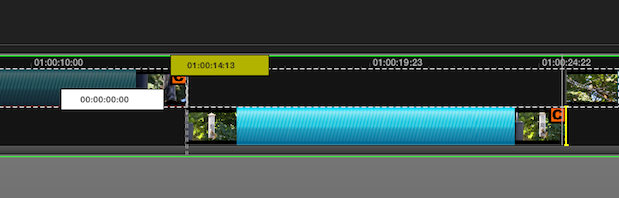
Simple editing is possible via dragging IN and OUT points in the Conform room timeline if the editing option is enabled.
After the conform you move to the Color room where the grading (and the majority of the work in Resolve) takes place. Again, I keep calling the different parts of Resolve rooms but don’t confuse that with how Apple Color operates where you enter different rooms for different parts of the grading process. Resolve’s different rooms, tabs, areas, whatever, are for setup, operation and output of a session where Color’s rooms are for different parts of the creative grading process. In Resolve you do most of the creative work in the Color room and add different nodes for creative tasks like primaries, secondaries, windows, vignettes and things like that. Ahhhh … nodes.
Resolve’s nodes include different types: serial, parallel and layer nodes. I’m not going to go into details of these different types of nodes as I’m still learning and understanding them myself. But they are and very powerful allowing the user total control over the image. Those who have used a node-based application like Shake will probably feel quite at home.
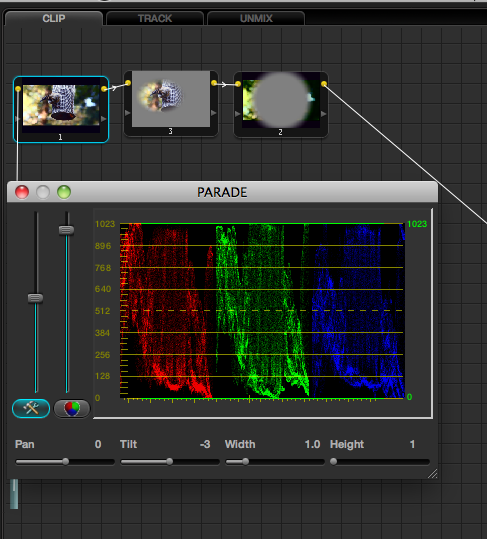
A correction with three nodes in the Resolve Color room. The pop-up Parade software scope is floating below.
The Color room will take a lot of time to master (at least for me it will). In this room exists the node viewer, timelines for viewing the edit, a timeline for dynamics or keyframe based grading changes, an area for saved stills, an image viewing window and all the grading tools. Turn on a few of the floating scope windows and things can get cluttered. You won’t see color wheels like Final Cut Pro’s 3-Way Color Corrector so if you have a control surface think about the color directions on a vectorscope as the directions to push the image. All the actual grading controls exist the lower left quadrant including the primary tab and tabs for curves, keyers, windows and blurring.
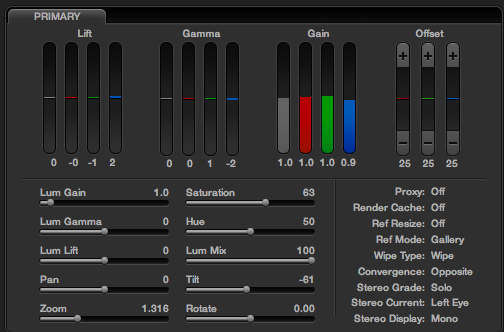
The Resolve Primary tab.
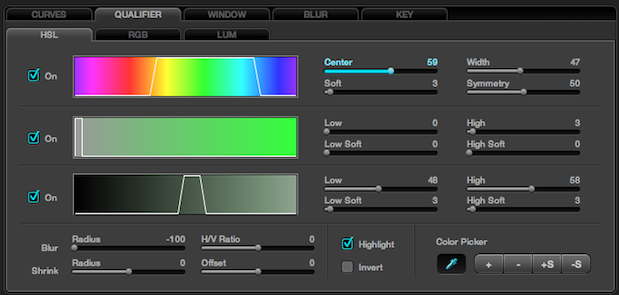
The Resolve HSL Keyer controls. Notice the tabs above for all of the other secondary options available.
Other rooms include the Viewer, Gallery, Format, Deck, Revival and Scene. There’s also the very important Render window that’s activated via command + R. There’s a lot of great output options via rendering including rendering each shot as its own file.
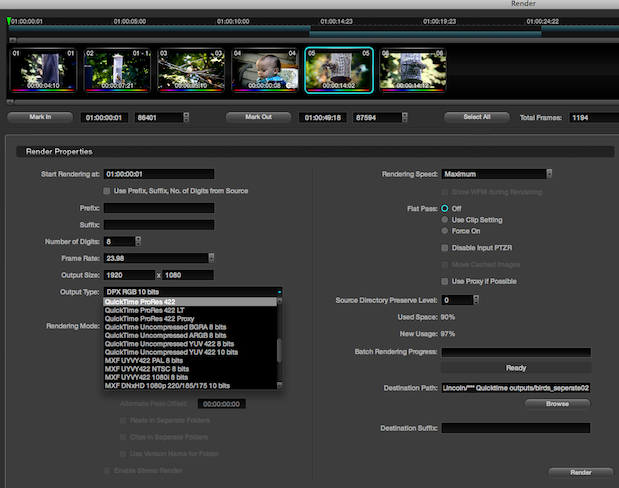
A portion of the Resolve Render window.
Next up: Testing a few workflow options for getting an edit into Resolve.
There’s really a lot for a new user to learn in order to master Resolve and after just a week of kicking the tires I’ve got more questions than answers. But one specific question I had was just how easy (or difficult) it would be to conform a properly prepped edit and get it into Resolve. I say properly prepped as Resolve is based around a singe-video-layer so sloppy FCP timelines aren’t going to make their way in. Dirty editors need not apply before a timeline cleanup. This Editblog post might be worth reading if you tend toward the sloppy timeline.
Conforming edits via various workflows
As a workflow test I took several different edits from Final Cut Pro, Avid Media Composer and Adobe Premiere Pro CS5 and moved them into Resolve.
Final Cut Pro
First was a 4 + minute music video (cut from around an hour of 23.98 ProRes) that I had on my media drive with the picture locked, offline edit in FCP. From this single-layer timeline I exported an EDL. After loading all of the footage from the edit into the Resolve media pool I imported the EDL, named it and there was the conformed edit. It had no dissolves but there was a couple of dips to black (created in FCP via Cross Dissolves to a slug) and they imported just fine.
I didn’t take time to work on grading the piece but I did play around a bit and was able to get 5, 6 ,7 nodes playing in realtime off the internal RAID depending on what type of corrections I had applied. With native H.264 I was still getting realtime at one point with 7 nodes. Realtime performance has been great.
Resolve claims the capability to grade a lot of native formats, including Canon H.264 files. I had a timeline in FCP of some 7D footage that I wanted to try sending over to Resolve. Normally I don’t edit native 7D files in FCP as I cut my 7D stuff in Premiere Pro CS5 these days but this was some footage I shot of my kid before CS5 shipped and I wanted to send that to Color. I exported an EDL, went to Resolve, added the native H.264 files to the media pool and … the conform didn’t work.
Looking at the EDL it’s no wonder (if you don’t know how to read an EDL then this might help):
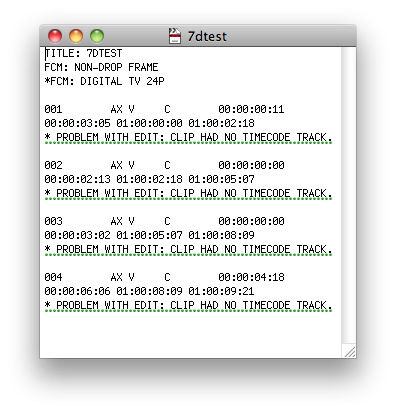
Since the native H.264 files don’t have any real metadata including timecode and reel / tape numbers there’s no data for Resolve to conform with. There’s no data in the EDL and to a lesser extent in the files. Since Resolve supports AAFs (AAF is the Advanced Authoring Format that many post applications support) I thought I would try that as well since an AAF carries so much more information than an EDL.
FCP doesn’t support AAF export out of the box so I tested both Automatic Duck’s Pro Export FCP and Boris AAF Transfer. The AutoDuck tool is designed for both OMF and AAF export from FCP. Selecting AAF and choosing settings that matched my sequence proved a successful conform of the H.264 media into Resolve. The Boris AAF Transfer is marketed as a way to move from FCP to Avid Media Composer but since it’s an AAF file that it exports I tried that for the H.264 conform test and it worked as well. Maybe Resolve will support FCP’s XML export in the future but until it does it might be worth investing in a AAF export for FCP if you’re going to be working heavily between FCP and Resolve. While an EDL will probably work fine under most circumstances I always feel like an AAF provides a level of comfort when I send an offline over for conform.
Premiere Pro CS5
Adobe Premiere Pro CS5, on the other hand, supports AAF export right out of the box as well as editing support for native Canon H.264 files. I have a number of edits I’ve completed in PPro CS5 so I tried to conform several of those in Resolve via AAF and they all worked fine. Some of these edits had dissolves and those came across as well. You won’t see a traditional dissolve icon in the Resolve Conform room but rather there will be clip overlap between the dissolved clips where you’ll see the dissolve happen. As I mentioned above, performance grading the native H.264 files was very good as well getting 7 nodes of realtime correction on my “unsupported” system on one particular shot. At that point I didn’t have anything else I wanted to do to the image!
I was curious as to how speed changes would work on conform so I tried several constant speed changes from FCP and PPro (variable speed changes never seem to move from system to system) and none of those worked. It seems as if the slow clips would come into Resolve too fast and fast clips too slow. Speed changes are supposed to work so that’s going to take some research.
Avid Media Composer
The other test I wanted to try was to move an edit from Avid Media Composer and grade DNxHD .mxf files. Avid support isn’t right out of the box with Resolve for Mac as you have to purchase $499 Avid File Support. A quick install will allow Resolve to see native .mxf media and I was able to add an entire Avid Media Files folder full of clips in the Resolve Media Pool. I then exported an AAF from MC and it conformed perfectly.
It’s a shame that Avid support is half the cost of Resolve for Mac. I’m not sure what the reasoning is behind that but full ProRes support requires an install of Final Cut Studio so there’s been a price paid to get that as well. Of course you’ve probably bought FCS as part of doing business so it would be nice if Avid support would be included for those who have a Media Composer install existing on the Resolve machine.
The joy of using the Tangent Wave
My first few sessions kicking the tires on Resolve for Mac was with a mouse and trackball. As with Apple Color, if you’ve used a dedicated control surface you’ll feel like your hands are tied as you manipulate the creative settings. Resolve uses little left to right control sliders to do a lot of the work so they take a precise click and drag to move them. I was using an Apple Mighty Mouse so the scroll ball would also move them but most often I would hover the cursor over the slider and spin the ring of my Kensington trackball.
Over the weekend I brought our Tangent Wave panel home to try that out. The Resolve preferences have an indicator to check which control surface you have attached. The current options are the DaVinci panel, the Wave or none:
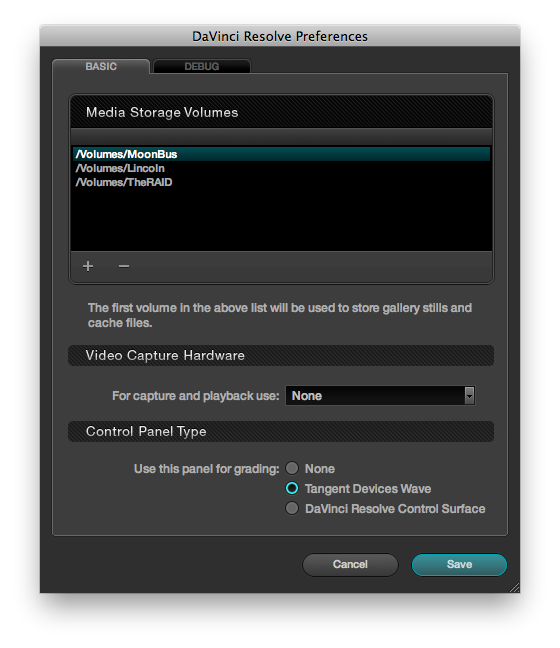
You can see in the Resolve Preferences you can choose the control surface type as well as your video hardware and add media storage volumes.
The Wave is a real pleasure to use with Resolve. After checking the preference and relaunching Resolve it recognized the panel and it was ready to grade. There’s nothing in the Resolve documentation about the Wave’s operation but it’s pretty self-explanatory as the different functions are well labeled on the Wave’s displays.
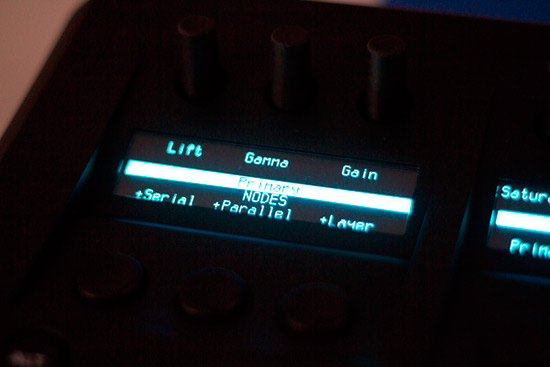
Toggling through the displays via the Wave’s arrows keys allows for control of a number of Resolve functions: input sizing, image blur, lots of Primary controls, Power Window functions and HSL Qualifier functions. Alexis Van Hurkman has posts on his blog about some other functions of the Wave with Resolve including a breakdown of the F keys. The Wave includes an ALT key for additional functionally that doesn’t seem to do anything at this point in time so hopefully there can be some additional functionality added.
Lot of learning left to do.
All of these notes and observations come after just over a week kicking the tires on Resolve for Mac. There were a few basic questions that I wanted to address for myself to get started; mainly basic workflow questions about how I could get edits in and out of Resolve from the three main editing applications that I use. These tests proved to me that it’s not a difficult process with the proper preparation of an offline edit.
But I also see that Resolve is going to take some time and effort to master. And I haven’t even mentioned Resolve functions like tracking, dynamics and memories. It’s a more complex application than Apple Color that’s for sure. I refuse to ask myself the inevitable question of which is better as that’s like trying to decide which is better between Final Cut Pro and Media Composer. One may be better than the other for certain users or certain tasks. Truth be told it’s best that we have choices of our post-production tools and Resolve for Mac is yet another great choice added to the mix.
Now back to Resolve.