

Filmtools
Filmmakers go-to destination for pre-production, production & post production equipment!
Shop NowIt’s in beta, it’s buggy but you can see a powerful, well-designed tool inside. Oh the future …

It was a busy week this past week as November changed to December and The Foundry released their long discussed Storm product as a public beta free download. Storm is a “RED Digital Cinema Camera Production Hub” and has been described by RED’s Ted Schilowitz as REDCine-X on steroids. After kicking the tires on Storm for a few hours over the weekend I’d say it’s not just REDCine-X on steroids but rather what will be a much more well thought out version of REDCine-X that will hopefully be more robust, less quirky, easier to use and an overall better application. And that’s as it should be as Storm will cost $375 when it finally ships its paid version around March 2011.
The Foundry is probably best known for their compositing application Nuke. There’s a lot of users out there in the world who swear by Nuke the application as well as The Foundry company as a whole being that they are dedicated to bringing great post-production tools to market. I haven’t ever really used any of The Foundry’s products so I wasn’t sure what to expect with Storm.
But after downloading the beta and kicking the tires on it for a few hours all I can say is … wow. These guys know how to design a tool.
The nice, clean Storm interface
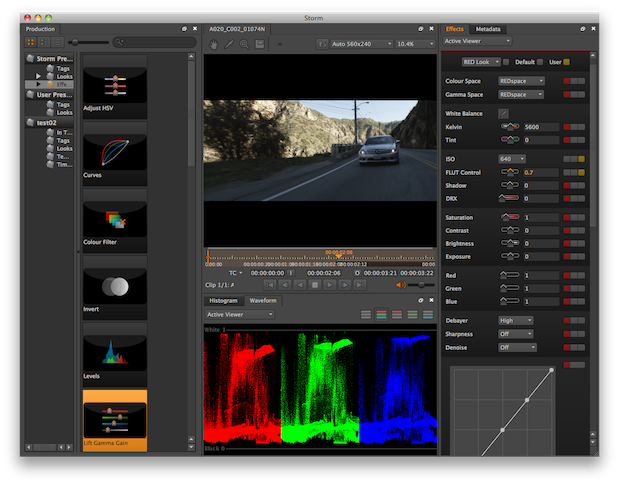
The Reviewing workspace preset is where you’ll do a lot of organizing, reviewing and tagging.
To me Storm interface feels like a cross between Adobe After Effects and Lightroom. It may be entirely based off the Nuke UI I don’t know but anyone who’s an AE user will easily understand Storm’s method of floating, dockable and resizable window panes and tabs. Storm begins as one large, resizable window but each of the panes and tabs within a pane can be undocked and floated in its own window or redocked into other panes.
It also reminded me of Lightroom in that as you tag and organized clips they get little icons to remind you of what you’ve done. All your working R3D clips are kept in the “In Tray” in the project window and can be viewed by a thumbnail (as well as list and a more compact thumbnail view) and once any type of metadata is applied to the clip, such as tags or effects, you get a little icon above the thumbnail that lets you know something has been applied. Hovering over a clip brings up a little play button and slider for auditioning the clip right in the thumbnail. Double click a clip and it opens in its own tab in the viewer window for further review. When you load a clip you’ll see a brown bar load in the timeline at the bottom of the viewer as the clip caches (it’s not a GPU dependent application according to this article over at FX Guide) and once it’s cached it’s very smooth and responsive for playback.

That brown bar is the current clip caching. Once a clip or timeline has fully loaded performance is very responsive.
Obviously the playback performance is dependent on the decode quality setting in the pop-up at the top of the viewer:
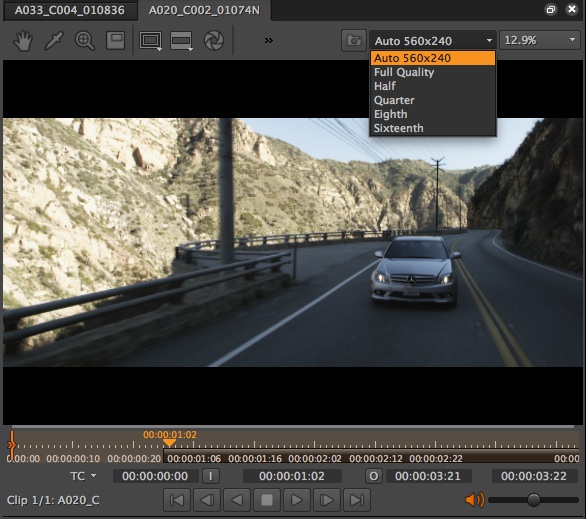
I left my decode pop-up on auto and performance was very, very good. RED Rocket support is available as well.
And they’ve seen fit to operate playback via JKL scrubbing – well done.
Storm’s performance
The performance of Storm is quite nice too. By setting the decode quality setting to Auto I was able to easily get full frame rate, realtime playback on my 2.66 ghz Quad Core Mac Pro with the R3Ds residing on an internal RAID. The interface is snappy and responsive. It’s still in beta so there are some quirks here and there and my install only seemed to want to save looks about half the time via the S keyboard shortcut. But I could always drag a look I had set in the RED Look controls into the Looks User Preset bin.
I was especially impressed with the quality of the included scopes. Storm includes a full range of scopes, thankfully, above and beyond the histogram. There’s also a waveform, vectorscope and RGB parade with viewing of individual red, green and blue channels in their own window. And the scope playback has equally good performance. Besides being able to toggle between the different scope windows without stopping playback I was able to undock the scope windows and get full playback of them all at once! Video scope displays are pretty processor intensive so this was quite impressive.
There’s also current support for the Euphonix MC Color control surface. Let’s hope the Tangent Wave is supported in the future as well.
Storm’s well thought out RED Look Effect
Another thing that Storm has gotten right that I’ve always thought RedCine-X barely bothered to address was letting the user know exactly what kind of metadata you were looking at on a clip. They’ve solved this by implementing red, green and yellow toggle buttons that appear next to all controls of the RED Look tab, the place for adjusting the look if your R3Ds by standard RED controls.
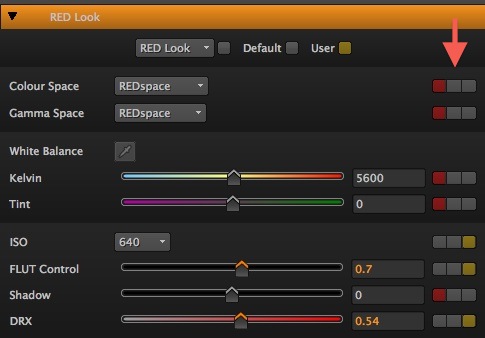
The buttons in the RED Look effect is an easy way to know exactly what you are looking at on a given shot.
A red button means you’re looking at what came off of the camera, either the camera defaults or an RSX or look file; green is the camera defaults and yellow are User defined changes. These three buttons exist to change the controls in totality by clicking the button at the top or according to each parameter by lighting up to the right of each control. For example, you can be on all red with a look out of the camera and as soon as you adjust the FLUT Control that control’s display light changes to yellow for User to let you know that control has been changed in Storm.
Here’s how the Storm user manual lists these three different options:
- RED Look-this mode contains all the input decisions made by the on set cameraman. Click the red buttons to apply the RED Look.
- Default-this mode applies the RED camera factory settings, that is, none of the on set decisions are included. Click the green buttons to apply the camera default settings.
- User-this mode records any changes that you make to the RED Look effect. Click the yellow buttons to apply your changes.
Compare this with the REDCine-X controls and it’s little M and D metadata and default reset buttons and it’s much easier for me to understand what I’ve done to a clip with Storm’s implementation.
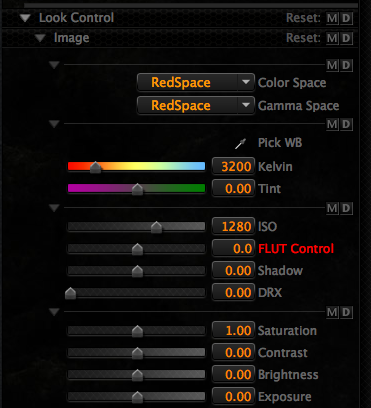
The REDCine-X Look controls.
Storm can do some basic editing as well.
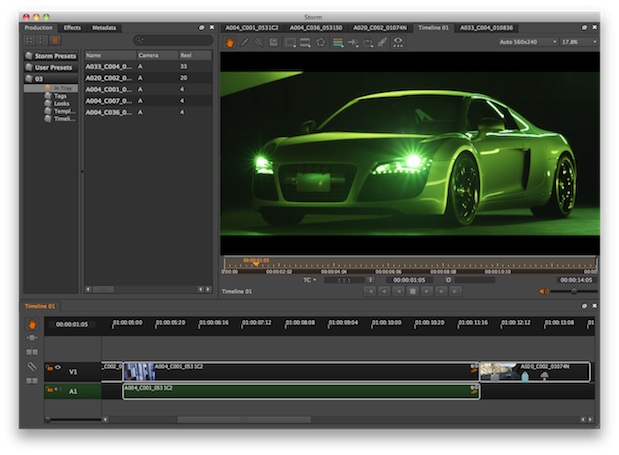
The Storm editing workspace. Yes, I turned the R8 green.
Besides the Reviewing workspace that comes loaded as a default (of course workspaces can be changed, rearranged and saved) there’s an Editing workspace and a full timeline. While it’s no Final Cut Pro basic editing can be achieved by loading clips into the viewer, marking IN and OUT points and dragging them to the timeline. You can also drag a group of clips right into a timeline as well. There are basic editing tools like razor, slip and roll trim all available though there doesn’t seem to be slide or ripple trim. You can ripple edit an entire clip in the timeline by using the ALT key modifier once a clip is in the timeline but I wasn’t able to ripple a new clip right from the viewer or a bin.
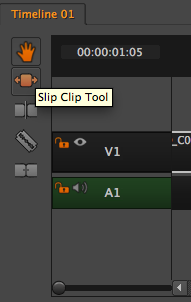
You do get a few basic editing tools for working in the timeline.
Storm isn’t traditional 3-point editing in the way that FCP or Avid is and there isn’t a two window editing interface (Source/Record in Avid terms, Viewer/Canvas in FCP terms) but it is simple and well laid out so any editor or DIT will be able to pick it up in no time. You can make a pseudo Viewer / Canvas setup by undocking and floating the timeline window so it’s always visible. Once you have an operational timeline there will be a tab for it in the viewer.

Once a timeline is up and operational it will be its own tab in the viewer. Also, notice the RED Rocket indicator above.
One Editing bug I saw was that if you open a new clip when you have an active timeline the viewer won’t jump back to view the timeline when you actually click back to the timeline to work. I say it was a bug but an interesting thing would sometime happen when I had a clip in the viewer that was in my edit timeline. When the playhead of the timeline would play over that clip it would then play in the view so maybe this bug of the viewer not jumping back to reflect the timeline is a feature … though it felt more like a bug.
You also can’t seem to add effects and looks to clips once they are in a timeline. In fact there doesn’t seem to be a way to match frame a clip from the timeline to be able to easily get back to editing a look and have that update in the timeline. Maybe that is coming but I have to remember that this isn’t an editing application but rather a DIT, organizational application.
Next Up:
FCP integration, tagging and what I think could be an amazing future for Storm.
Final Cut Pro integration
Currently Storm only has Final Cut Pro integration built-in with a Send to Final Cut Pro menu command:
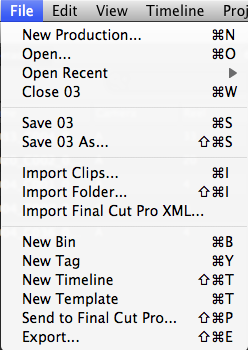
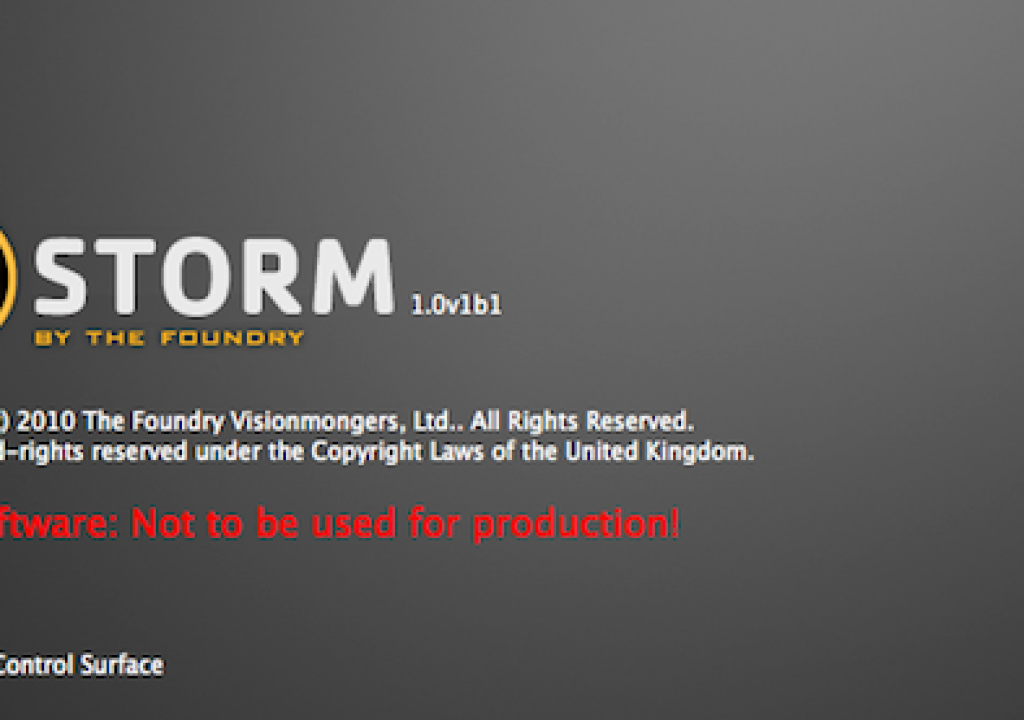
That integration is via XML both into and out of Storm. I tried several different export options but was never able to get Storm to successfully send an XML to FCP. It looked from the error messages as if it wasn’t writing the file paths to the generated media correctly. When I had Storm generate new QuickTime files (with included looks and effects) I could import them directly into FCP and the files came in fine, reel numbers intact. It’s important to remember this is a beta and the Storm splash screen even says it’s not intended for production. That is a good warning as I had the first test project that I began to crash every time I tried to move from the Editing workspace back to the Preview workspace via the keyboard. And then the same thing happened on every Storm project after that as well. It also won’t move back when using the menu command. I’ve heard reports that Storm doesn’t want to save custom workspaces either. But I guess that’s the intent of a long, public beta cycle – work out the bugs before it’s put into real world use. It would be nice if there was a big “report bug” button but according to the Foundry’s Storm support page they want you to report bugs over in their forum on the REDUSER.net website. That’s an interesting way to do it.
What did work was the importing and conform of an FCP XML. I took the ProRes LT clips that I had Storm create and made a simple edit in FCP. Exporting an XML back into Storm conformed that little edit just fine.
Tags and those big buttons in the interface
One thing that’s particulaly nice about the interface overall as it’s simple to use and simple to understand. Buttons are big, elements are well named and there’s pop-ups on most items when you hover the mouse over them. Storm has an FCP-like pop-up in the viewer when you drag pretty much any element into the viewer window that details exactly what you might want to do.
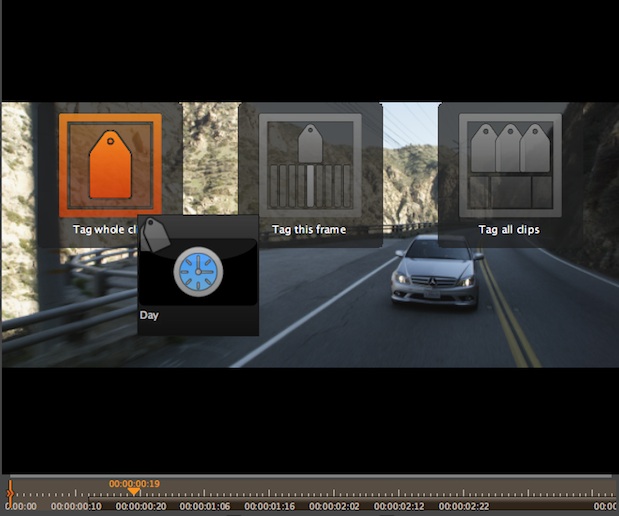
Dragging a tag into the viewer yields a pop-up for different operations.
Tagging is an important part of Storm and there’s tons of prebuilt tags that are easy to use. You can even create your own tags and assign an image. And tags aren’t limited just to a clips as you can tag individual frames within a clip and these tags show up in the viewer timeline so you can get a quick visual reference of what tags are applied to a clip. That’s a nice touch.
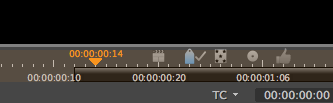
Tags that have been applied to individual frames.
Once clips are tagged it’s easy to sort by a tag just by dragging a tag into the search box at the top of the Production tab. Storm searches for the tag by either filtering the results and only displaying the finds or flags the results by displaying an X Tag icon over the clips that aren’t included in a search. Want to filter and search for more than one tag at a time? Just drag another tag into the search field. If Storm is going to be a primo organizational tool then it has to be easy to add metadata, sort and search. It feels like they’ve got that pretty well covered.
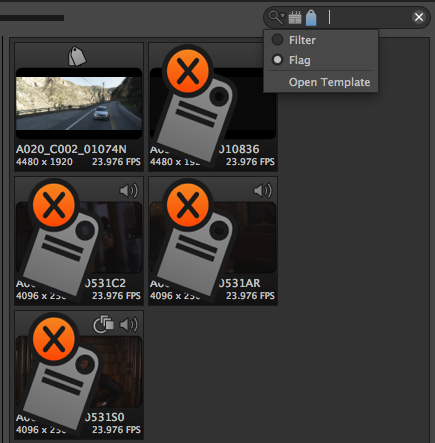
Search results that were flagged as opposed to filtered.
And no mention of Storm is complete without noting that it comes with quite a few Look presets:
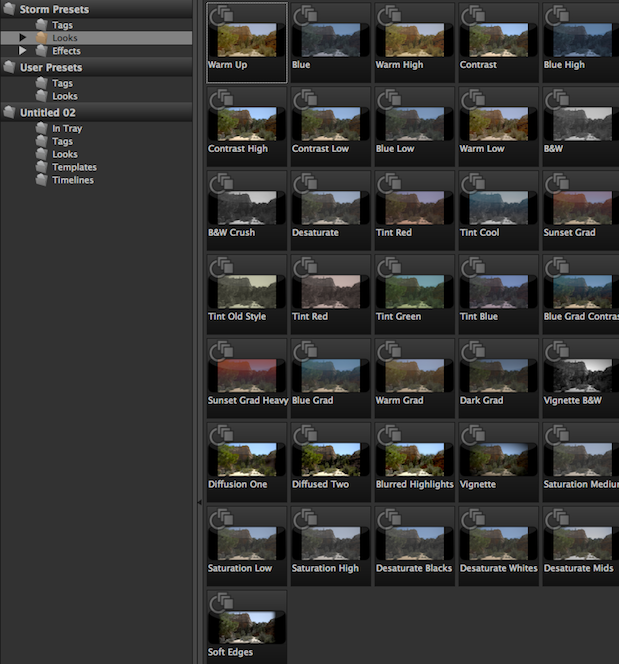
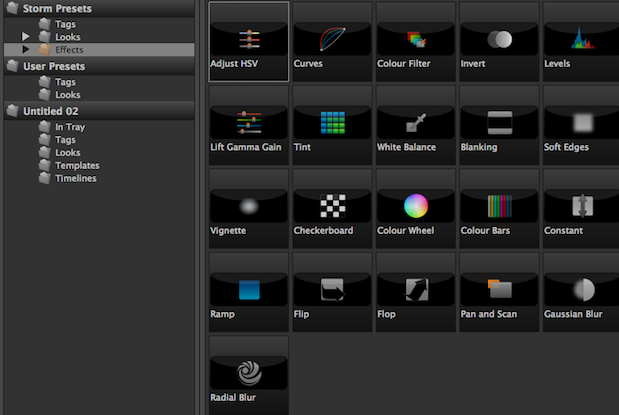
As well as a number of Effects that can be applied:
Thinking about what could be – Storm’s future
Now as any good editor will do when working with new software I’ll now layout a road map of where I’d LOVE to see Storm go. It’s been stated by folks from The Foundry that additional application support will be added beyond FCP. That’s a no-brainer and hopefully Avid Media Composer will be next. It’s also expected to add more format support besides RED R3Ds as is mentioned in John Montgomery’s article over at FX Guide. That will move the tool up a notch too.
But I’m going to dream for a moment about Storm morphing into the ultimate transcoding and media management application that I’ve always wanted for post-production. Imagine if Storm could do for most all commonly used camera formats and NLEs what it does (or really will do once the bugs are worked out) for R3Ds and FCP. Imagine an application that could look at and catalog multiple days of shooting on multiple formats and be able to provide one set of offline editorial files from all those formats. Imagine then being able to import the offline edit and conform that back at full resolution to the original camera acquired media and send the edit back to your NLE (or whatever finishing system you choose) for finishing.
I immediately think about a recent show where we had 9 days of XDCAM-EX and 5D. I transcoded all the media to DNxHD and edited at full rez. While it was relatively simple my preference would have been to work at an offline resolution of DNxHD 36 to facilitate better timeline performance once the edit became complex as well as making the shuttling of media files much faster as DNxHD 36 is much smaller in file size. If there existed a tool where I could have loaded the raw XDCAM and 5D materials and transcoded right from the raw media to offline editorial files only to then come back and re-render only the locked picture (with handles of course) I believe that would be the holy grail of file management / transcoding applications. I would not want that tool to do things like make various web formats or DVDs or do anything other than the singular task described above. Editors and assistant editors have to do this all the time and I think that type of tool would find a prominent place in many an editor’s toolbox. The closest thing I’ve seen thus far is Proxymill and mainly because it supports so many different camera acquisition formats but it’s clunky when compared to Storm and can’t do any looks or reconforming. I guess it’s not really close to this dream application at all as it’s only made for transcoding.
Maybe that mythical tool I’ve described above is a pipedream but The Foundry’s Storm looks like it could, possibly, evolve into that someday. Maybe I’m the only editor out there who would like such a tool. But if anyone out there could make that tool and make it work it’s probably The Foundry. They seem to know their tools well and they seem to design some good ones. Storm will come out of beta early next year and be available for $375. That’s a fair price for what it should be doing when it launches. I can’t wait to see where it goes in the future.