Changing the default 9-split multicam shortcut made my life easier


Quicktip #2 (February 2, 2009) Map your 9-split exactly to the keypad
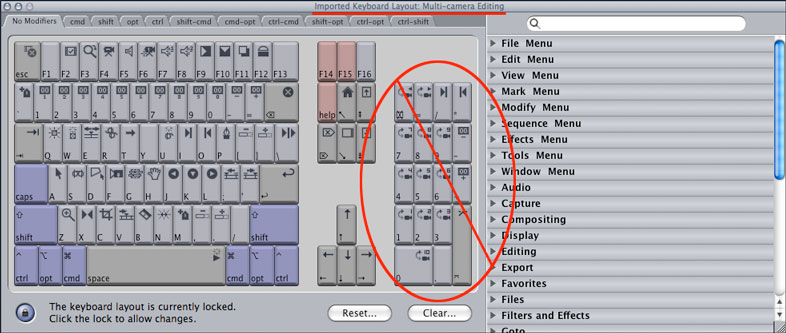
Final Cut Pro and Adobe Premiere already has the 9-split multicam view edit keys mapped to the keyboard layout. I like to change those mappings around where the number on the keypad matches the number of the camera in the placement of the key that matches the camera in a 9-split multicam view. For example, in my keyboard layout cut to camera 1 is mapped to keypad shift+7 (I mapped it to the shift-tab in FCP 7 so I didn’t have to change keyboard layouts for multicam editing):
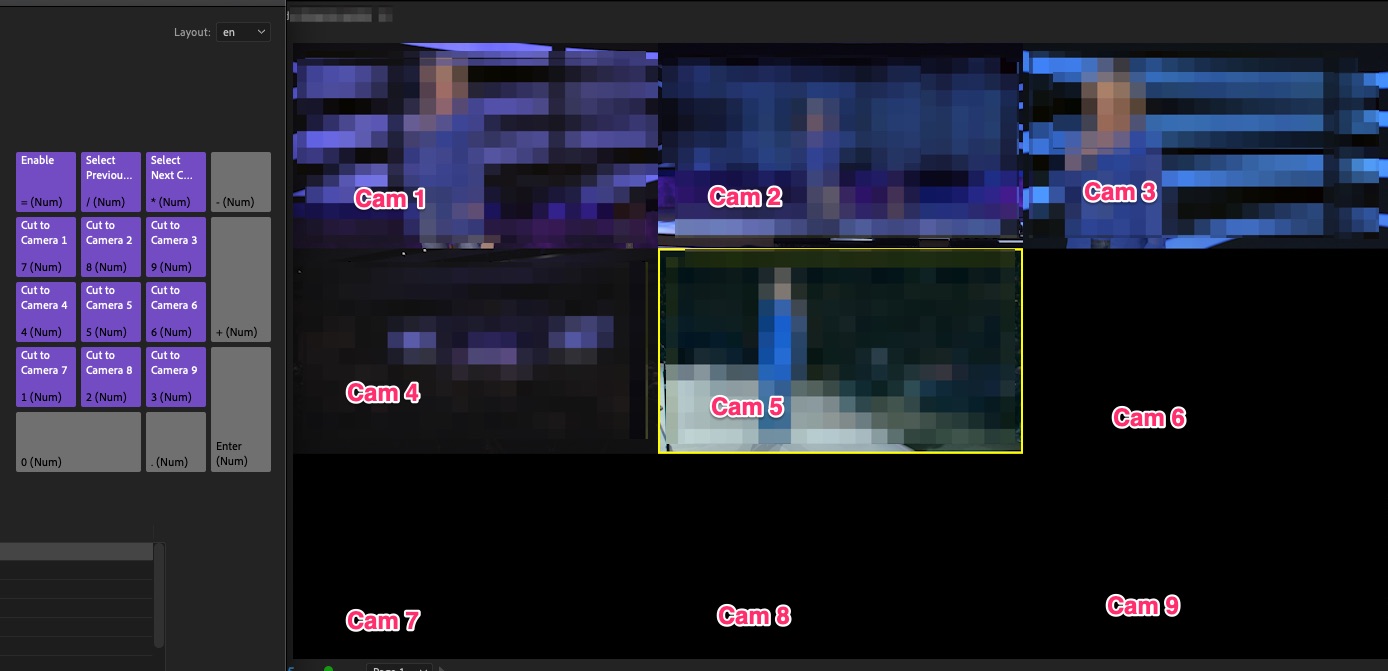
To me, this is much easier to make quick camera cuts on the keypad without even having to look at any buttons since the keys now exactly match the 9-split. Depending on where your cameras land when making your multiclip you can rearrange the cameras in the multicam view and place them where you want. For me, I put camera 1 in the upper left corner where it matches the 7 key on the keypad. Camera 2 in the middle of the top row to match keypad 8 and so on. Plus it changes part of what I think is most NLE’s illogical default keyboard placements. Once you feel the raised bump on the 5 key you are cutting away.
As a bonus map SHIFT + those numbered keys to switch the camera angles instead of cutting. And a big bonus of keyboard mulitcam cutting instead of mouse-based clicking in Adobe Premiere Pro is you can change angles without having to click and bring focus to the Program monitor. You can even cut multicam via keyboard shortcuts without even opening up the Premiere multicam viewer when you use the keyboard.


Filmtools
Filmmakers go-to destination for pre-production, production & post production equipment!
Shop Now