February 9, 2011 – These are some oldies but goodies


Here’s a big batch of Reader Quicktips that comes to us from Jon Chappell over at Digital Rebellion. They’ve always maintained a very good blog as well as providing the Final Cut Pro community with some very useful tools, including the FCS Maintenance Pack. Here’s four quicktips from way back in 2008. Click over to the full Digital Rebellion article for all the images and comments.
#1
FCP Quick Tip: Viewing extra render information

As you probably know, the render bar above the Final Cut Pro timeline changes color to indicate whether a clip is unrendered, fully rendered or rendering on-the-fly. This color coding is useful but it all depends on remembering what each color refers to.
If you hover the mouse over the render bar for a few seconds it will tell you not only the status of video and audio but, if it is unrendered, exactly why FCP is unable to play it in real-time. Very useful.
#2
I never realized until today just how many methods there were for copying filters from one clip to another in Final Cut Pro.
1. In the Filters tab for the clip, Ctrl-Click on the name of the filter and select Copy or press Cmd-C. Select the other clip, switch to its Filter tab and press Cmd-V.
2. In the Filters tab, drag the filter name and drop it onto the other clip(s).
3. Some tools like the 3-way Color Corrector give you a little “grab” icon within its interface that you can drag onto other clips.
4. Copy the entire clip, ctrl-click the second clip and select Paste Attributes. Deselect everything except Filters.
5. Use the copying commands in the Modify > Copy Filters menu or use the shortcut keys: Ctrl+Alt+2 = Copy from 2nd clip back, Ctrl+Alt+3 = Copy from 1st clip back, Ctrl+Alt+4 = Copy to 1st clip forwards and Ctrl+Alt+5 = Copy to 2nd clip forwards
6. Select all of the clips you want to apply the filter to (Edit > Find is useful for this) and drag them up to a higher track. With the items still selected, go to Sequence > Nest Items and make sure the settings in the dialog match your current timeline settings. Click Ok and then apply the filter to the nested sequence.
7. Go to Effects > Make Favorite Effect. You can then select the other clips and go to Effects > Favorites (under the Video heading) and select your filter to apply those settings to other effects. Alternatively, you can drag the filter (using one of the methods of grabbing it described above) to the Favorites bin in the Effects tab in the Browser (you can also give it a more descriptive name here).
#3
Comparing footage with difference mattes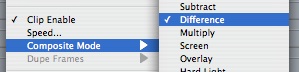
1. Take your Final Cut Pro sequence and export to the second format (the one that you plan to convert to). Or, if your footage didn’t originate in FCP, import both versions (before and after) and place them into a new sequence.
2. Place the “before” version onto the bottom track and the “after” above it.
3. Ctrl-click on the “after” version and select Composite Mode > Difference.
There’s also discussion on the Digital Rebellion site about how to do this in Shake as well.
#4
There’s a lot of good tips in this one like: Playing things back at a faster rate, Use Multiclips whenever you can, Use keyboard shortcuts instead of tools where possible, Keep your timeline rendered as much as possible, Use Motion projects instead of rendered movies and Use Master Templates where possible. Click over to the full article for all these tips.
Thanks for those tips Jon. Be sure to follow Digital Rebellion on Twitter if you want to follow a good post-production guru.


Filmtools
Filmmakers go-to destination for pre-production, production & post production equipment!
Shop Now