February 25, 2011 – These Reader Quicktips are great for the advanced Media Composer user


Today we have two Avid Media Composer Quicktips that come to us from Ra-ey Saleh, a Symphony Online Editor working in Sydney. There’s two tips here, one for the ever popular Avid Paint effect and one great tip for playing back the edit while in Color Correction mode.
Here’s Ra-ey’s tips:
1) PAINT EFFECT: Erase Mode
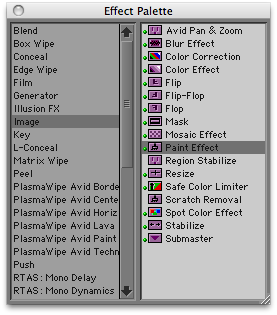
The Paint Effect (found in the IMAGE category) is a great all-round tool and one of it’s most common usages is to Blur, which you can even motion-track within the effect. However, what do you do when you have to Blur an object in the background and something moves across it in the foreground? Sometimes, with a fast moving foreground object, you can just leave the Blur untouched and get away with it, but this doesn’t always work when you have a slow moving foreground object, or something of importance that needs to be visible. You may have previously worked around this issue by creating two separate Blurs side-by-side and shrinking one side, whilst growing the other around the foreground object, but this is extremely time-consuming and never really looks that great.
This is where Erase Mode really comes in handy.
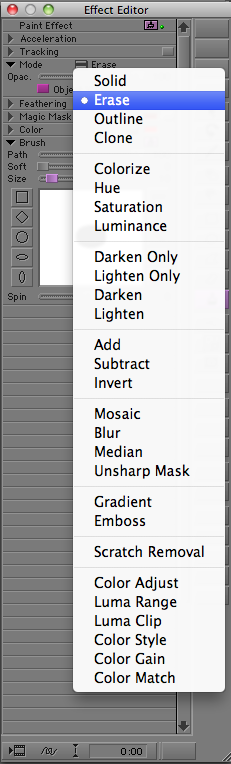
After you apply your Blur – and still within the same Paint Effect – draw a new shape around the foreground object you wish to remain visible. Making sure it is selected, switch its Mode type to ‘Erase’. This will now erase your Blur wherever they both cross. Like all the shapes in Paint Effect, you can also motion-track the shape or add feathering.
‘Erase’ is useful will lots of the Paint Effect modes. Another common one is when you darken a whole image, and want to highlight one particular area for emphasis. Simply use the Paint Effect ‘Darken’ mode, then ‘Erase’ the area you wish to highlight.
2) Playing Continually whilst in Color Correction Mode
One of the most common misconceptions about the Avid Color Corrector I hear is that you can’t play the sequence through whilst in Color Correction mode – especially useful when you’re doing a ‘watch through’. Everyone knows you can play the clip you are working on, and some know that you can map the Edit Review button (which will play the end of the previous shot through to the beginning of the next shot), but there is also a command that will actually allow you to play the sequence just as if you were still in Source/Record mode.
From the Command Palette > in the Play tab, simply map the Play Loop button to your keyboard.
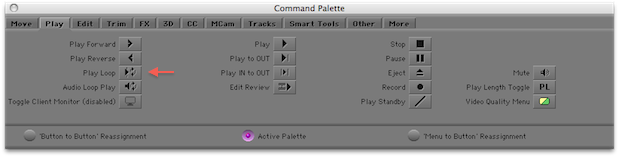
That’s it. No matter what tracks you have selected, this will Play through your sequence.
Those are two great tips. Thanks to Ra-ey for sending them over. I’d link to his website but it’s not online as of yet.


Filmtools
Filmmakers go-to destination for pre-production, production & post production equipment!
Shop Now