
(Page 1 of 1 pages for this article )

Thursday, March 03, 2011

Filed under: AppleFinal Cut ProEditingGentryMedia Sister SitesMac CoalitionProVideo CoalitionPost ProductionSoftwareTipsVendor ChannelsAvid

Quicktips 2011 Day 31: Using the FCP Change Speed Segment

Scott Simmons | 03/03

March 3, 2011 - This little known FCP speed tool can help with clip speed manipulation

I came across a little tool in Final Cut Pro the other day that I had never before explored so I thought it was worth sharing as one of the last Quicktips in this 2011 edition of 28 Days of Quicktips (now on day 31). It’s called Change Speed Segment… and I found it when I was mapping the regular Change Speed button to my keyboard. No matter what your opinion is of “speed ramps” changing the speed of a clip very often comes in handy. Change Speed Segment is another way to control speed changes.

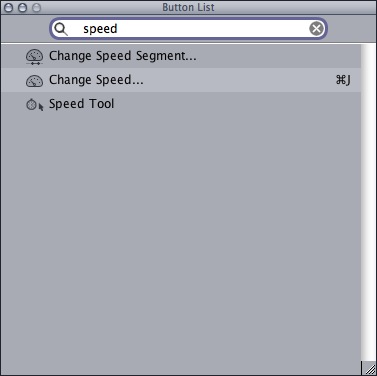
Change Speed Segment… can be found by opening up the Button List or Keyboard Layout and typing speed:
image

There you’ll find the button that can be mapped to the keyboard or to a button bar. I mapped mine to my Button Bar that lives above the FCP timeline. The Change Speed Segment will allow for time remaps and speed changes to be made (that is making a Variable speed change as opposed to a constant fixed one) right in the timeline. One traditional way to do this is via the Speed graph in the Motion tab of a clip that is loaded into the Viewer. There you can keyframe speed changes but I’ve always found this to be a bit cumbersome and taking a lot of effort to get it just right. Change Speed Segment makes it a lot easier.

First you have to access the timeline Speed Indicators. Do this via the Toggle Clip Keyframes button in the timeline. For a refresher on this see Quicktip Day 24’s video about how to access the timeline keyframe editor as Speed Indicators are there too.

For Change Speed Segment to work you need to add at least one keyframe to the Speed Indicator graph in the timeline (the pointer automatically changes to the pen tool when you hover over the Speed Indicator graph so no need to select the Pen tool). Adding that one keyframe also adds a speed keyframe to both the beginning and end of the clip. You need to park the playhead between two keyframes in the Speed Indicator graph for the Change Speed Segment tool to work.

When you’ve got the keyframes set, hit the Change Speed Segment button. What pops up is a dialog box that looks pretty much the same as the command + J Change Speed dialog box:
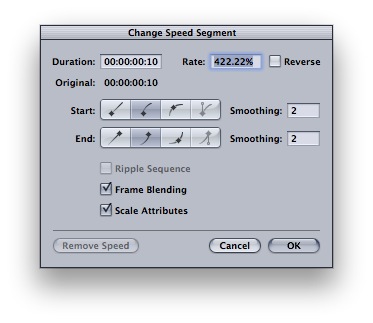
image

You can also right+click on the Speed Indicator graph and choose Change Speed Segment… from the menu:
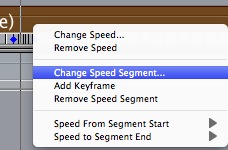
image

This option is grayed out if you don’t have the proper keyframes set in the Speed Indicator graph.

When you change the Change Speed Segment parameters what you’re doing is changing the speed of only the portion of the clip that’s between the two keyframes where your playhead is parked. The rest of the clip stays the same speed. You’ll see this reflected in the changing of the tic marks in the Speed Indicator graph. When done correctly is creates a nice ramp speed.

It might sound complicated but it’s really not once you try it a try. You can read more about it in the FCP user manual. Check out the video below to get an idea of the Change Speed Segment in action (it might take a bit to load as it’s 12 mb Quicktime). Watch the actor’s hand as he puts the cigarette pack on the desk. The idea was to speed up his setting down the pack. In this example I tried two different speeds. Also watch the Speed Indicator tic marks around the region I was speeding up as they still maintain a regular speed.

Remember that FCP has often had problems with Variable speed media when it comes to the Media Manager moving of projects or sending EDLs and XMLs to conform a project outside of FCP so be aware of that if you use this technique. But if you’re finishing right in your own FCP install then it’s quite a handy little tool.

(Page 1 of 1 pages for this article )

                    Clip to Evernote


The Editing of “Courageous” Part One

Steve Hullfish | 10/14

The off-line edit of a RED feature film

image

Last October, I had the rare opportunity to edit a feature film called “Courageous,” which is in theaters now. “Courageous” was the number one new movie the weekend it opened (September…

The Best of Stunning Good Looks

Art Adams | 08/30

A directory of my best articles, sorted by topic.

This entry is a guide to my best articles, sorted by topic. Enjoy!

Final Cut Pro X Multicam Editing webinar now available on-demand

Scott Simmons | 05/15

Plus a little screencast in this blog post on a topic we didn’t get to cover.

image

I had great fun last week presenting the Final Cut Pro X multicam editing webinar…


You must be registered to comment. This is an effort to reduce spam. Please REGISTER HERE.

Name:

Email:

Location:

URL:

Smileys

Remember my personal information

Notify me of follow-up comments?

Submit the word you see below:


Final Cut Pro X Multicam Editing webinar now available on-demand
10 Final Cut Pro things FCP editors might be missing in Adobe Premiere Pro CS6
A collection of Avid Media Composer related links for my NAB Migrating to Avid class
An elegant iPhone timecode calculator
Random notes from my first “real world” Adobe Premiere Pro CS6 edit
NAB 2012: SpectraCal
NAB 2012: Apple and Final Cut Pro X
NAB 2012: Lightworks
NAB 2012: Baselight for Avid Media Composer
NAB 2012: Quantel new Pablo and Neo Nano
NAB 2012: Promise Technology’s portable Thunderbolt J4 and J2
NAB 2012: NewBlueFX Titler Pro
NAB 2012: PluralEyes 3.0 from Singular Software
NAB 2012: Technicolor CineLights from the GoPro booth
Autodesk Smoke 2013: it really changed for the better
My top 5 (or so) Adobe Premiere Pro CS6 features
How to preview Avid Media Composer’s MXF files for free without Media Composer
My NAB 2012 Post|Production World classes
Baselight for Final Cut Pro is one of the most powerful legacy FCP grading plugins ever
ARRI’s DNxHD Alexa update, Sorenson Squeeze Pro and OP this, OP that
What’s happening at NAB 2012?
The C300 short Hustle and some before and after images
Tip Tuesday: Disable a clip in the Avid Media Composer timeline
Testing the 7toX Final Cut Pro 7 to Final Cut Pro X conversion
Q and A with Bunim/Murray’s Mark Raudonis about their recent Avid switch
Kicking the tires on the Final Cut Pro X 10.0.3 Multicam update
Update Alert: Final Cut Pro X goes to 10.0.3
Adobe teases Prelude at the San Francisco Supermeet, FCPUG changes its name
Tangent Element panels are now shipping
Avid Media Composer 6 review online


The Editing of “Courageous” Part One

Steve Hullfish | 10/14

The off-line edit of a RED feature film

image

Last October, I had the rare opportunity to edit a feature film called “Courageous,” which is in theaters now. “Courageous” was the number one new movie the weekend it opened (September…

The Best of Stunning Good Looks

Art Adams | 08/30

A directory of my best articles, sorted by topic.

This entry is a guide to my best articles, sorted by topic. Enjoy!

Final Cut Pro X Multicam Editing webinar now available on-demand

Scott Simmons | 05/15

Plus a little screencast in this blog post on a topic we didn’t get to cover.

image

I had great fun last week presenting the Final Cut Pro X multicam editing webinar…

Editing and Effects Together in One Editor Part 2

Brian Mulligan | 05/15

The NLE revolution isn’t over… Enter Autodesk Smoke for Mac

image

Editing & Effects All-In-One
Autodesk has always been known for the strength of their effects and image processing tools. The tools in Smoke have been used in everything…

To be considered for listing, contact pr (at) provideocoalition (dot) com


Copyright © 2012, HD Expo, LLC a division of Diversified Business Communications. DBA Createasphere

All rights reserved. HD EXPO, High Def EXPO, Createasphere, E-Tech, Entertainment Technology Exposition, 3D Production Workshop, VariCamp, P2 Camp, ColorCamp 101, and Lighting, Filters & Gels for HD are all trademarks of HD Expo, LLC.

Terms of Use  |  Privacy Policy

Check PageRank