

Filmtools
Filmmakers go-to destination for pre-production, production & post production equipment!
Shop NowI gave myself a week using the new Apple Magic Mouse with Final Cut Pro and Color

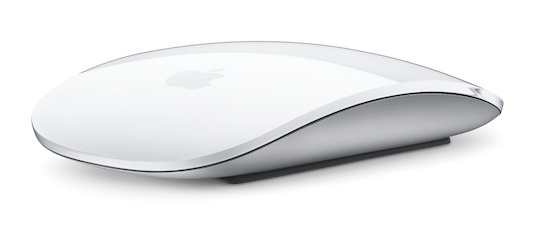
I’m on a constant search for the ultimate input device for editing. Look at my editing desk on any given day and there may be some mad combination of an Apple Mighty Mouse, a Kensington Expert Mouse (which is just a trackball), a Contour Shuttle Pro, a Wacom graphics tablet, a Poker Mouse and of course the keyboard. While the absolute best input device for editing is a keyboard it’s inevitable that you will have to reach for a mouse at some point during the edit day. Enter the new Apple Magic Mouse and its touch sensitive surface. But how is it for editing?
My first thought when I saw the new Apple Magic Mouse was “where’s the middle button?” Apple’s color grading application Color asks for the middle mouse button to be mapped to button 3 for click and drag scrolling of the Color timeline. Without this button then that action won’t work. But Apple didn’t make the new mouse for Color now did they? So my second thought was “I wonder how it will work while editing in Final Cut Pro?” The short answer is it’s very similar in functionality to the Mighty Mouse but maybe not as useful. At least in FCP that is.
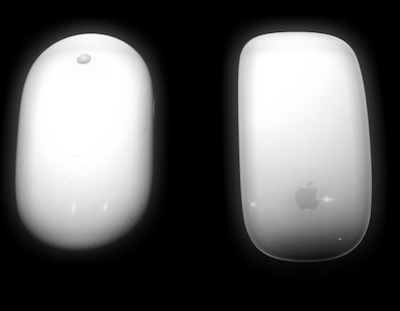
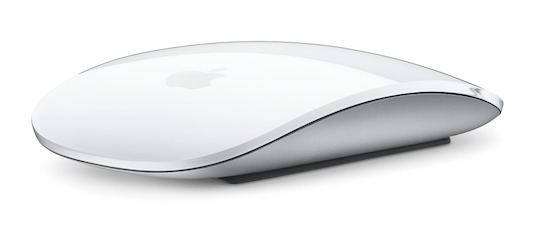
The Mighty Mouse and the new Magic Mouse side by side
If you were to close your eyes and touch both the Magic and Mighty Mouse for the first time you’d probably choose the Mighty as it’s a bit more comfortable in hand, noticeably heavier and doesn’t have the sharp edges of the Magic one. Upon an open-eyed inspection though the Mighty feels more like a cheaper hunk o’ plastic and that’s because it is. The Magic is heavier and includes metal in its components so it feels better constructed. The new mouse is also a wireless mouse only. It takes two AA batteries which are included. There’s a battery fuel gauge in the preferences as well. You have to install a Wireless Mouse Software update as well depending on your OS version. When you look at the two mice side by side you then notice what is missing from the Magic, besides the middle mouse button. Gone, of course, it the little mechanical trackball. That’s the whole reason for the new mouse’s being Magic as it’s a multi-tough device with a touch sensitive surface. The touch is quite responsive in most applications and the “touch-sensitiveness” runs almost the entire surface of the mouse, ending right about the Apple logo:
_touch_area.jpg "Review: Apple Magic Mouse and Final Cut Studio 16")
The active touch area of the Magic Mouse is outlined in red
Also gone are the side buttons from the Mighty which were activated with a squeeze.
Using the Magic Mouse with Final Cut Pro
So my first question was: How would the Magic Mouse operate while editing in Final Cut Pro? The touch operation behaves very similar to the Mighty Mouse. A single-finger left to right swipe will scroll the timeline when hovering over or clicked into the Timeline window. A single up and down swipe in the timeline will scrub the playhead. If you are in the Viewer or Canvas then a single finger swipe in both directions will scrub. FCP also supports “momentum” if you have that option turned on in the preferences:
The Magic Mouse preference pane demonstrating “momentum”
Momentum is similar to what happens on an iPhone when you swipe with a throw across the surface. The movement (in this case scrubbing of the playhead) begins fast and then slows down as it loses momentum. The harder and faster you swipe the more momentum that you have. Plus it behaves like the iPhone in that once you swipe with momentum and have something moving you can then drop your finger back onto the mouse’s surface to stop the movement. It’s actually quite a nice way to scrub footage. A two finger swipe (again, if you have this option turned on in the preferences) behaves like the UP and DOWN (or Go to Next Edit, Go to Previous Edit) arrow keys. If you have an edit selected in the timeline then it will ignore edits on other tracks and jump to the next or previous edit in that single video layer. If you have a single clip loaded in the Viewer a two-finger swipe will jump to the head or the tail of the clip. The whole two-finger swipe on a mouse doesn’t feel very natural. It’s not hard to do it’s just a bit awkward so practice might make it more comfortable but since you’ve got the UP and DOWN arrows on the keyboard there’s nothing really more comfortable than that.
The touch surface on the Magic Mouse works in most places in FCP where you would expect it to, like the faders of the Audio Mixer and sliders in the Motion tab or on applied filters. Again, it does pretty much what the little trackball of the Mighty Mouse does. That’s in FCP … in Color it’s a bit of a different story.
Next up: The Magic Mouse works surprisingly well in Color
_2-above.jpg "Review: Apple Magic Mouse and Final Cut Studio 17")
The Magic Mouse is smaller overall than the Mighty Mouse it replaces
And with Color
In Color the single-finger swipe momentum of the Magic Mouse actually feels better when compared to the trackball of the Mighty. Hover the pointer over a Color parameter and then swipe up or down to adjust. A small, slower swipe will reveal a gradual change. A long, fast swipe and you will get a quicker, more dramatic change. You can slowly slide your finger along the surface without a swipe at all and you will get a more steady tweak. To me it’s a much better feeling way to work in Color as opposed to the Mighty Mouse and what seemed to often be constant scrolling of the little trackball to get the desired change. If you’ve used a Kensington Expert Mouse trackball with Color then you know it’s scroll ring can adjust parameters too but often you might knock the pointer out of the rather thin horizontal box while spinning the ring so the Magic Mouse is much better than that. Of course nothing is as good as a control surface (like say … the Tangent Wave) but short of that then I think I’ll leave my Magic Mouse within reach when I move to Color.
_2-profile.jpg "Review: Apple Magic Mouse and Final Cut Studio 18")
The profile of the Magic Mouse is lower than that of its predecessor
I’ve tried to illustrate the different in the Mighty and the Magic mouse with the QuickTime files below. Watch the Waveform and the Histogram change as I scroll with the Mighty Mouse, moving the Master Lift from the default of 0.0 to all white at 1.0 and then back to black at -1.0. It takes quiet a few quick scrolls of the Mighty Mouse trackball. Then I just did some minor adjustments on the image but the best illustration is moving to the extremes:
The trackball of the Mighty Mouse requires many scrolls to move over an extreme distance
Compare that to using the Magic Mouse to do the same thing. It was one good swipe of my finger to move to 1.0 on the Master Lift and just a couple of swipes to move to -1.0. I feel like you can be just a bit more precise with the touch surface of the Magic Mouse in addition to being able to work a bit faster.
The touch surface of the Magic Mouse lets you tweak Color parameters smoothly and very quickly
What you don’t have in Color anymore is that middle mouse button that would scroll the timeline horizontally. You’ll have to settle for the right+click to scale the timeline then scrubbing of the playhead to move around. I can’t even figure out a way to horizontally move the timeline at all without that middle mouse button! But to me it’s a small price to pay for the single-finger swipe with momentum while working in Color. Oh, and the two-finger swipe will move between clips. Unfortunately the swipe action doesn’t have any effect on the Shadow, Midtone and Highlight wheels and sliders as they require a click and drag with the mouse. Too bad as that’s one place the touch surface could have really shined. If you look at Appendix C of the Color user manual it’s all about multi-touch gestures that were added to Color 1.5 so there’s something there but outside of a Macbook Pro’s trackpad I don’t know of anything that can utilize these gestures. Maybe this new Wacom Bamboo Touch?
Surprisingly in Motion the touch surface doesn’t want to operate very many controls at all. While you can use the touch to move the canvas around (with momentum) it doesn’t react to scrolling the timeline or mini-timeline nor does the touch move sliders in the Inspector. But the Mighty Mouse doesn’t either so it seems that it works in mostly the same places as the Mighty trackball only you can get momentum. A two-finger swipe does open the Layers/Media/Audio pane in the Canvas though.
In Soundtrack Pro a single finger swipe will scroll windows and move sliders in the mixer but it will not scrub the playhead. A two-finger swipe opens/closes the Meters/Brower pane in the default window setup. IMHO you’re not really gaining near as much with the Magic Mouse in Motion and Soundtrack Pro that you are in Color. In Final Cut Pro it’s debatable.
Final Thoughts
_main_smaller.jpg "Review: Apple Magic Mouse and Final Cut Studio 19")
Is the Magic Mouse a suitable replacement for the Mighty Mouse? Probably not yet in my edit suite where Final Cut Pro is the dominate app of the suite in terms of time spent in the application. The functionality of the Magic’s touch isn’t that much greater than the trackball of the Mighty Mouse in FCP especially when losing the middle mouse button and side-button squeeze. If you haven’t mapped those two lost buttons to anything then you might enjoy the Magic Mouse as much or better than the Mighty Mouse. The momentum when you swipe also isn’t enough to trump middle mouse button (which is my desktop Expos© command that I use a lot) and the squeeze button (which activates my Spaces, which I use a lot too). In Color it’s a different story as I much prefer the functionality of the Magic Mouse. I’ll keep it around for those days when I have to jump over and do some color work.
Pros: Great build quality, swiping with momentum works well in Color, large touch-sensitive surface
Cons: No middle mouse button and no side-squeeze buttons, swiping doesn’t work the same in all of the Final Cut Studio applications, wireless only
I’d skip the Magic Mouse unless you use Color without a control surface as it might make you a bit more productive in that app. Since it’s a new way of operating a mouse it’s advisable to test drive a friend’s or check it out at an Apple store before spending $69.