(Page 1 of 1 pages for this article )

Tuesday, February 21, 2012

Filed under: AppleEditingGentryMedia Sister SitesMac CoalitionProVideo CoalitionPost ProductionTipsVendor ChannelsAvid

Tip Tuesday: Disable a clip in the Avid Media Composer timeline

Scott Simmons | 02/21

It’s not as nice as a built-in clip enable / clip disable contextual menu but it works.

image

In honor of TipTuesday over on Twitter I thought I’d share this simple Avid Media Composer tip that I use to counter the lack of a clip enable / disable feature in Media Composer. It’s all about saving an effect and getting easy access to that saved effect. There’s actually several tips in here that can be used for most all effects in Media Composer.

Most of Media Composer’s NLE competitors have the ability to select clips sitting in the timeline and disable the clips so they aren’t visible during playback. The clips still exist on the timeline. It’s a very handy feature that I wish Media Composer had as well.
image

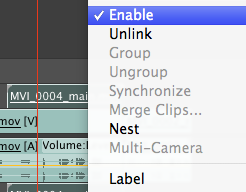
Above is the Enable option from Adobe Premiere Pro’s timeline. Avid Media Composer doesn’t have this option.

I work around this limitation by simply using the Superimpose effect and putting the Level to ZERO. With that you have a clip on the timeline with zero opacity, a totally invisible clip. To take that one step further I save that Zero Superimpose effect and save it so I always have it handy.

The images below help illustrate.
image

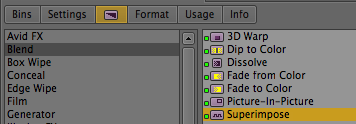
Start by applying a Superimpose effect from the Blend category of the Effect Palette (though any effect that lets you vary opacity could work).
image

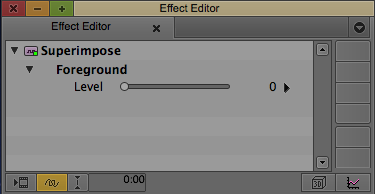
Open the Effect Editor and turn the Level to zero.
image

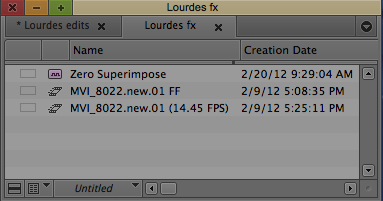
You can then grab the little purple effect icon out of the Superimpose Effect Editor and drag that to a bin to save the effect. I always name my saved effects so I know more specifically what it does and why I saved it. The effect can then be applied to any clip and that will make the clip transparent in the timeline.
image

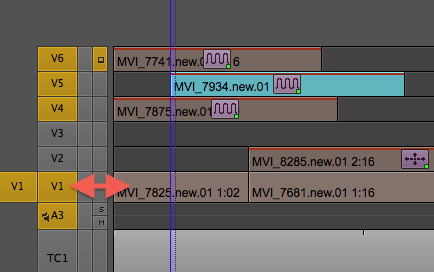
At this point in the timeline Video track 1 (V1) is what is being viewed at the playhead frame. Tracks on V4, V5 and V6 all have the zero level Superimpose effect applied. It’s like they have been disabled!
image

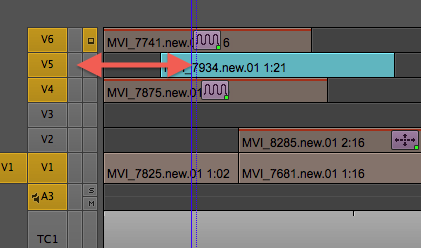
At this playhead point in the above image V5 is showing as the zero Superimpose has been removed.
image

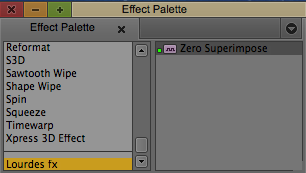
Another good tip is that any saved effect will now show up in the effect palette at the bottom, under a new category of the bin where the effect is saved. If the bin where you saved the effect isn’t easily available just hit command + 8 to grab it from the Effect Palette or from the Effect tab in the Project window (command + 9).

Removing the effect from a clip in the timeline is as simple as clicking the Remove Effect button when the track is turned on in the timeline patch bay or clicking the clip with a Segment Mode arrow and hitting delete.

It’s also possible to apply the effect to more than one clip at a time. Select all the clips that you want to make invisible in the timeline with a Segment Mode and double click the saved effect in your bin or Effect Palette. That works for other effects as well.

Be sure and remove any zero superimpose clips from the timeline when the edit is done, especially if you’re giving the job to another editor, online or color correction. Nothing says sloppy editor like a bunch of useless clips left behind in the timeline.

 

(Page 1 of 1 pages for this article )

                    Clip to Evernote


The Editing of “Courageous” Part One

Steve Hullfish | 10/14

The off-line edit of a RED feature film

image

Last October, I had the rare opportunity to edit a feature film called “Courageous,” which is in theaters now. “Courageous” was the number one new movie the weekend it opened (September…

The Best of Stunning Good Looks

Art Adams | 08/30

A directory of my best articles, sorted by topic.

This entry is a guide to my best articles, sorted by topic. Enjoy!

Check out a Number of Hardware and Software Options from B&H

Jeremiah Karpowicz | 05/16

Everything you need in one place

image

We grabbed Jerry Zorek, Manager of Business Development at B&H, to learn about what B&H was showing off at their studio booth.  He shows us a Resolve system with the…


You must be registered to comment. This is an effort to reduce spam. Please REGISTER HERE.

Name:

Email:

Location:

URL:

Smileys

Remember my personal information

Notify me of follow-up comments?

Submit the word you see below:


Final Cut Pro X Multicam Editing webinar now available on-demand
10 Final Cut Pro things FCP editors might be missing in Adobe Premiere Pro CS6
A collection of Avid Media Composer related links for my NAB Migrating to Avid class
An elegant iPhone timecode calculator
Random notes from my first “real world” Adobe Premiere Pro CS6 edit
NAB 2012: SpectraCal
NAB 2012: Apple and Final Cut Pro X
NAB 2012: Lightworks
NAB 2012: Baselight for Avid Media Composer
NAB 2012: Quantel new Pablo and Neo Nano
NAB 2012: Promise Technology’s portable Thunderbolt J4 and J2
NAB 2012: NewBlueFX Titler Pro
NAB 2012: PluralEyes 3.0 from Singular Software
NAB 2012: Technicolor CineLights from the GoPro booth
Autodesk Smoke 2013: it really changed for the better
My top 5 (or so) Adobe Premiere Pro CS6 features
How to preview Avid Media Composer’s MXF files for free without Media Composer
My NAB 2012 Post|Production World classes
Baselight for Final Cut Pro is one of the most powerful legacy FCP grading plugins ever
ARRI’s DNxHD Alexa update, Sorenson Squeeze Pro and OP this, OP that
What’s happening at NAB 2012?
The C300 short Hustle and some before and after images
Tip Tuesday: Disable a clip in the Avid Media Composer timeline
Testing the 7toX Final Cut Pro 7 to Final Cut Pro X conversion
Q and A with Bunim/Murray’s Mark Raudonis about their recent Avid switch
Kicking the tires on the Final Cut Pro X 10.0.3 Multicam update
Update Alert: Final Cut Pro X goes to 10.0.3
Adobe teases Prelude at the San Francisco Supermeet, FCPUG changes its name
Tangent Element panels are now shipping
Avid Media Composer 6 review online


The Editing of “Courageous” Part One

Steve Hullfish | 10/14

The off-line edit of a RED feature film

image

Last October, I had the rare opportunity to edit a feature film called “Courageous,” which is in theaters now. “Courageous” was the number one new movie the weekend it opened (September…

The Best of Stunning Good Looks

Art Adams | 08/30

A directory of my best articles, sorted by topic.

This entry is a guide to my best articles, sorted by topic. Enjoy!

Check out a Number of Hardware and Software Options from B&H

Jeremiah Karpowicz | 05/16

Everything you need in one place

image

We grabbed Jerry Zorek, Manager of Business Development at B&H, to learn about what B&H was showing off at their studio booth.  He shows us a Resolve system with the…

Final Cut Pro X Multicam Editing webinar now available on-demand

Scott Simmons | 05/15

Plus a little screencast in this blog post on a topic we didn’t get to cover.

image

I had great fun last week presenting the Final Cut Pro X multicam editing webinar…

To be considered for listing, contact pr (at) provideocoalition (dot) com


Copyright © 2012, HD Expo, LLC a division of Diversified Business Communications. DBA Createasphere

All rights reserved. HD EXPO, High Def EXPO, Createasphere, E-Tech, Entertainment Technology Exposition, 3D Production Workshop, VariCamp, P2 Camp, ColorCamp 101, and Lighting, Filters & Gels for HD are all trademarks of HD Expo, LLC.

Terms of Use  |  Privacy Policy

Check PageRank