

Filmtools
Filmmakers go-to destination for pre-production, production & post production equipment!
Shop NowChange your default FCP (or any other) keyboard for more efficient editing

When it comes to increased productivity and better efficiency while editing, saving time every place an editor can will help increase that productivity and efficiency. And we all know saving time is the client’s favorite thing as saving time means saving money. My favorite time saver in Final Cut Pro has been to remap the majority of the default keyboard setup. Since I began using FCP way back around 1999, one of my earliest thoughts was that the default keys weren’t very well thought out.
Why do I say this? I first learned non-linear editing on Avid so of course I was used to that keyboard layout. But while you have been able to map Avid keys for as far back as I’ve been working on it, that hasn’t always been the case with FCP. Early versions of FCP did not allow keyboard mapping at all. In fact, the earliest version of FCP didn’t even have the ability to JKL scrub! When keyboard mapping finally came along, life in FCP was good. What is so wrong with FCP’s default keyboard layout and so right about Avid’s? First, think about how you rest your hands on a keyboard. This is assuming that as an editor, you try to perform as many tasks as possible using the keyboard. Many people do not and while there are lot of fast editors out there using the mouse (I’ve watched a many of them edit) I honestly believe one can work a lot faster the more the hands stay on the keyboard. And this is also assuming you are doing a lot of edit assemble work; the nuts and bolts of good storytelling before the fancy effects work (read: keyframing) begins.
The right hand is usually operating the JKL keys, scrubbing through the footage. IN and OUT points can be marked with the I and O keys. It seems like a no-brainer: I key marks an IN point, O key marks an OUT point. But what does the left hand do? If you think about what is involved in editing something as simple as a short corporate piece, you usually have way more footage to build the edit than you actually need … that’s why editing is required. A large part of the edit is spent narrowing all of that footage down into the final story of the piece. If you are cutting something like a narrative piece, or a music video you might never get into effects and graphics work. What tools are used to accomplish these basic editing tasks? Marking of IN and OUT points and the associated commands that work with them like go to IN and OUT, or clearing of INs and OUTs and the marking of clips. The actual editing commands of INSERT and OVERWRITE are also very frequently used. These are the basic non-linear editing commands used to build an edit in the timeline. The ability to operate these commands without having to use the mouse and without having to push a modifier key is a time-saver that at first might not seem like much of an advantage. I mean, what is so hard about pushing shift+I to activate the go to IN point command. Nothing if you do it once, or twice, or even three times. But if you do it the hundreds or even thousands of times it is required during the course of an edit it can make a big difference. Multiply that times the other commands like clearing INs and OUTs, marking INs to OUTs, marking entire clips and spans of an edit and that bit of time pressing modifier keys can really add up. And if you know your keyboard well enough you often don’t even have to look at your hands when performing a task. But remapping FCP’s default keys makes even more sense when you look at what Apple chose to occupy the default keys on the left side of the keyboard. The distort tool on the D key? 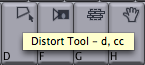 I mean really, how often in an edit do you use the distort tool? While it is used on occasion I would bet it is some 100 to 1 compared to how often you use the clear IN command. Plus, the FCP Distort tool also defaults to two presses of the “c” key as well. Why waste the “d” key on a tool that isn’t used that frequently? Avid also has additional IN and OUT keys mapped to the E and R keys. This makes perfect sense in that the right hand can concentrate on JKL scrubbing and timecode entry with the numeric keypad and the left hand can do all the IN and OUT point work.
So what about those FCP users who have never used Avid to begin with? They don’t necessarily know how nice it is to have one-stroke access to frequently used keys. That’s why it’s nice that a different keyboard layout file can easily be loaded into FCP for testing out. More on that at the end of the article. Adobe’s Premiere Pro has done a smart thing by including keyboard presets based on other NLEs, though the actual keyboard mapping function is difficult to use:
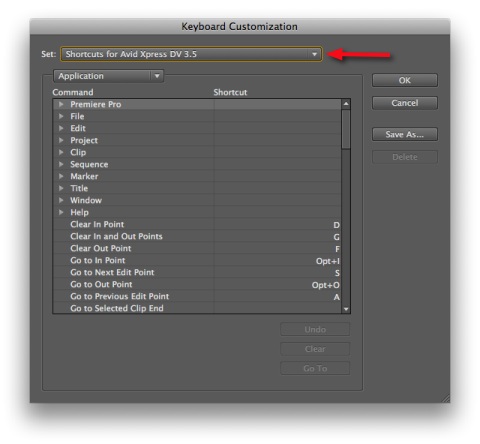
That should ease a transition into any NLE app from another. From the looks of the Adobe Premiere Pro CS4 image above the Adobe programmers must not have known that Avid Xpress DV died long ago.
But when talking about speed while editing it always points back to the mouse … and how a mouse can slow you down. The mouse (and/or a trackball or graphic tablet) is a necessity when doing effects and graphic work but there is so much that can be done via the keyboard and the keyboard only. Moving from edit to edit, selecting and deselecting tracks in the timeline, timecode input via the keypad, moving forward or backward via a + and – number on the keypad, the possibilities vast. The more the hands are kept on the keyboard the faster you can edit. And the mapping of the keyboard is (for my money) the single greatest, and cheapest, productivity enhancement one can make to their editing workflow.
Let’s take the razor blade tool in FCP for an example. Two presses of the ‘b’ key gets the Razor Blade All Tool, a very handy tool to use indeed. After selecting the tool via the key press or by clicking and dragging the blade tool icon in the tool palette you can then click on the appropriate frame to add an edit. This can be quick if you are sitting on the right frame with your playhead and snapping is turned on but requires more mouse work if you have to get that playhead to the proper frame. Compare that with the keystroke of control+v which will add an edit on wherever your playhead is stopped. To add one more level of refinement to adding an edit, map the control+v command to a single keystroke and you can access it even quicker. But you also have to control the track selectors so FCP will know which tracks to add the edit to. For control of the track selectors I have mapped video track selectors 1- 9 to the keyboard numbers 1 – 9 and the audio tracks to shift + 1 – 9 (as well as add edit to F4). Adding an edit is as simple as a number key or two depending on what I want to add the edit to and a push of the F4 key. The thought of having to move the mouse over to the track selector panel and then individually click the tiny track selector indicators to get just the right combination slows me down just thinking about it!
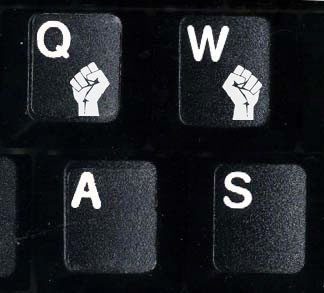
I’m sure it will be quite controversial to champion the idea of changing the default Final Cut Pro keyboard layout to one that more closely matches that of Avid. One major argument that I have seen over the years of the Avid vs. Final Cut Pro debate is that one should not attempt to make their new FCP system behave like an Avid; that they are different systems and an editor should learn how each system works. Don’t try to make Final Cut Pro into something that it is not! While I agree with that in principle (you have to learn the differences when moving from one to the other or you will become very frustrated) when it comes to keyboard settings I think that argument misses the point. It’s not an attempt to make FCP behave like Avid but more of an attempt to find the most efficient keyboard layout that allows easy one-stroke access to the most frequently used keys. It’s an attempt to put the keys in a more economical position rather than trying to make the various tool’s corresponding keys easier to remember by assigning them by the first letter of their name. How dumb did FCP’s programmers think editors are? How often do you really need to toggle the Viewer’s wireframe display? 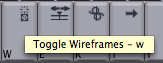 So often that it needs its own dedicated W key? I turned it on once and never turned it off. For 95% of editors I would guess the answer is no. Just think about how often you “toggle wireframes” vs. how often you need to GO TO an OUT point. If you can make going to the out point (a task you might do hundreds of times during an edit) easier and faster then why not do it? The most difficult thing about using a different FCP keyboard layout is that many people bought (or the system came with) a FCP specific keyboard with FCP keycaps. Ditch this keyboard and grab that blank one that came with the system. Having those icons and colors on the keyboard are a crutch anyway when it comes to learning what keys are what. Remember when you took typing or keyboarding class and the teacher wouldn’t let you look at your hands? Same idea here. When you can access the keys on your editing keyboard without looking at your hands then your speed will increase as well.
Here’s how I’ve remapped my FCP keyboard (click over to Flickr for details on the settings):
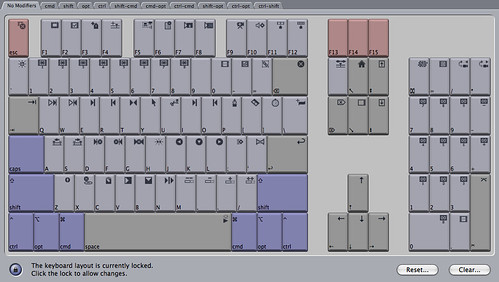
While I have made my FCP keyboard more like my Avid keyboard the default Avid keyboard isn’t perfect either:
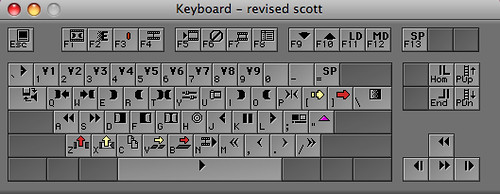
I’ve remapped the entire 1 – 9 keys to mimic how they are on my FCP layout. 1 – 9 toggles video tracks 1 – 9 and Shift + 1 – 9 for toggling audio tracks. Avid has always defaulted toggling video and audio tracks to the 7, 8, 9, 0, – and = keys but that only allows for two video tracks and four audio tracks.  In this day and age how often do you ONLY have two video and four audio tracks? One thing the Avid keyboard doesn’t do is try to associate the first letter of a particular function with the letter on the keyboard. Other than I for IN and O for OUT, that’s about it. If you don’t think about the letters on the keys in relation to their function but look at how they are grouped together then it makes the most sense. FCP’s drag and drop overlays in the Canvas, while nice for beginners, is probably the single most time consuming way to get material into a timeline that exists in an NLE today.
One stroke of genius on the default Avid keyboard was to place two of the most commonly used functions, INSERT and OVERWRITE on the V and B keys, respectively. It seems strange at first but by placing those commands there at the bottom of the keyboard they are directly under your left index finger for very easy and very fast access. Sure V and B don’t make a lot of sense from an easy-to-remember-standpoint but that’s where you can get creative. I heard a funny thing from That Post Show’s creator John Flowers about this very topic. These are easy to remember if you just change the function’s name: VINSERT and BOVERWRITE! I like that. So I propose two new terms in the non-linear editing lexicon:
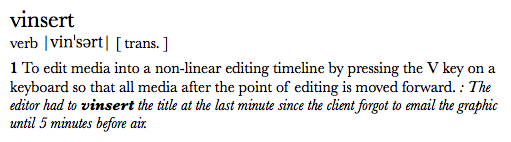
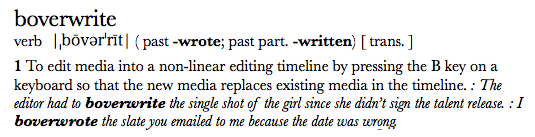
Done. Easy to remember.
The other thing that an editor can do to increase their productivity is to create different keyboard maps for different tasks. Final Cut Pro attempted this by including both their default keyboard layout as well as a Multi-camera Editing layout. This was a good start but the multi-cam layout only changed the numeric keypad. Plus it defaulted to the ‘switch’ camera angles keys. Don’t you usually want to cut to another camera angle when using true multicam style editing as your timeline plays along? Also, they put the camera numbers in the wrong place. Check out this QuickTip for what I think is the more logical arrangement of the keypad for multicam editing. I enjoy different layouts for audio editing, effects work and multicam. If you don’t rely on the color-coded keycaps then you can learn a lot of different keyboard layouts without much trouble.
Since this is a manifesto let me lay out a few ideas for good keyboard based editing:
- Change the default keyboard mappings to something that better suits your working style and the keys you most often use.
- Change those keys to reflect efficiency in editing giving easy, one-stroke, no modifier key access to your most frequently used commands.
- Don’t rely on the first letter of a particular command when assigning commands to the keyboard.
- Set up multiple keyboard mappings for different types of tasks.
- Ditch your key-cap, color-coded editing keyboard in favor of a plain keyboard in order to learn where your keys really are so you do not rely on the keyboard icons.
Lastly, a long time ago I posted my newly created Avid-like FCP keyboard layout on Flickr, complete with notes as to what the keys do. The Avid keyboard is there as well. I then forgot about it. Since then there have been a number of comments asking for me to email them this FCP keyboard layout. Instead I’ve posted the FCP keyboard layout file here for anyone who wants to give it a try. Keep in mind that this is a layout that is perfect for ME. It can (and should) be changed to meet your specific needs and make your own workflow as efficient as possible. For example, I remapped the default SNAPPING toggle button from N to H as I wanted the Play Around Current on the N key. In hindsight I should have just put Play Around Current on the H key but I’ve been using it the other way for so long that I don’t want to change it now. So use the layout as is or feel free to tweak it to your liking.
If you give it a chance and remove the mindset that the FCP default is best you will come to love the meat of this keyboard layout. The beauty of it is that it is still so customizable. All of the F keys are meant to be mapped to your favorite, frequently used keys. And there’s always my friend F13 to map to whatever command needs easy access to at the moment. Give it a try, spread it around. Just remember, there’s really only one perfect keyboard layout, the one that makes you as an efficient editor as possible.